User Guide
30
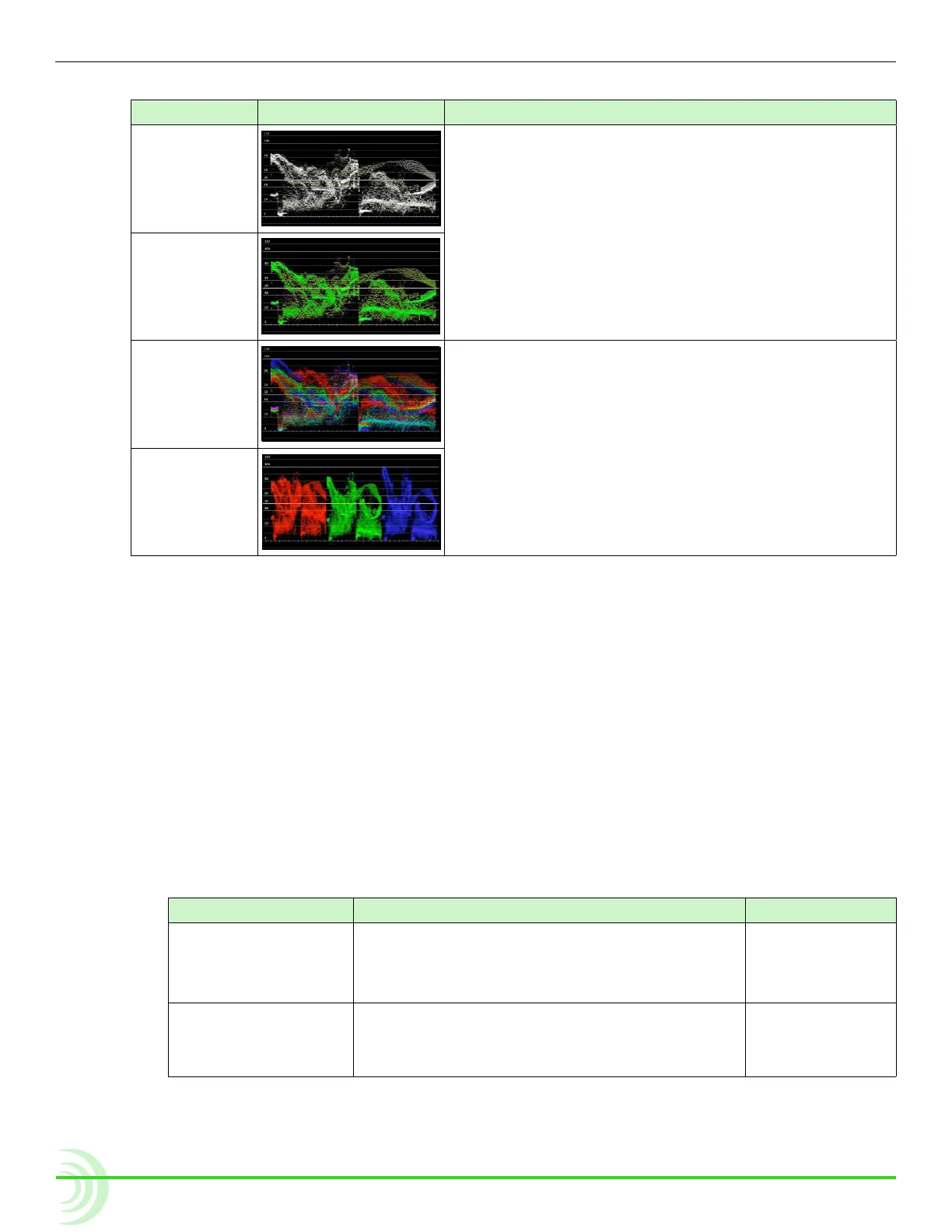
The following table provides illustrative examples for each of these modes:
type exaMpLe Description
Luma (white) Displays luminance only trace in white or green.
Use to:
• accurately set exposure for skin tone where typical
range is 45% (darker tones) to 60% (lighter tones).
• help to set consistent background lighting. For ex-
ample, a uniform background lighting will appear as
an approximately at horizontal trace from left to
right.
Luma (green)
RGB Overlay Displays red, green, and blue (RGB channels) color in-
formation overlaid one over another or horizontally, one
after another: red, green, and then blue.
Use to:
• check if RGB levels are clipping. This information
may not show up in Luma mode.
• check white balance. RGB levels should be the
same.
• check adequate separation between green, red and
blue for green screen shots.
RGB Parade
To view/hide the waveform monitor:
X Press the WFM soft key button.
The button is a toggle, so pressing it a second time turns off waveform.
To adjust percentage of intensity (trace brightness) of the WFM:
X While viewing the WFM, rotate the Control knob. The level is
displayed on screen next to the Control knob.
To adjust waveform monitor settings:
1. Press and hold the WFM soft key button. The WFM menu appears.
2. Use the touch screen or Control knob to change settings.
setting Description options
Waveform Type The type of waveform monitor to display. • Luma (white)
• Luma (green)
• RGB Overlay
• RGB Parade
Background Video
Contrast
The contrast level of the background video
when monitor is displayed. The default is 35%.
i For a black background, adjust to 0%.
• 0% - 100%



 To Next Page