User Guide
8
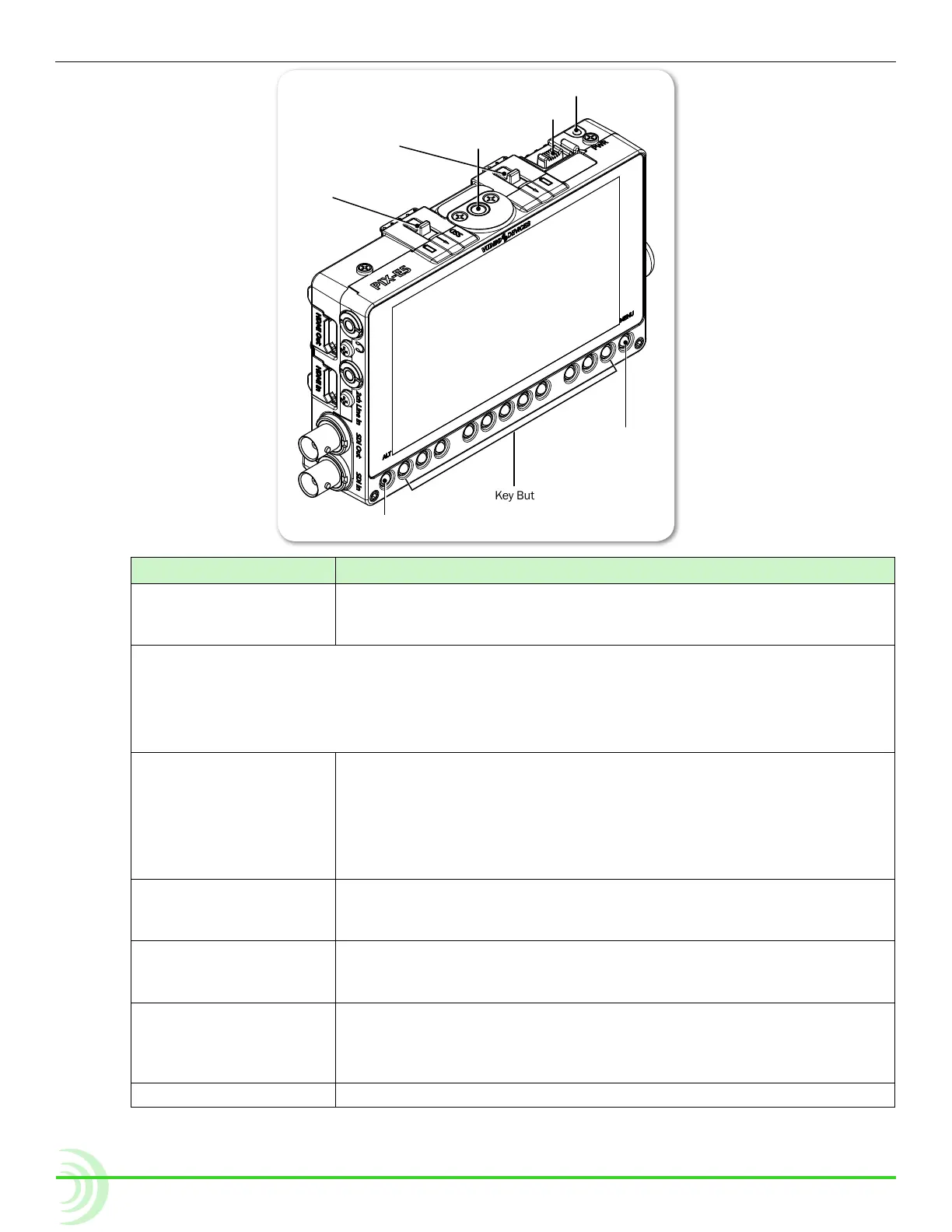
ALT Button
Power Switch
Power LED
Mounting Point
Right
Retainer Clip
Soft Key Buttons
MENU Button
Left
Retainer Clip
LCD
Feature Description
Power Switch & LED Slide the Power switch to the right to turn on the device. While power
is on, the LED will illuminate green. When power is rst turned on, a
splash screen with the Video Devices logo will appear on the LCD.
i PIX-E monitors have a very powerful processor and operating system, so it takes up to 45 seconds
to boot the rst time. However, the QuickBoot™ feature reduces subsequent boot times to just a
few seconds. QuickBoot is enabled for two hours after powering down the monitor. Each time the
monitor is turned off, this timer is reset. During this time, boot times are reduced, but after two
hours, QuickBoot is deactivated and powering on the monitor will result in a normal, longer boot
process.
Retainer Clips The retainer clips snap into place to securely hold batteries and/or
the SpeedDrive™ to the back of the monitor. The right clip, labeled
with a battery icon, secures the right L-mount battery; the left clip,
labeled SSD, holds both the SpeedDrive and the left L-mount battery.
Depress the spring-loaded retainer clips toward the front of the mon-
itor to release the drive and batteries.
Mounting Point Centered on the top and bottom panels, a 1/4-inch, 20 threaded,
stainless-steel mounting point may be used to attach the monitor to
a camera or other production gear, such as the PIX-ARM.
LCD 5-inch LCD touch screen. 1920x1080 pixel resolution. Displays the
user interface, source video, and playback video, as well as operating
information when the on-screen display is active.
ALT Button Toggles alternative functions for the Soft Key buttons. It may be
used in combination with the Control knob to reset a setting to its
default. it may also be used to exit various screens and return to the
live video screen.
MENU Button Displays the Main menu. May also be used to exit various screens.


 To Next Page