17
2.2. Main menu
To access the main menu of your box, press the ‘home’ button on your remote control.
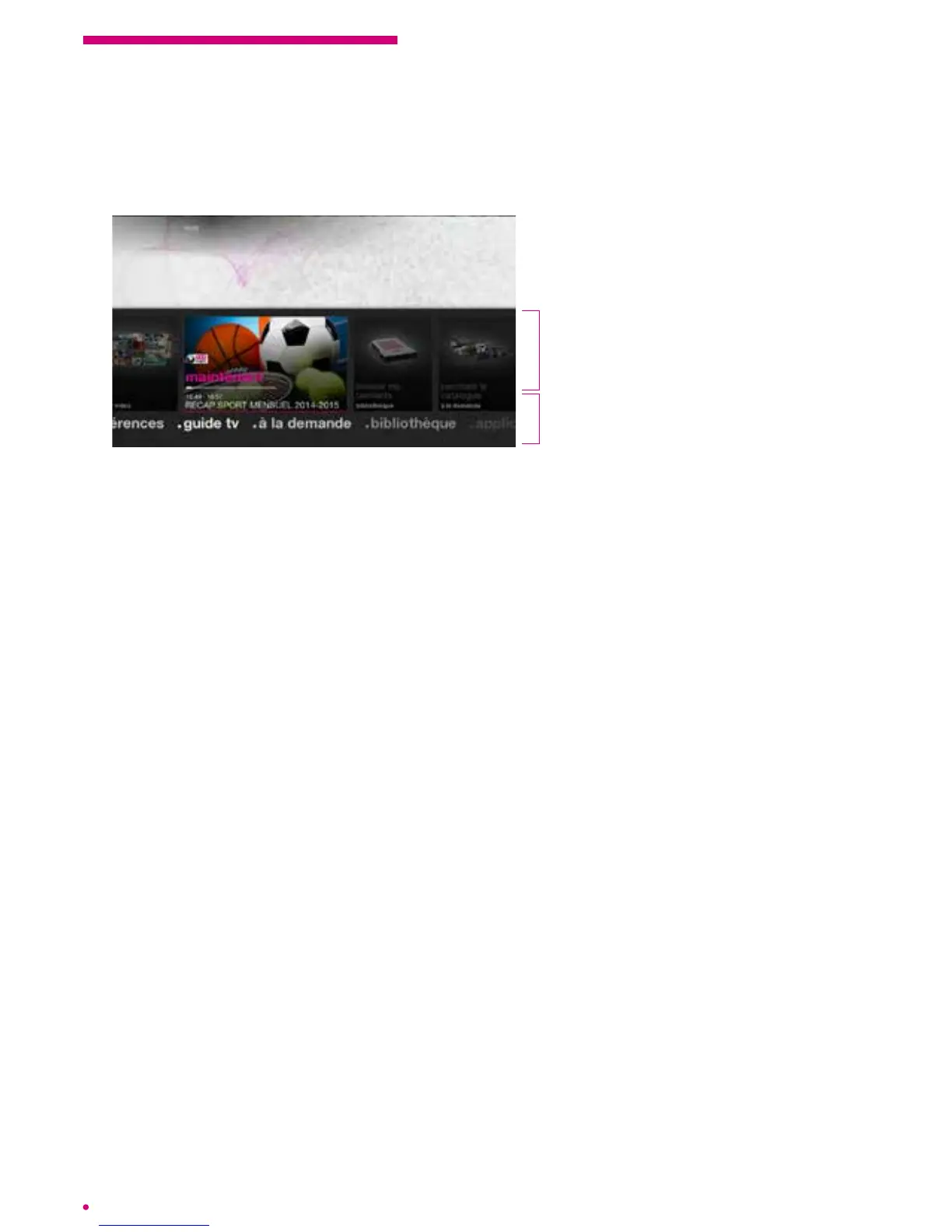
The main menu of your box comes in two distinct parts:
1. Top: a selection of shortcuts
to the most frequently
used services
2. Bottom: full menus
of your interface
Upper part
This part presents the current programme information and gives you direct access to
aselection of services offered by the box.
It dynamically provides shortcuts to the most frequently used menus or new
availablecontent.
You can navigate horizontally to select content, information or a service provided in this
section. Then simply press ‘ok’ to access the service or the desired content.
Example: You can select the shortcut to your last recording. Your box then offers you a chance to watch
itagain from the beginning or resume playback if you had already started.
You will also have an overview and direct access to your recordings, your purchases,
your messages, and the ‘on demand’ offers and applications.
Lower part
This part is static, i.e. its content and structure do not change dynamically as is the case
for the upper part.
It presents all the menus and submenus, and the services and content.
You enter the lower menu by pressing the arrow on the bottom of the navigation keypad
of your remote control. The ‘TV guide’ menu is selected and you see the proposed
submenus appear.
You navigate horizontally in the main menus of your box using the left and right arrows
on the navigation keypad. You access the submenus by pressing the arrow on the
bottom of your navigation keypad.
Just press ‘ok’ to access the menu or submenu selected.


 To Next Page