36
Keyword search
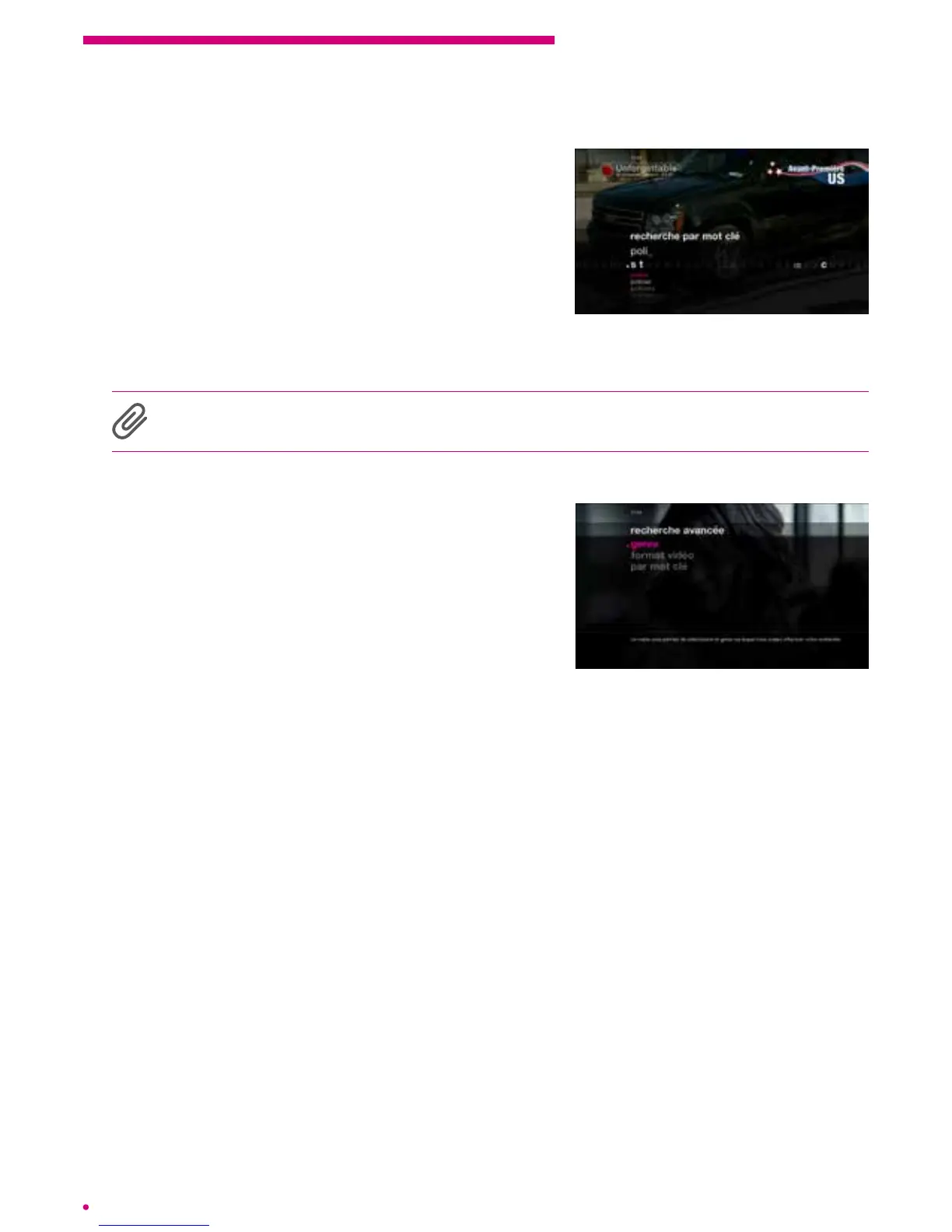
The keyword search is very simple, just type in
your search criteria using the letters shown on the
screen. To do this, navigate from left to right to the
letter or character of your choice using the central
navigation keypad of your remote control.
Then press ‘ok’ to validate the letter of your choice.
To make navigation easier, the box will make
unavailable all letters not included in the keywords available in the catalogues.
Proposals are automatically made by the search engine as you enter your keyword.
The keyword search does not take into account compound words. You will nd the
keyword you want to enter in the proposals that appear as you type in your search.
Advanced search
The advanced search allows you to rene your
search criteria by title, actor or genre and to specify
the catalogue in which you want to search, and the
desired video format (SD, HD or 3D).
3.12 Subscription
How to subscribe to new channels/new bundles from your box?
When you land on a channel that is not part of your subscription, depending on the
channel or bundle, the box will prompt you to subscribe directly via your TV interface
orto call 0800 43 930.
To order a channel or a bundle via the interface of the box, you must conrm or modify
your email address and you will need to conrm your order with your purchase code.
Subscription via the purchase code is equivalent to signing a contract, and a copy
thereof will be sent to the email address you have given.
Your channels will be available within 15 min. after conrmation of your order.


 To Next Page