16
chapter 2 Interface Overview
2.1 How to navigate using the remote control
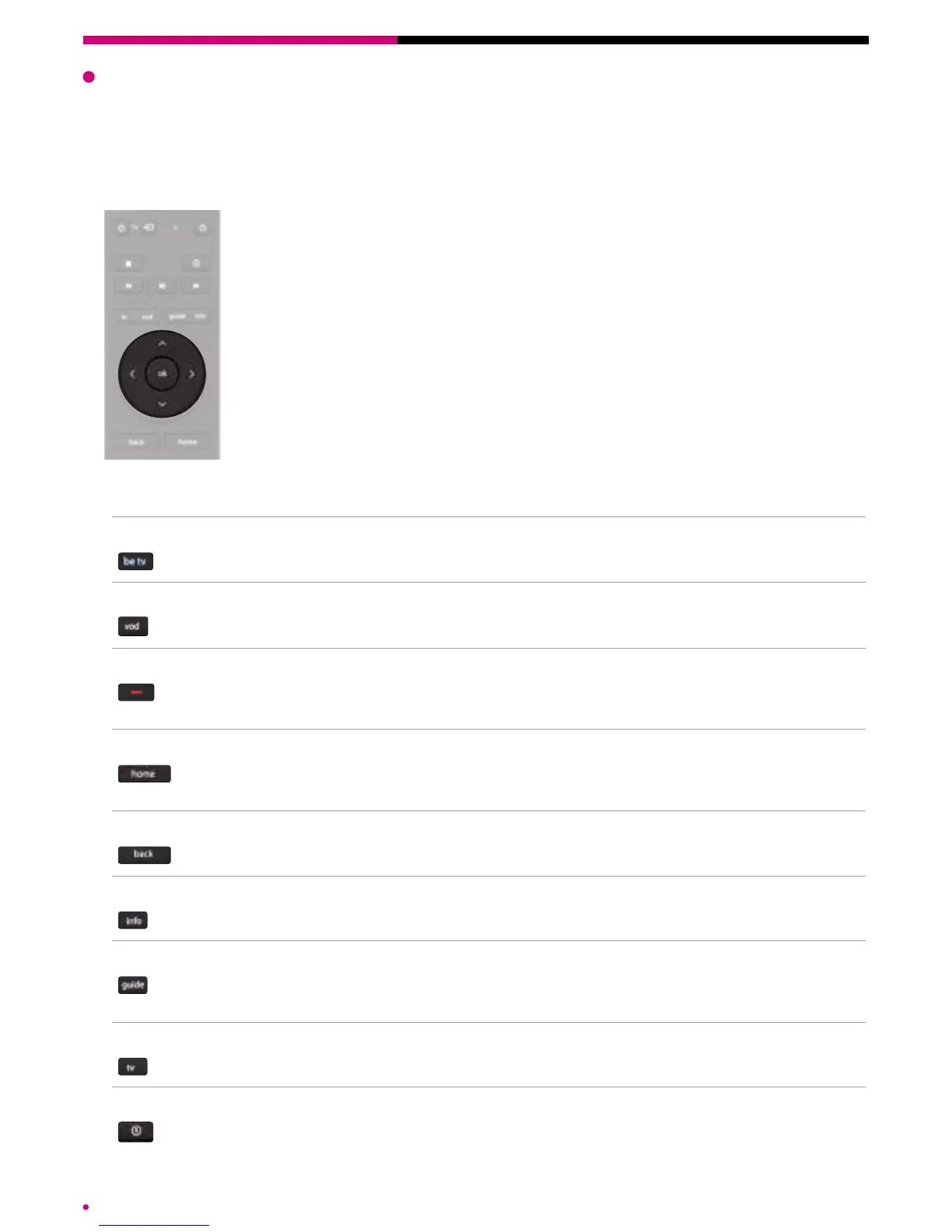
Central keypad
Your remote control has a central keypad allowing you to navigate in all
the interfaces of your box. This keypad is in the centre of the remote
control and allows you to navigate up, down, left and right. As you
navigate, the items you pass over will be selected.
The selection of a graphic element is conrmed when a pink line appears
underneath. The selection of a text element is conrmed when the text
turns pink.
To conrm a selected item, simply press the ‘ok’ button in the center
ofthe navigation keypad.
Shortcuts
direct access to Be tv
To automatically go to the Be 1 HD channel.
VOD
To go directly to the ‘on demand’ section of your interface
red button
To be directed to the video on demand catalogue or to an application of
your current channel. This button is only functional on a limited number
of channels.
home
To open the main menu of your interface. This menu gives you
access to a set of shortcuts to the .évasion services and all the
availablemenus.
back
To go back one step back in a menu.
info
For more information about the selected item.
guide
To access the programme guide in horizontal format.
For the ‘listings’ version of the programmes or the video wall, you must
go through the guide menu of the Home screen (home, guide).
tv
To go to the live broadcast of your current channel with no other
element of the interface.
recording
To automatically start recording the programme selected in the
‘TVGuide’ or ‘mini-guide’.


 To Next Page