29
Locking a recording
You can lock a recording so it is not viewable by everyone. The parental code will be
required to request recording.
To lock a recording, press ‘ok’ to display the action menu and select ‘lock’. Proceed in
the same way to unlock.
Managing a recording conict
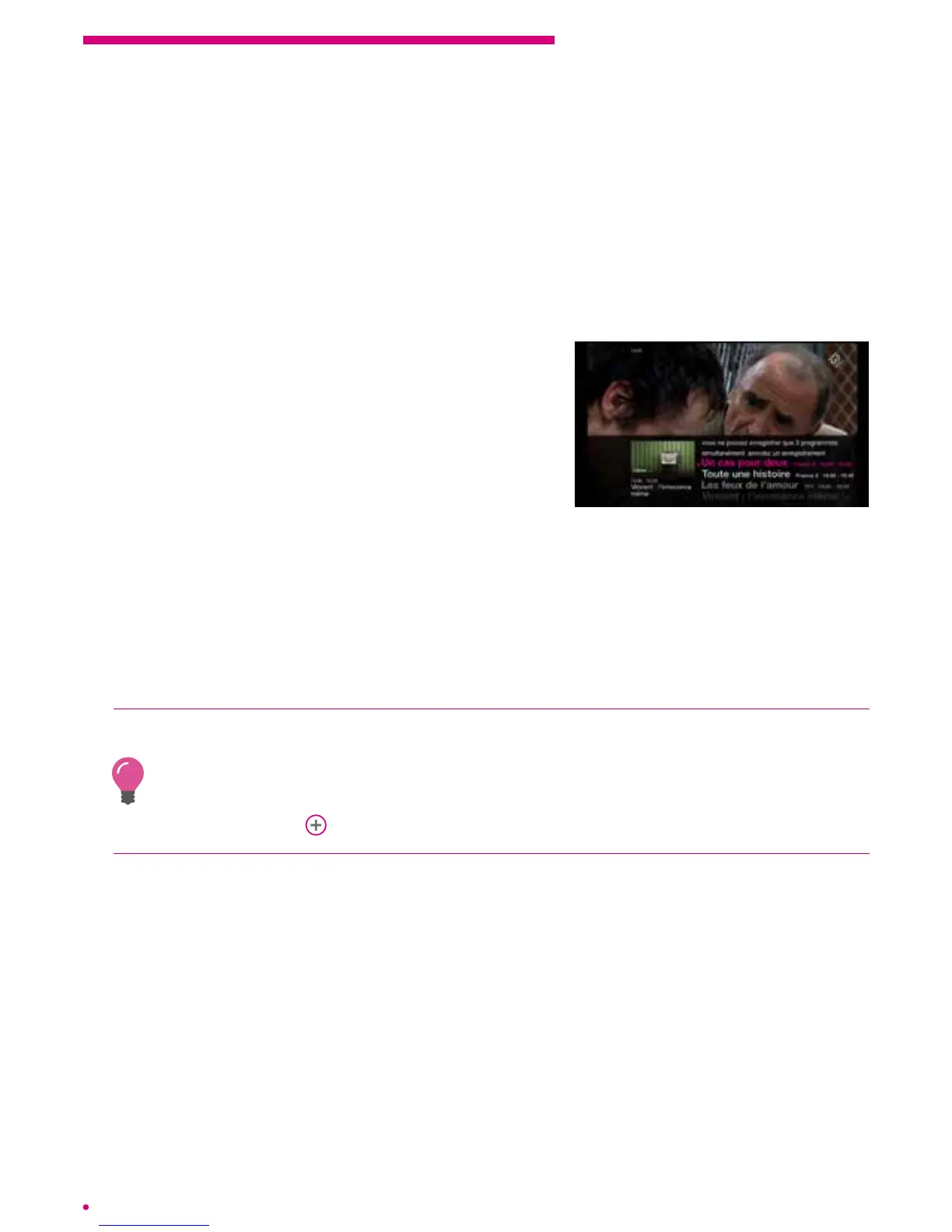
The limit of simultaneous recordings is reached
You can record up to three programmes
simultaneously. If you programme a 4
th
recording,
your box will ask you to choose among your
four requests that which you want to stop or the
programming you wish to cancel.
Once you have selected the programme you no
longer want to record, the other 3recordings are automatically conrmed.
Lack of available disk space
By default, if you schedule a recording that cannot be completed due to lack of space
on your hard drive, your box offers you the opportunity to automatically cancel the
least important recordings. In this case, your box will delete the oldest unprotected
recordings until there is enough space to perform the desired new recording.
You can ask your box not to automatically delete unprotected programmes to manage
conicts of disk space. To do this, go into the recording settings and choose ‘manual disk
space management’.
In this case, your box proposes to delete your own recordings to free space for the new
desired recording.
p.42
Cancelling a recording
You can always cancel a recording in progress or scheduled.
Cancelling a recording in progress
Select the current programme and press ‘ok’ on your remote control to display your
action menu. Select ‘stop recording’ to cancel it automatically.


 To Next Page