When you select time by dragging the cursor, the cursor cannot be moved out of the time
area. Otherwise, no time can be selected.
Method 2:Click in the record schedule page to select the whole day or whole
week.
Step 5 Deleting record schedule: Click again or inverse selection to delete the
selected record schedule.
Step 6 Click Copy and select channels, then click OK to apply the record
management settings to cameras in selected channels , click Apply to save
settings.
----End
6.2 Disk
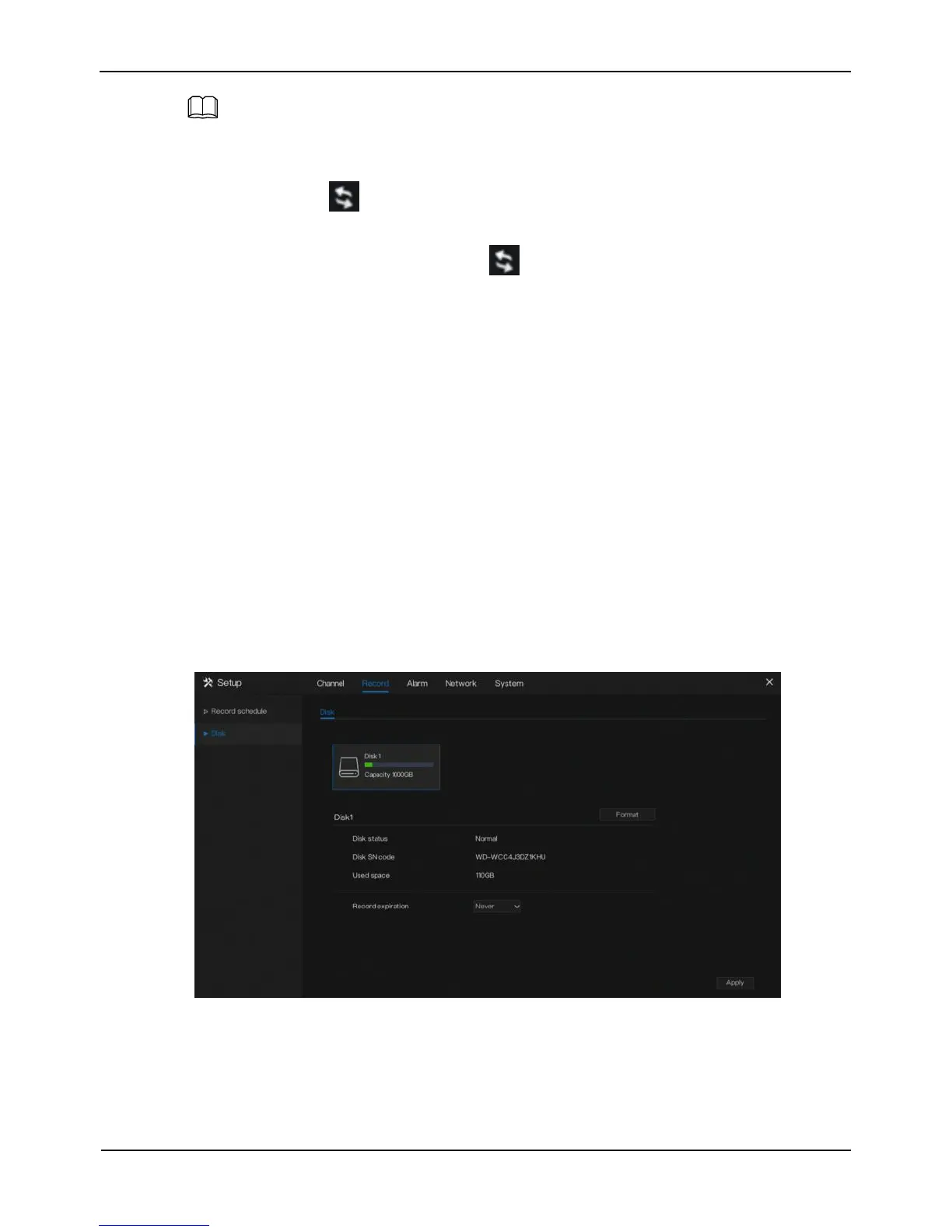
View the total capacity of disk, disk status, disk SN code and storage space of disk and
format the disk.
Operation Description
Click Record in the main menu or menu of the record screen and choose Disk to
access the disk screen, as shown in Figure 6-2.
Figure 6-2 Disk screen
Format disk:
1. Click Format. The message “Are you sure to format disk? Your
data will be lost” is displayed.



 To Next Page