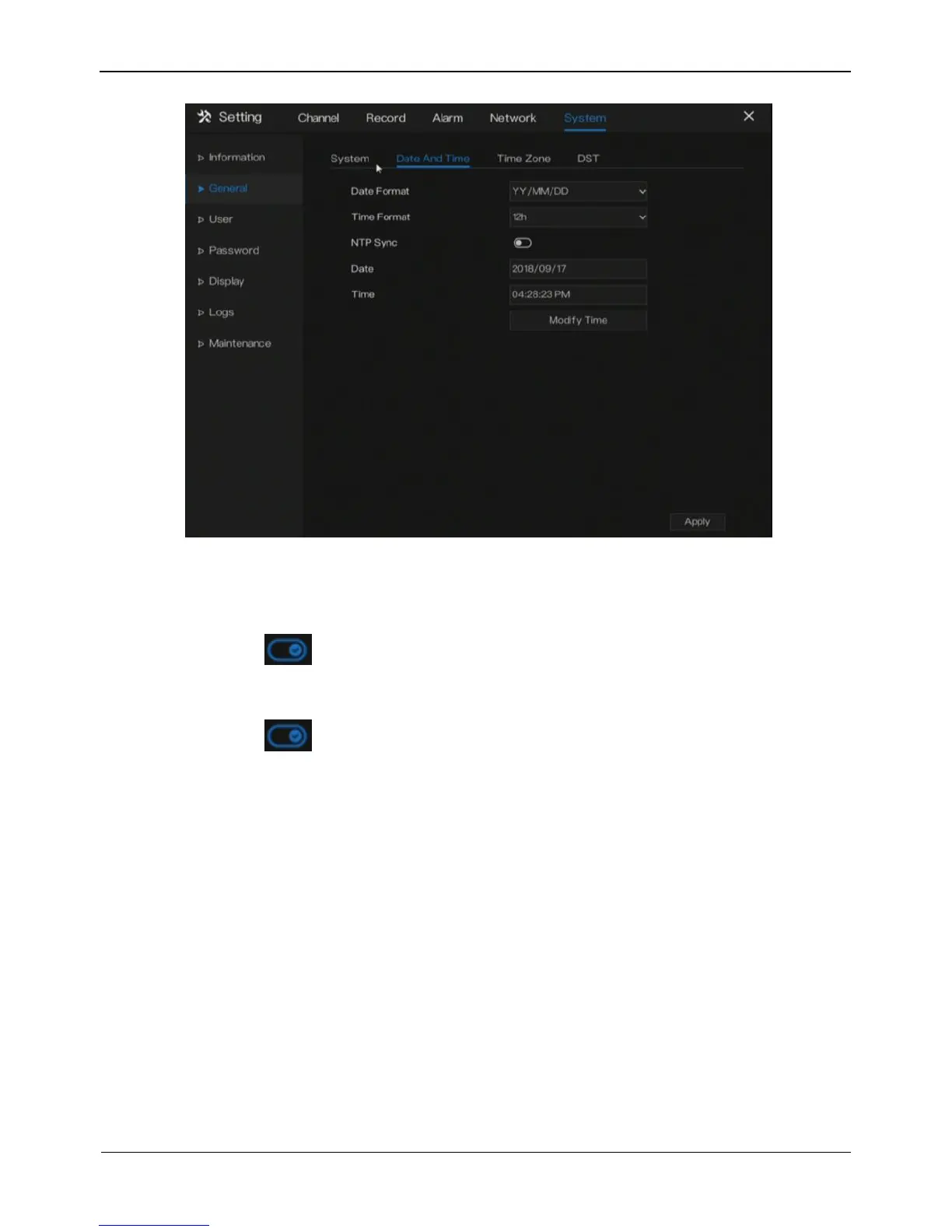
Figure 9-3 Time setting screen
Step 2 Select a required date format from the Date Format drop-down list.
Step 3 Click next to 24 Hour to disable the 24-hour system. Then, the 12-hour
system is enabled. If 24 Hour is set to On, the 24-hour system is used and is
enabled by default.
Step 4 Click next to NTP Sync to disable time synchronization. Time
synchronization is enabled by default. Time is synchronized with the PC time.
Step 5 After NTP Sync is disabled, you can manually set the system time:
1. Click Date and scroll the mouse scroll wheel to select the year, month, and date.
2. Click Time and scroll the mouse scroll wheel to select the hour, minute, and
second.
3. Click Modify Time to save the time settings.
Step 6 Click Apply to save settings.
----End
9.2.3 Time Zone
Operation Steps
Step 1 Click Time zone page to access the time zone setting screen, as shown in Figure 9-
4.


 To Next Page