6
7.INTERFACE SYSTEM
7.1 Interface Operation
Touch the printer display with your Fingertips.
• Enter into the Main interface after Post.
• There is a question mark icon in the upper right corner of each interface, this is the help
button, you can touch the button, it will show you the functions of icons in the current
interface.
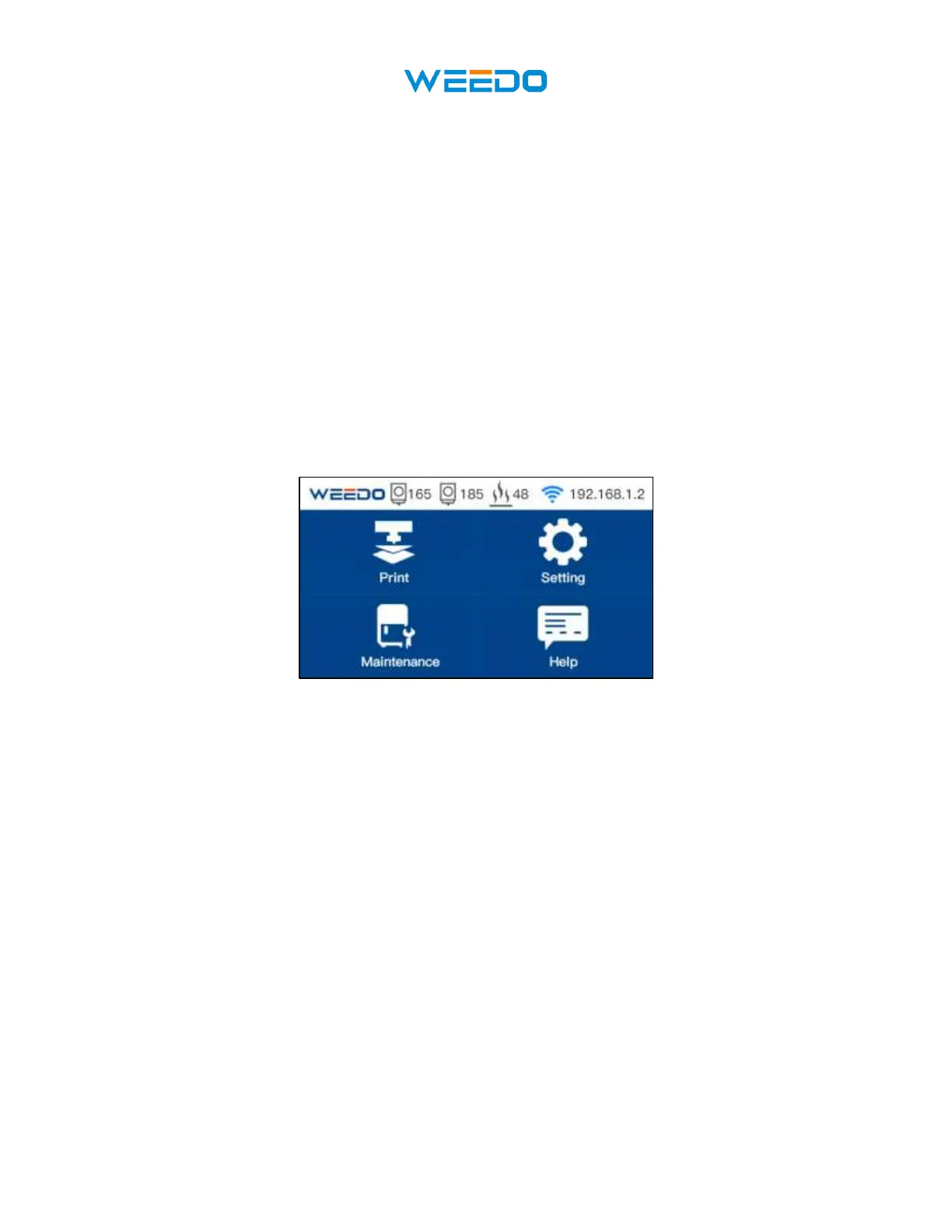
• In the Main interface there are four icons, you can touch different icons to get into sub-
interface.
• You can click the Back Button to return to the previous interface.
• You can click the Next Button to go to the next interface.
7.2 Main Interface
• Status Bar: Displays the printer information screen, include: Left Nozzle Temp, Right
Nozzle Temp, Bed temp, IP address.
• Print: Click Print Button and get into Printing File interface, display a list of TF Card
or WIFI Disk, choose the file position you want to print.
• Setting: Click the Setting Button get into sub-interface. There are WIFI Setting,
Language Setting, Machine Info, Auto Power Off, Runout Sensor, Post, Power Save
Mode, Update Parameters Buttons.
• Maintenance: Click the Maintenance get into sub-interface. There are Filament Feed,
Filament Retract, Preheat, Jog Mode, Level Bed, Z Offset, Proximity Height, Nozzle
Offset Motor Off Buttons.
• Help: Error Diagnosis, WIKI and Contact Us in Help Interface.


 To Next Page