46
o User Specified: This option allows you to specify the X and Y start/stop location,
which determines where the Z Seam will appear.
o Random: With this option, the printer will randomly choose the start/stop location,
which prevents building a column.
o Sharpest Corner: The start/stop location and the Z Seam will appear in the sharpest
corner of the model.
• Z Seam X (mm): This option is the X location of the Z Seam. This option can only be set
when the Z Seam Type is set to User Defined.
• Z Seam Y (mm): This option is the Y location of the Z Seam. This option can only be set
when the Z Seam Type is set to User Defined.
• Hiding Seam Preference: This option is only available when the Z Seam Type is set to
Sharpest Corner. It determines whether the Z Seam will be on the inside or outside of
the corner.
• Z Seam Relative: Checking this box will set the Z Seam in respect to the object's center,
whereas leaving the box unchecked will set the Z Seam along the absolute position on the
build plate. This option is only available when the Z Seam Type is set to User Defined.
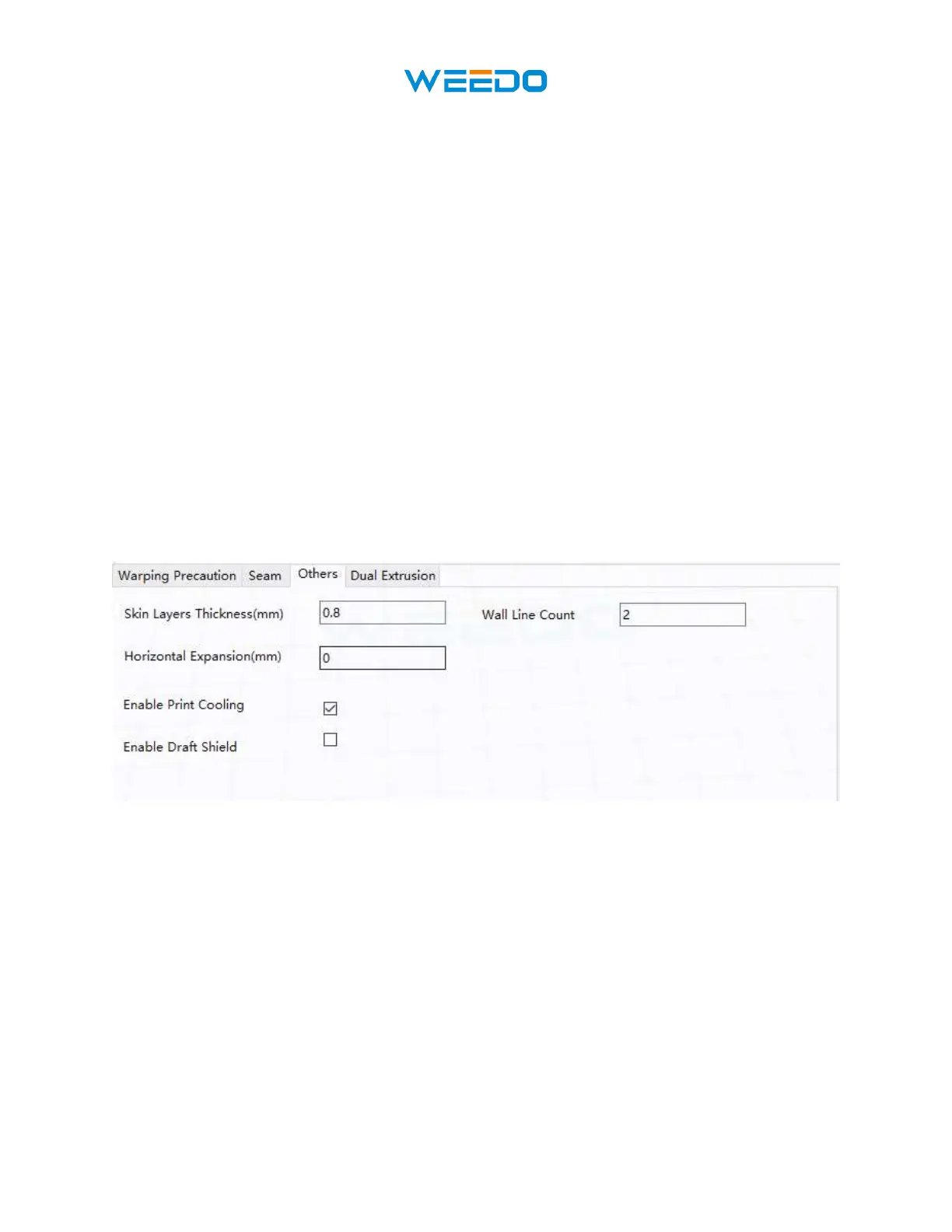
8.15 Others Tab
Pic80
• Skin Layers Thickness (mm): This option determines the thickness of the top and
bottom skin layers.
• Horizontal Expansion (mm): Thermoplastics tend to shrink when cooling. This option
allows you to fine tune the part size to offset shrinkage for prints that require tighter
tolerances.
• Skin Alternate Rotation: Typically, a 3D printer will print solid layers for the top and
bottom layers. When doing this, it changes direction 90 degrees from layer to layer. This
setting changes that behavior to add an additional 45 degrees of rotation every two layers.
The following images illustrate the normal print direction of the first three layers.


 To Next Page