14
2GIG EDGE User Guide
Notications
There are three (3) types of messages that arrive as
Notications: Alerts, Alarms, and Messages.
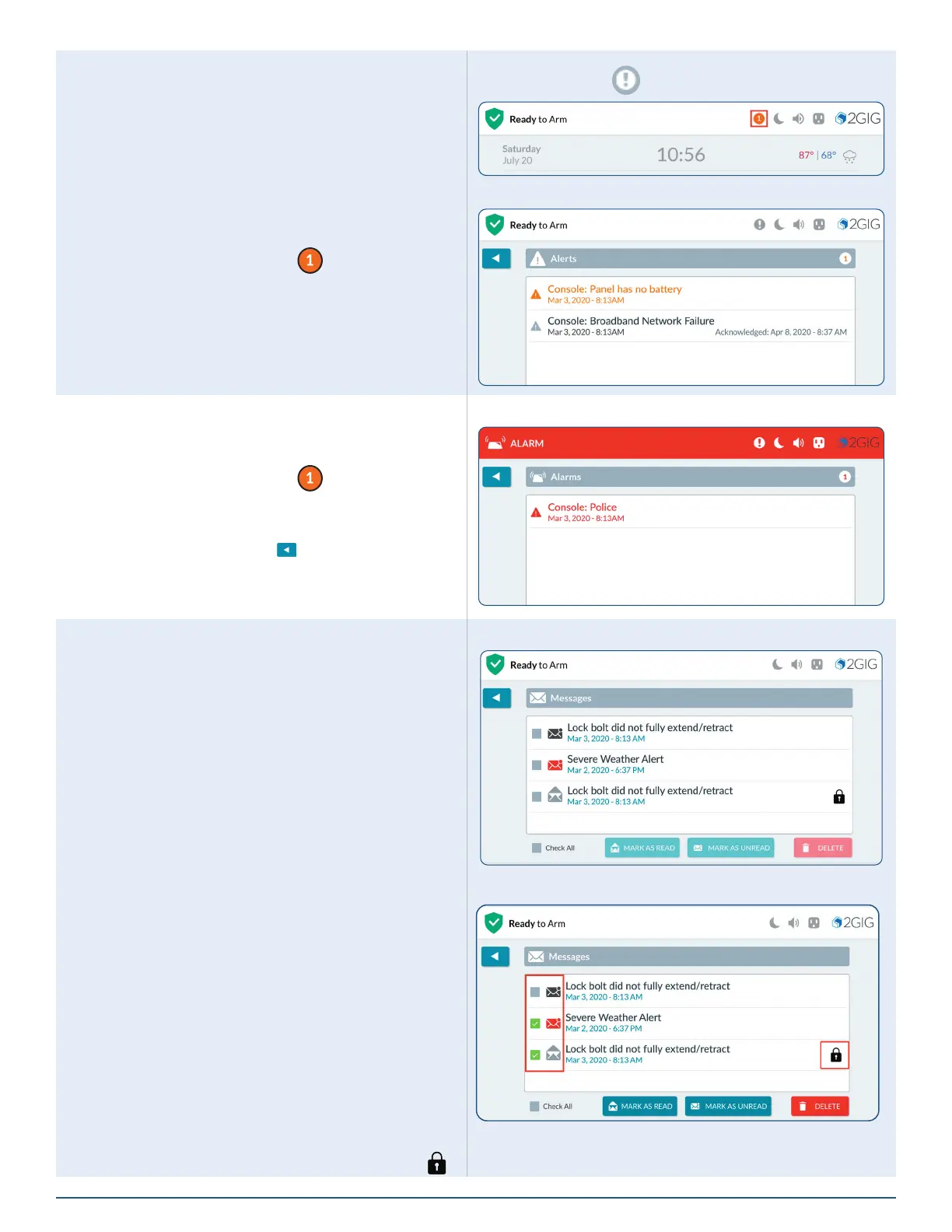
The Notications system produces an icon at the top
of the screen that blinks and shows the number of new,
unread messages. New messages are accompanied by
beeps, once every minute until the message is read.
To read an alert message:
1. Tap the Notication icon (
).
2. In the drop-down menu, tap Alerts. The system
reveals the alert messages.
Notications Icon
Unread Messages > Alert Messages
Acknowledging an Alarm Message
If the system goes into an alarm state, a message is
sent to the Inbox. To view an alarm message:
1. Tap the Notication icon (
).
2. In the drop-down menu, tap Alarms. The system
reveals the alarm messages.
3. Press the back button ( ) to return to the
previous screen.
Unread Messages > Alarm Message
Reading Incoming Messages
Your security provider has the ability to transmit
messages about the installed 2GIG EDGE system.
When transmitting messages to the system, your
security provider can:
»
Mark a Message as Public (read by any user)
or Private (opened only by users who know
the Master User Code).
»
Classify a Message as High Priority
(ORANGE) or Low Priority (BLACK).
»
Specify When or If Messages Expire: There
is no limit to the number of messages in the
Inbox, but expired messages are automatically
removed from the Inbox.
To read messages sent by your security provider:
1. Tap the Notications icon.
2. In the drop-down menu, tap Messages. Before
opening the message, it helps to understand the
following:
»
Messages in BLACK indicate Low priority.
»
Messages in ORANGE indicate High priority.
»
Messages in RED indicate an Emergency.
»
Messages in GREY indicate that the message
has been opened.
»
A Lock icon indicates a Private message ( ).
Messages > Reading Messages
Messages—Priority and Security



 To Next Page