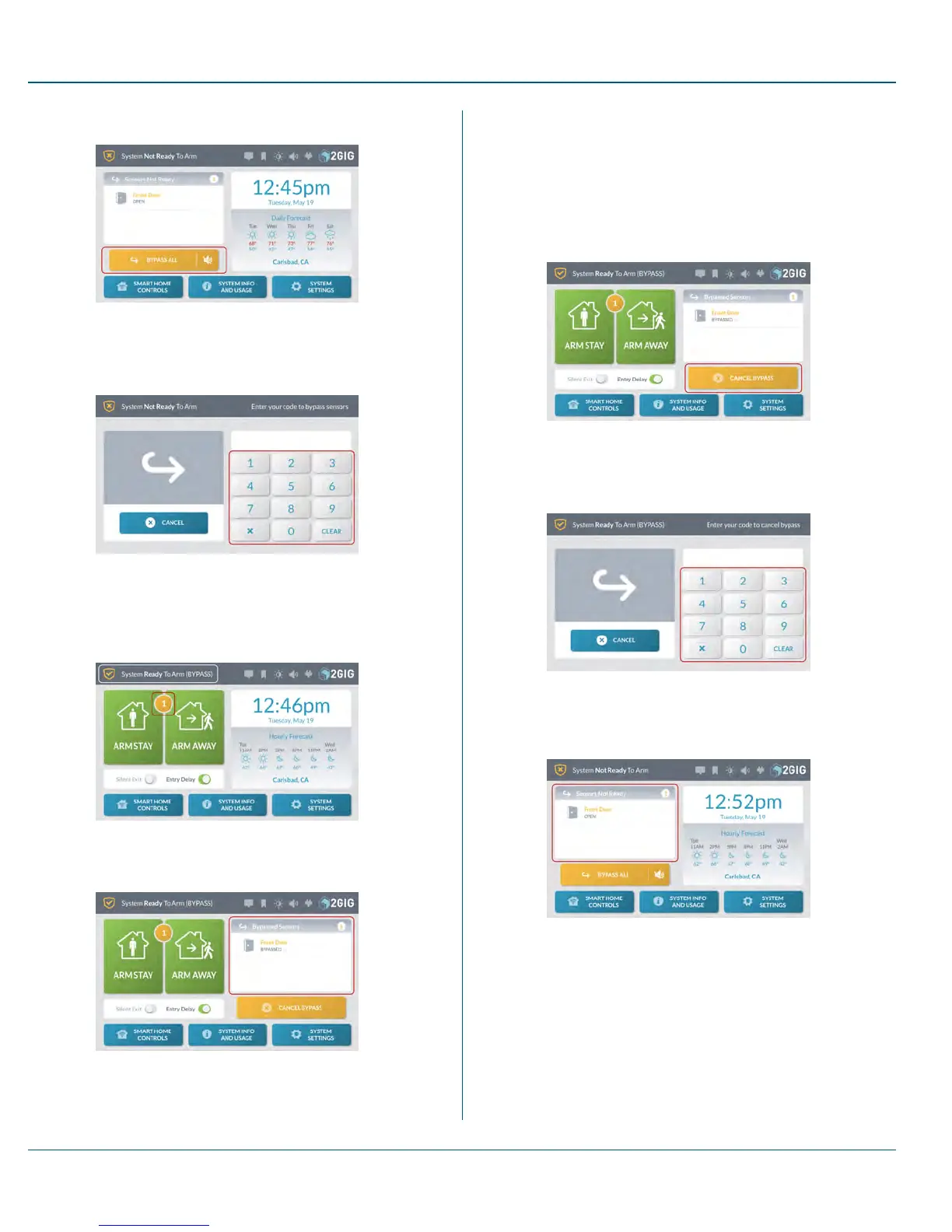
1. Below the Sensors Not Ready list, tap Bypass All.
Figure 3 Sensors Not Ready >Bypass All
2. At the Enter Your Code to Bypass Sensors screen, enter an
active, four-digit user code.
Figure 4 Enter Your Code to Bypass Sensors
3. When the system status message changes to System Ready to
Arm (BYPASS), tap the YELLOW icon in the center of the arming
buttons.
Figure 5 System Ready to Arm (BYPASS)
This opens the Bypassed Sensors list.
Figure 6 Bypassed Sensors List
You can now arm the system. See "Arm the System" on page 31.
Canceling a Bypassed Sensor
To remove a sensor from the Bypassed Sensor list:
1. Below the Bypassed Sensors list, tap Cancel Bypass.
Figure 7 Bypassed Sensors >Cancel Bypass Button
2. At the Enter Your Code to Cancel Bypass screen, enter an
active, four-digit user code.
Figure 8 Enter Your Code to Cancel Bypass
This changes the system's status back to System Not Ready to
Arm and moves the sensor to the Sensors Not Ready list.
Figure 9 System Not Ready to Arm—Sensors Not Ready List
Use the Quick ExitButton
The Quick Exit button gives users the ability to start an Exit Delay
countdown while the system is armed. This gives users the ability to leave
the premises through an Exit/Entry door, instead of having to disarm and
then rearm the system. When the Allow Quick Exit setting is enabled, the
Quick Exit button appears on the SystemArmed screen.
4 Burglary Protection Proprietary &Confidential
33 Copyright © 2015 Nortek Security &Control LLC



 To Next Page