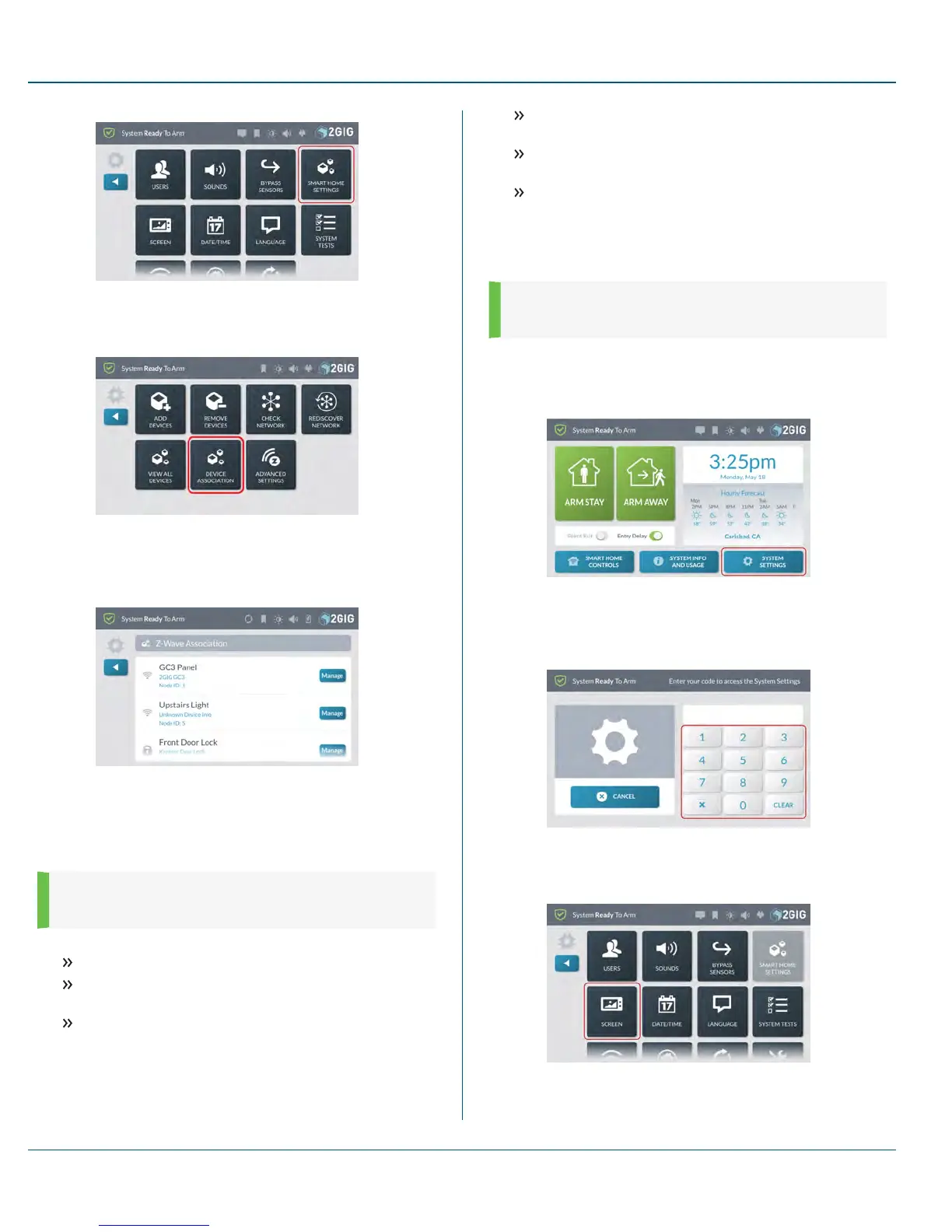
Figure 22 System Settings—Smart Home Settings
4. At the Smart Home Settings menu, tap Device Association.
Figure 23 Smart Home Settings—Advanced Settings
5. At the Z-Wave Association screen, tap the Manage button
next to the device that will act as the controller.
Figure 24 Z-Wave Association—Manage
6. Select the Group for the association.
7. Select the devices to be associated with the controller device and
tap 3.
NOTE: Refer to device documentation for information about
the association groups supported by the device.
The following association groups are available in the GC3 Panel:
Group 1: Lifeline Maximum number of nodes supported: 20.
Group 2 Armed (On): Maximum number of nodes supported:
20.
Group 3 Armed (Off): Maximum number of nodes supported:
20.
Group 4 Disarmed (On): Maximum number of nodes
supported: 20.
Group 5 Disarmed (Off): Maximum number of nodes
supported: 20.
Group 6 Alarm: Maximum number of nodes supported: 20.
Screen
Use the Screen feature to adjust the screen brightness, dim brightness,
backlight timeout, and to place the touchscreen into clean mode.
NOTE: This feature is PIN-protected. To use this feature,
you must know the four-digit Master User Code.
Navigating to Screen
1. At the Home screen, tap System Settings.
Figure 25 Home Screen >System Settings
2. At the Enter Your Code to Access the System Settings
screen, enter an active, four-digit user code.
Figure 26 Enter Your Code to Access the System Settings
3. At the System Settings menu, tap Screen.
10 SystemSettings Proprietary &Confidential
75 Copyright © 2015 Nortek Security &Control LLC



 To Next Page