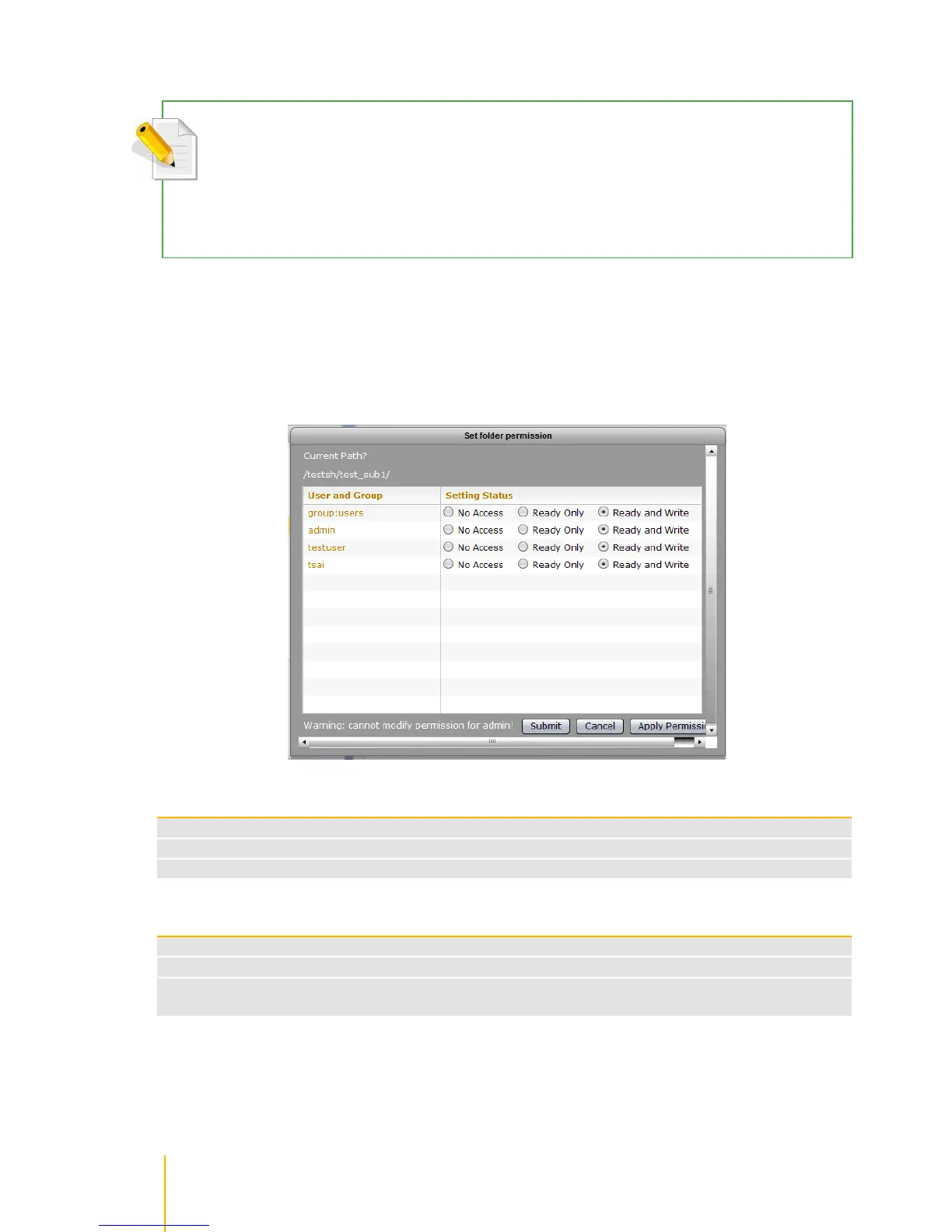
Set Folder Permission
NOTE: User needs to have read and write permission to the share folder and the sub-folder itself in order to set
the permission on the sub-folder.
NOTE: Admin and user cannot set the permission of the share folder (top level share folder) in File Manager.
Admin can do this in actiNAS GUI Storage/Share Share/Security. Only sub-folders created under the share
folder can be set.
To set the permission on a folder or sub-folder:
1. Select the folder or sub-folder whose permission will be set, then select Folder menu and click
Set Folder Permission.
2. The Set folder permission window will be displayed. Modify the permission as needed.
Use this button to propagate the current ACL (access control list) from the selected folder
into all sub-folders and files under it.



 To Next Page