Chapter 3: Building Your Storage Space ● 39
By default, Adaptec Storage Manager automatically sets the size of the logical drive and
maximizes the capacity of the disk drives you select. (To set a custom size for the logical
drive, see Step 9.)
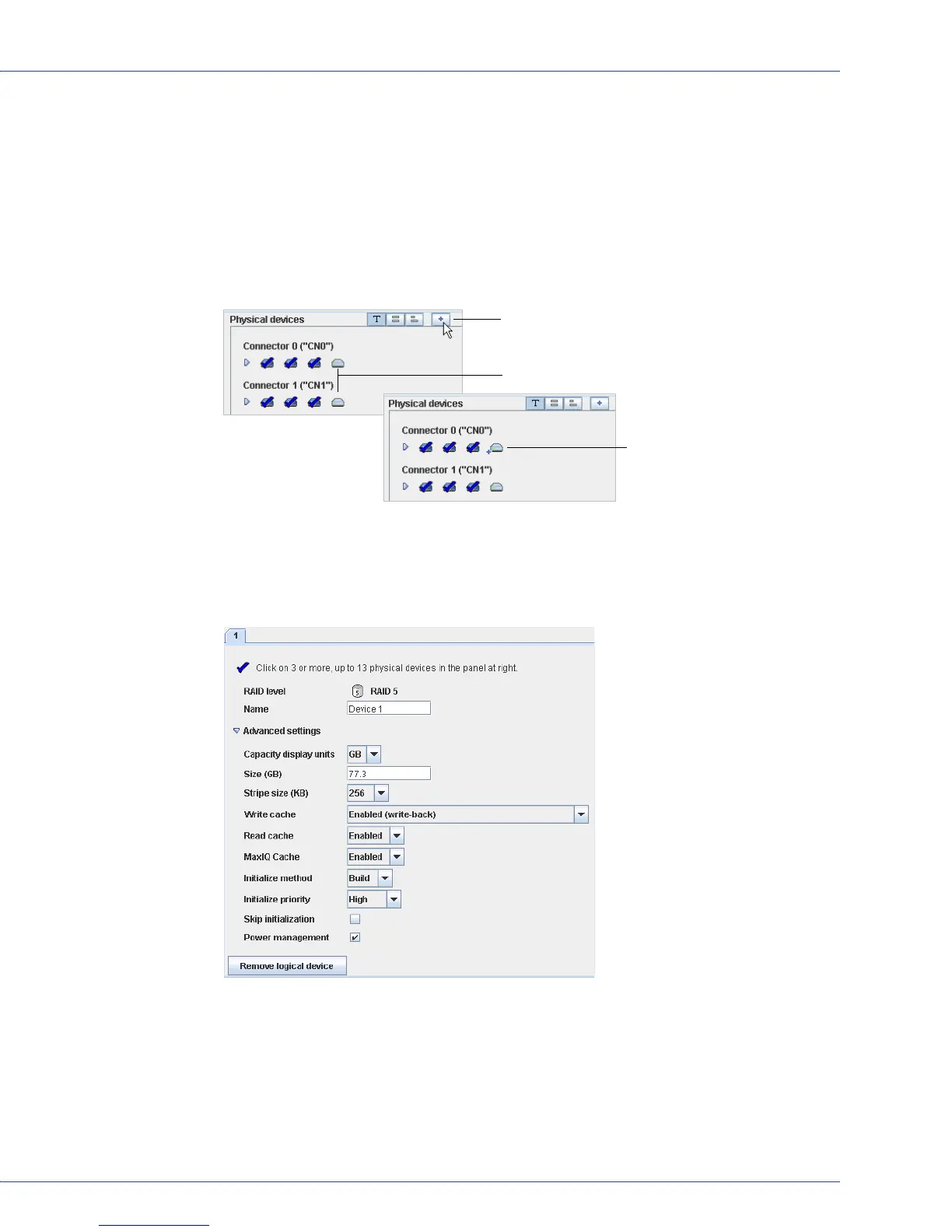
8 (Optional) Create a global hot spare by clicking the Create Global Hot Spare button, then
clicking on an available disk drive. (Alternatively, Ctrl+click an available disk drive.)
Available disk drives are represented by light blue icons.
A plus sign (+) appears to indicate that the selected disk drive will be a hot spare. (To
remove a hot-spare designation from a disk drive, Ctrl+click it.)
See Creating and Managing Hot Spares on page 54 for more information.
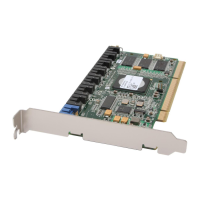
9 (Optional) To set a smaller logical drive size or modify other settings for this logical drive
click Advanced Settings, then customize the settings as required. See Fine-tuning Logical
Drives on page 63 for more information.
Create Global Hot Spare button
A global hot spare has a plus
sign beside it
Available disk drives are light-blue


 To Next Page