112
ADOBE ILLUSTRATOR CS2
User Guide
Viewing and comparing versions
Versions are always available for you to view and compare. Each version is treated as a separate file, which you can
access through the Versions dialog box in all Adobe Creative Suite components and in InCopy. The Versions dialog
box displays thumbnails of all file versions alongside comments, dates, and the login name of the user who created
the version. Each version is numbered sequentially. You can view any version at any time. You can also promote a
version, that is, make a previous version the current one. You can also delete versions if they are irrelevant or if you
need to save disk space. When you delete older versions, the version numbers of the remaining versions remain the
same.
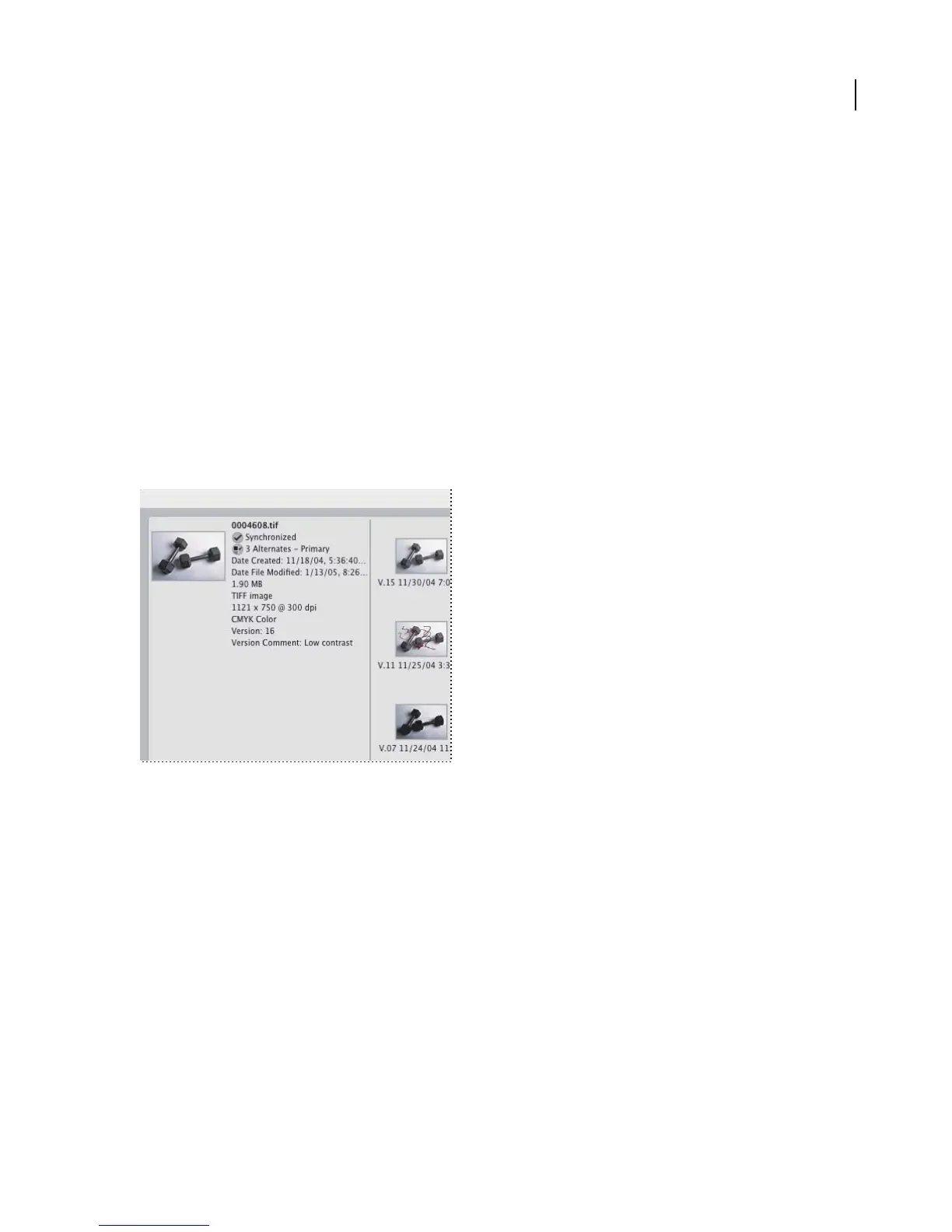
The Versions And Alternates view in Bridge displays versions of all the files in a project. This view is useful for
comparing versions, because all the versions are available in one place for you to view or promote—you don’t need
to search your hard drive for saved files. When you want to compare details of versions, you can choose to view each
version in its native application.
The commenting features of Version Cue maintain a descriptive history of files. Each time you save or promote a
version, you can describe what changes you made. This history helps you track changes made at different stages.
Also, your version comments are searchable; you can search for a particular word to find a version quickly.
Viewing versions in Bridge
See also
“To view file and folder thumbnails in Bridge” on page 54
“Availability of Version Cue features” on page 81
To view versions
Note: You can perform this task only if you have access to the full Version Cue feature set, available in Adobe Creative
Suite or in a shared workspace. See “Availability of Version Cue features” on page 81 for more information.
Afteropening afilefromaVersionCue Workspace, youcan quicklyaccess thepreviousversion thumbnails,version
comments, and version dates by using the Versions dialog box.
1 In Illustrator, InCopy, InDesign, or Photoshop, choose File > Open. Click Use Adobe Dialog if you’re using the
OS dialog box.
2 Click Version Cue in the Favorites panel.



 To Next Page