276
y
ADOBE ILLUSTRATOR CS2
User Guide
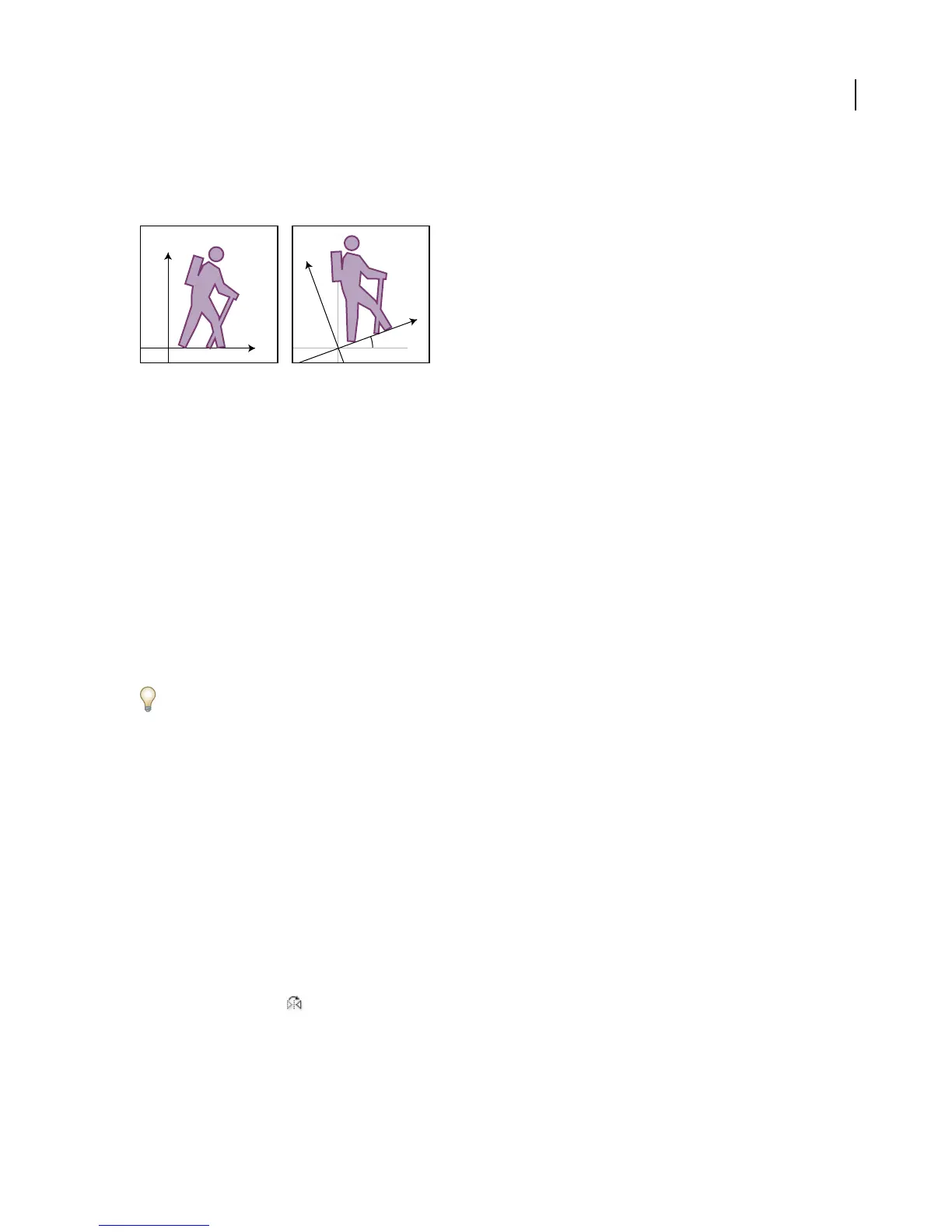
Rotating the axes is useful if your artwork consists of elements that are rotated to the same angle, such as a logo and
text displayed on a 20˚ angle. Instead of rotating each element you add to the logo, you can simply rotate the axes by
20˚. Everything you draw is created along the new axes.
y
y
20
x
x
Object aligned with default axes (left) compared to alignment with axes rotated 20˚ (right)
The following objects and actions are not affected by the new axes:
• Objects that already exist
• Rotating and blending
• Drawing with the Pencil or Auto Trace tool
Reflecting objects
Reflecting objects
Reflecting an object flips the object across an invisible axis that you specify. You can reflect objects using the Free
Transform tool, the Reflect tool, or the Reflect command.
To create a mirror image of an object, you can copy while reflecting.
To reflect an object with the Free Transform tool
1 Select the object to reflect.
2 Select the Free Transform tool.
3 Do one of the following:
• Drag a handle of the bounding box past the opposite edge or handle until the object is at the desired level of
reflection.
• To maintain the object’s proportions, hold down Shift while dragging a corner handle past the opposite handle.
To reflect an object with the Reflect tool
1 Select the object.
2 Select the Reflect tool .
3 To draw the invisible axis across which you want the object to reflect, click anywhere in the document window to
set one point of the axis. The pointer changes to an arrowhead.



 To Next Page