314
ADOBE ILLUSTRATOR CS2
User Guide
See also
“Reshaping paths” on page 157
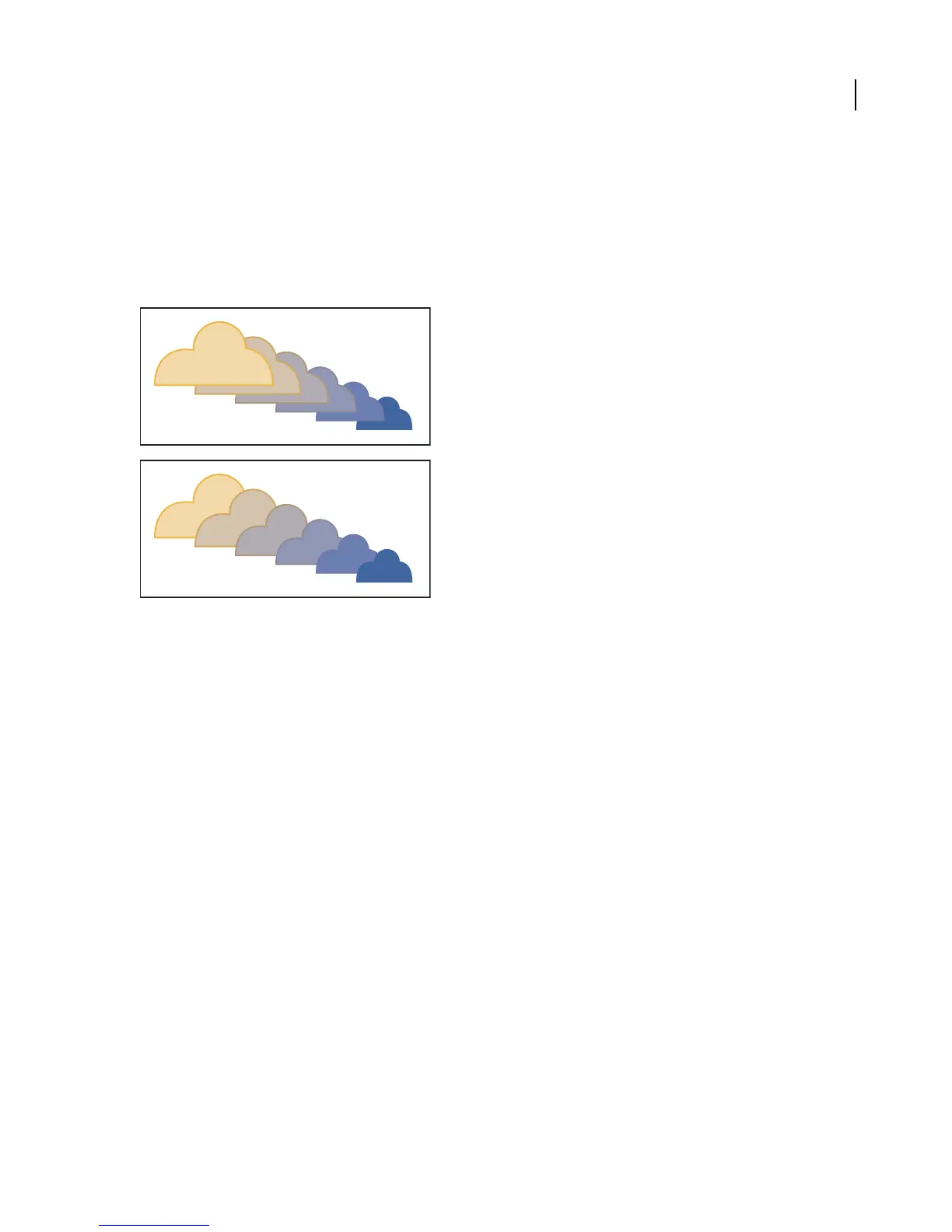
To reverse the stacking order in a blended object
1 Select the blended object.
2 Choose Object > Blend > Reverse Front To Back.
Original stacking order (top) compared to applying Reverse Front To Back command (bottom)
See also
“About the stacking order” on page 282
To release or expand a blended object
Releasing a blended object removes the new objects and restores the original objects. Expanding a blended object
divides the blend into distinct objects, which you can edit individually like any object.
1 Select the blended object.
2 Do one of the following:
• Choose Object > Blend > Release.
• Choose Object > Blend > Expand.
Reshaping objects with effects
Reshaping objects with effects
Using effects is a convenient way to reshape objects without making permanent changes to their underlying
geometry. Effects are live, which means that you can modify or remove the effect at any time.



 To Next Page