-2-6 0 2 6
385
ADOBE ILLUSTRATOR CS2
User Guide
Line and character spacing
Leading
The vertical space between lines of type is called leading (rhymes with sledding). Leading is measured from the
baseline of one line of text to the baseline of the line above it. Baseline is the invisible line on which most letters sit.
The default auto-leading option sets the leading at 120% of the type size (for example, 12-point leading for 10-point
type). When auto-leading is in use, Illustrator displays the leading value in parentheses in the Leading menu of the
Character palette. You can change this default auto-leading by choosing Justification from the Paragraph palette
menu and specifying a percentage from 0 to 500.
By default, leading is a character attribute, which means that you can apply more than one leading value within the
same paragraph. The largest leading value in a line of type determines the leading for that line.
Note: When working with horizontal Asian type, you can specify how leading is measured, either from baseline to
baseline or from the top of one line to the top of the next. (See “To specify how leading is measured in Asian type” on
page 415.)
To set the leading
1 Select the characters or type objects you want to change. If you don’t select any text, the leading applies to new text
you create.
2 In the Character palette, set the Leading option ( for vertical text).
See also
“Character palette” on page 381
“Keys for working with type” on page 531
To shift the baseline
Shifting the baseline is especially useful when you’re hand-setting fractions or adjusting the position of a picture font.
1 Select the characters or type objects you want to change. If you don’t select any text, the shift applies to new text
you create.
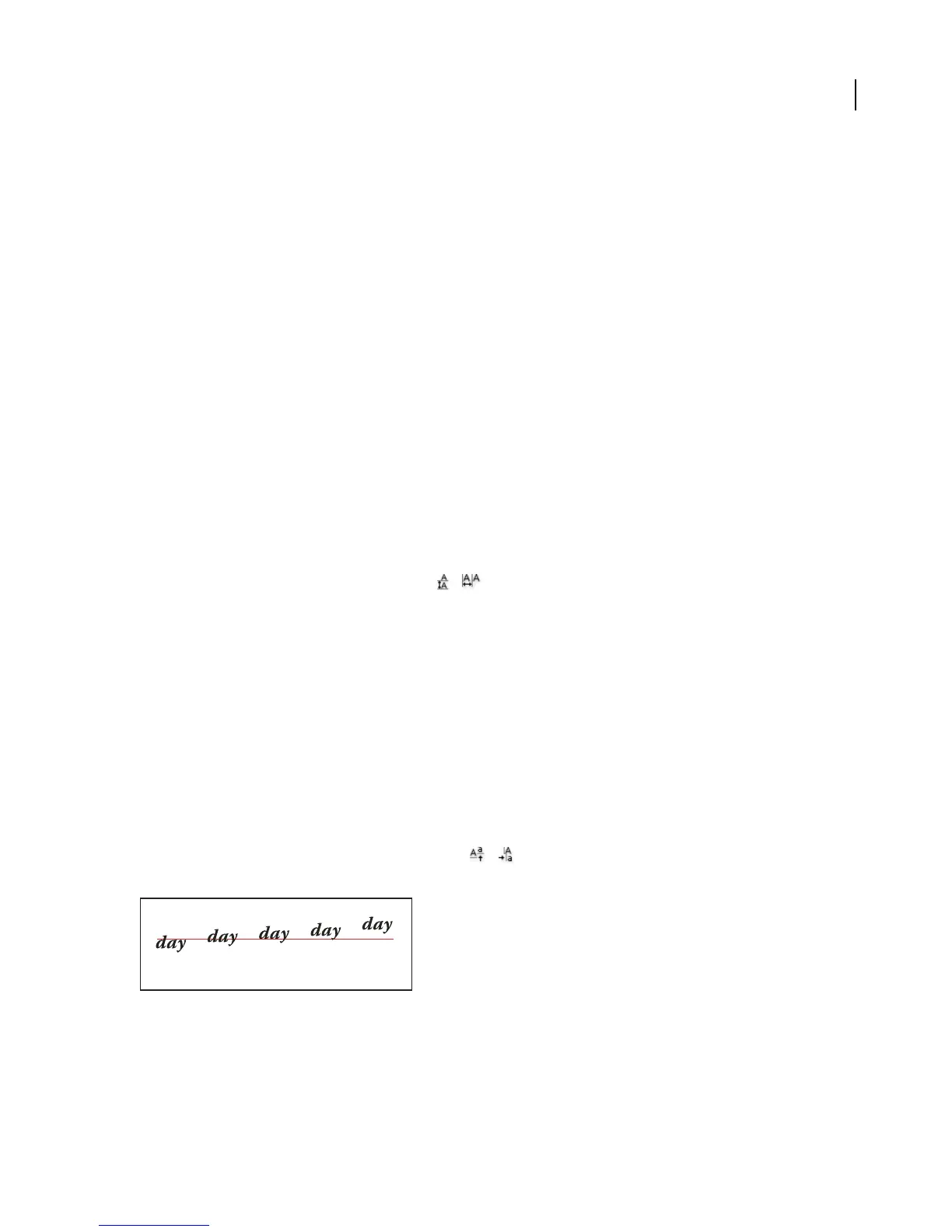
2 In the Character palette, set the Baseline Shift option ( for vertical text). Positive values move the
character’s baseline above the baseline of the rest of the line; negative values move it below the baseline.
Type with different Baseline Shift values



 To Next Page