416
ADOBE ILLUSTRATOR CS2
User Guide
See also
“To display Asian type options” on page 406
Creating composite fonts
To create a composite font
You can mix characters from Japanese and roman fonts and use them as one composite font. Composite fonts are
displayed at the beginning of the font list.
Important: CompositefontsmustbebasedonJapanesefonts.Forexample,youcannotcreateorusecompositefontsthat
include Chinese or Korean fonts.
1 Choose Type > Composite Fonts. If you don’t see this command, select Show Asian Options in the Type prefer-
ences.
2 Click New, enter the name for the composite font, and click OK.
3 If you’ve previously saved composite fonts, you can also chose a composite font on which to base the new
composite font.
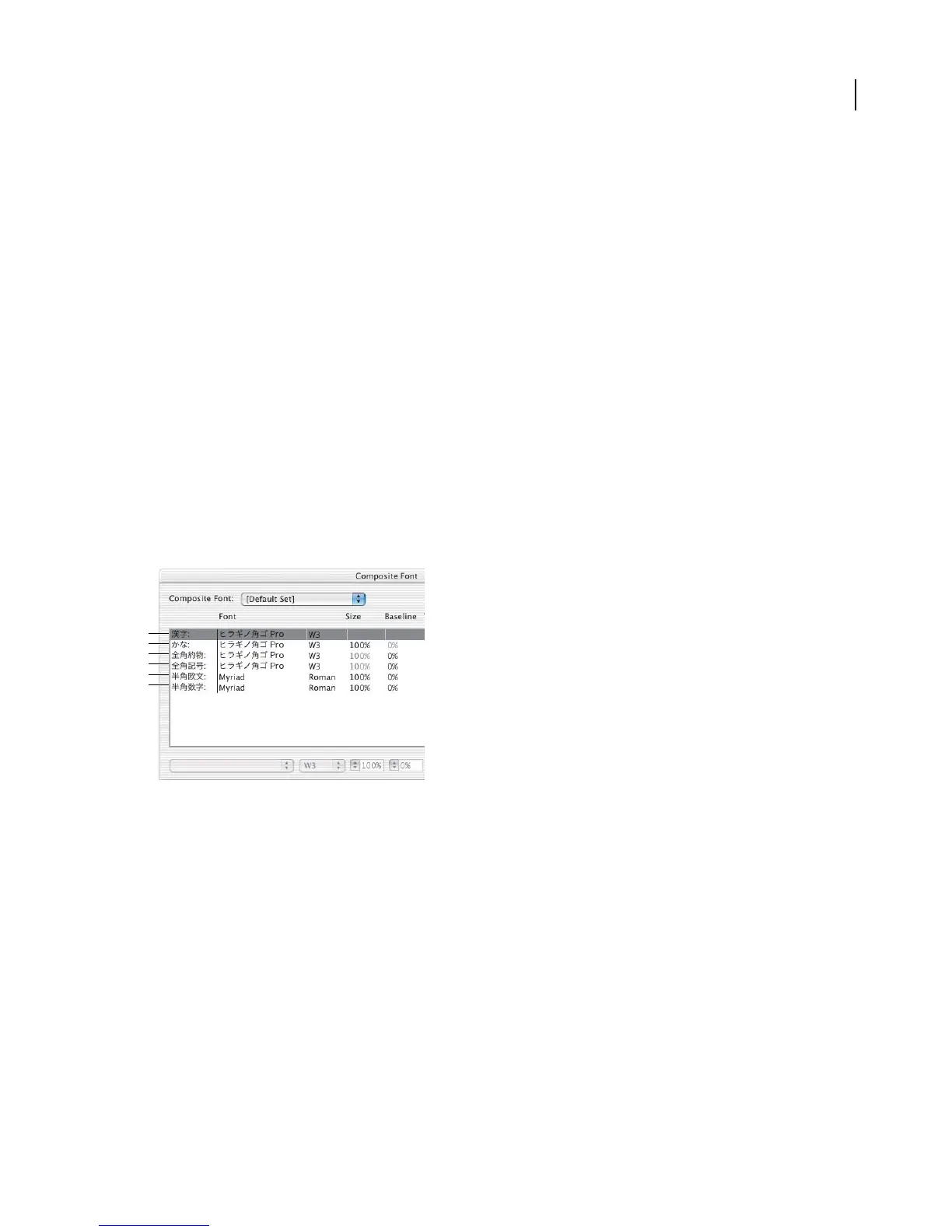
4 Select a category of characters. (See “Categories of characters in composite fonts” on page 417.)
A
B
C
D
E
F
Categories of characters
A. Kanji B. Kana C. Punctuation D. Symbols E. Roman F. Numerals
5 Choose an option from the Units pop-up menu to specify the unit used for font attributes: % or Q.
6 Set font attributes for the selected category of characters. Some attributes are not available for certain categories.
(See “Font attributes for composite fonts” on page 417.)



 To Next Page