515
ADOBE ILLUSTRATOR CS2
User Guide
See also
“Entering graph data” on page 512
“To work with graph labels” on page 513
To enter data sets for pie graphs
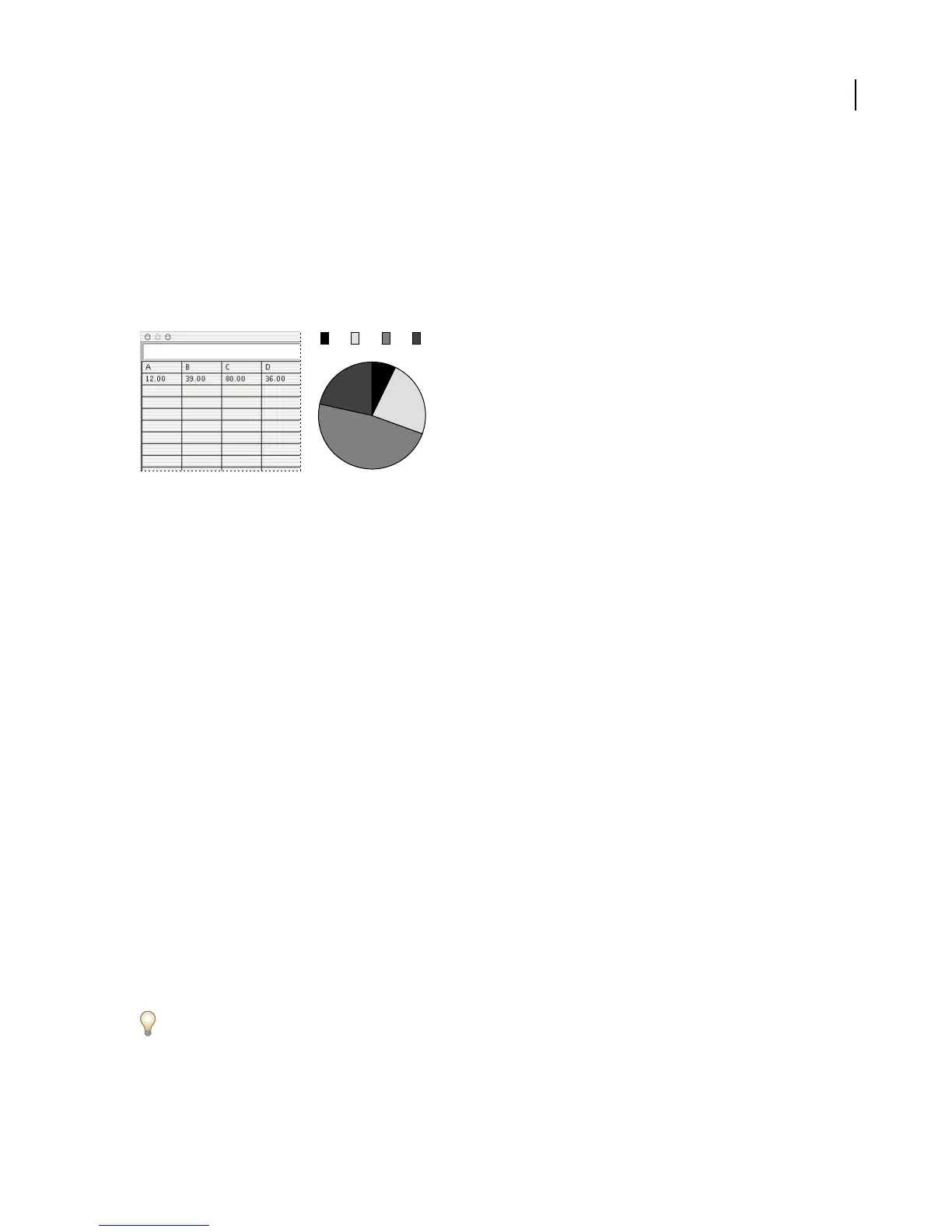
You organize data sets for pie graphs similarly to other graphs. However, each row of data in the worksheet generates
a separate graph.
A B C D
Pie graph data
• Enter data-set labels as for column, stacked column, bar, stacked bar, line, area, and radar graphs. Enter category
labels if you want to generate graph names.
• To create a single pie graph, plot only one row of data, either all positive or all negative values.
• To create multiple pie graphs, plot additional rows of data, either all positive or all negative values. By default, the
size of the individual pie graphs is proportional to the total of each graph’s data.
See also
“Entering graph data” on page 512
“To work with graph labels” on page 513
Formatting graphs
Formatting and customizing graphs
Graphs canbeformatted in avariety of ways.For example, youcan change theappearanceand position of thegraph’s
axes, add drop shadows, move the legend, and combine different graph types. You can view the formatting options
for a graph by selecting a graph with the Selection tool and choosing Object > Graph > Type.
You can also manually customize your graph in numerous ways. You can change the colors of shading; change the
typeface and type style; move, reflect, shear, rotate, or scale any or all parts of the graph; and customize column and
marker designs. You can apply transparency, gradients, blends, brush strokes, graphic styles, and other effects to
graphs. You should always apply these types of changes last, because regenerating the graph will remove them.
To get ideas for how you can customize graphs, see the examples in the Cool Extras/Sample Files/Graph Designs
folder inside the Illustrator application folder.



 To Next Page