436
ADOBE ILLUSTRATOR CS2
User Guide
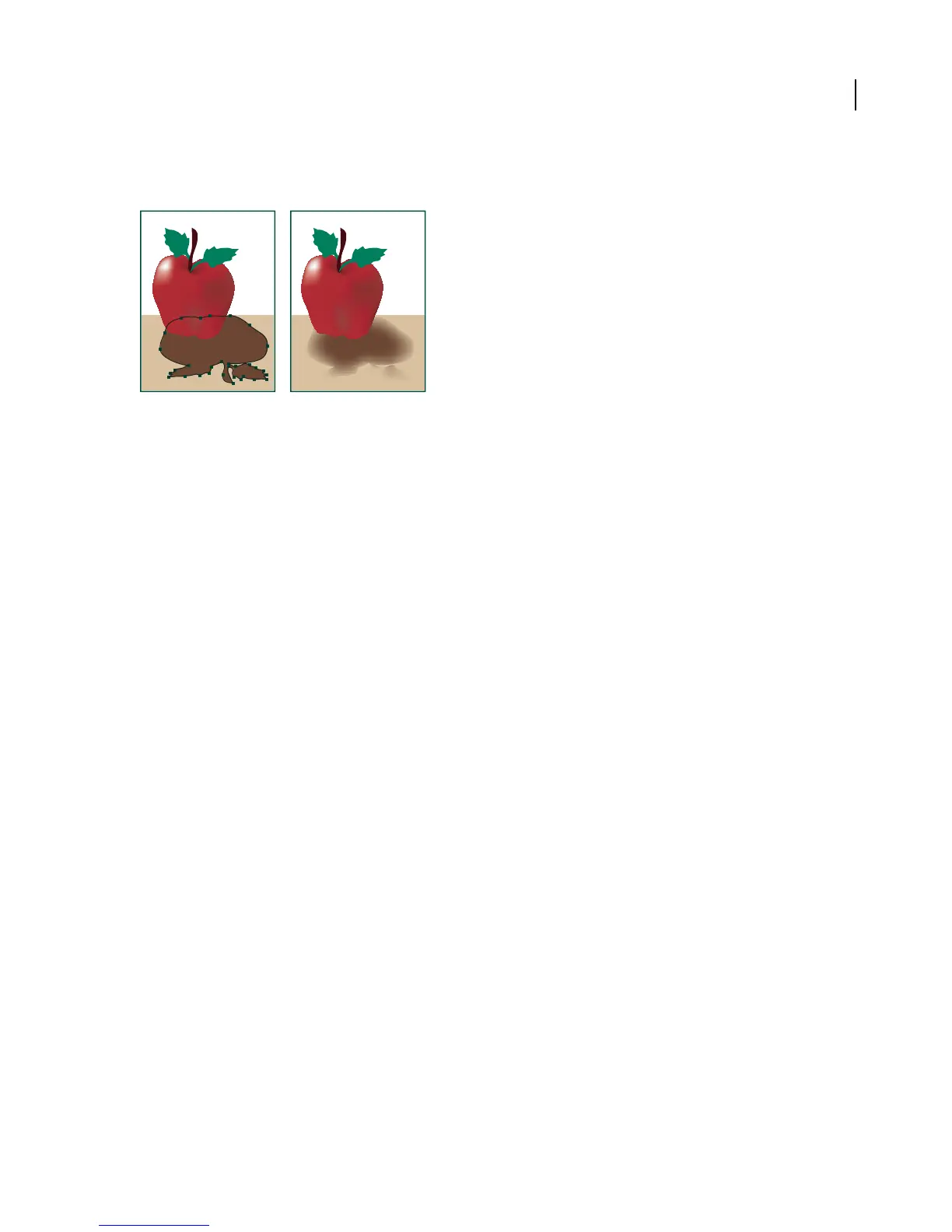
2 Choose Effect > Stylize > Feather.
3 Set the distance over which the object fades from opaque to transparent, and click OK.
Original object selected (left) and using feather effect (right)
See also
“About effects and filters” on page 423
“About targeting” on page 420
“About raster effects” on page 424
“Selecting objects” on page 262
Making objects look hand-sketched
To apply the Scribble effect
1 Do one of the following:
• Select the object or group (or target a layer in the Layers palette).
• To apply the effect to a specific object attribute, such as a stroke or fill, select the object, and then select the
attribute in the Appearance palette.
• To apply the effect to a graphic style, select a graphic style in the Graphic Styles palette.
2 Choose Effect > Stylize > Scribble.
3 Do one of the following:
• To use a preset scribble effect, choose one from the Settings menu.
• To create a custom scribble effect, begin with any preset, and then adjust the options (see “Scribble options” on
page 437).
4 Click OK.
See also
“About targeting” on page 420
“About effects and filters” on page 423



 To Next Page