496
ADOBE ILLUSTRATOR CS2
User Guide
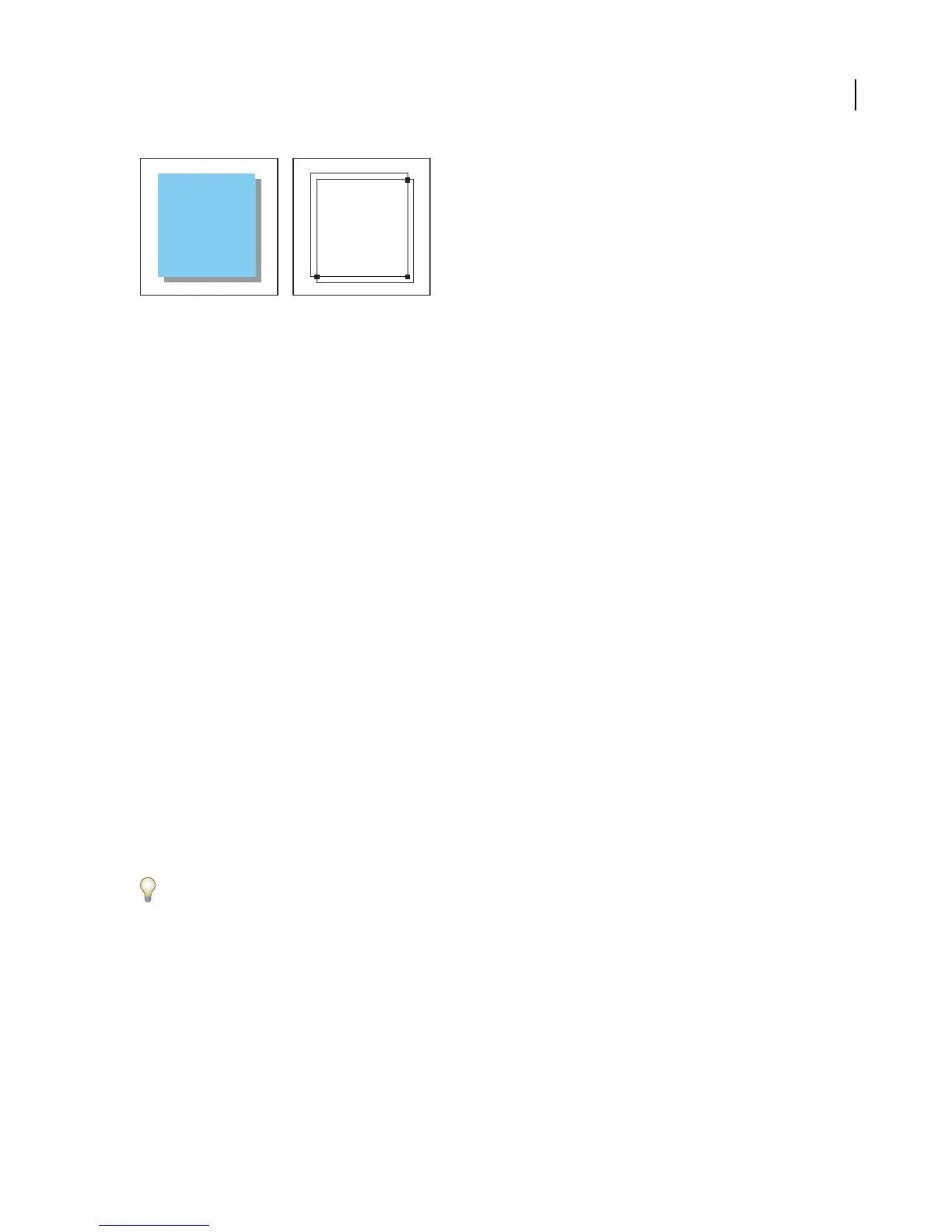
Drop shadow with a trap (left) is based on the line drawn where the object and its drop shadow meet (right).
2 In the Stroke box in the toolbox or the Color palette, select a color value for the Stroke to create either a spread or
a choke.
3 Choose Window > Attributes.
4 Select Overprint Stroke.
Print presets
About print presets
If you regularly output to different printers or job types, you can automate print jobs by saving all output settings as
print presets. Using print presets is a fast, reliable way to print jobs that require consistently accurate settings for
many options in the Print dialog box.
You can save and load print presets, making it easy to back them up or to make them available to your service
providers, clients, or others in your workgroup. Once you select a print preset, you can view the settings for it in the
Print Presets dialog box.
To create a print preset
❖ Do one of the following:
• Choose File > Print, adjust print settings, and click Save Preset. Type a name or use the default, and then click OK.
With this method, the preset is saved in the Illustrator preferences file.
• Choose Edit > Print Presets and click New. In the Print Preset Options dialog box that appears, type a name in the
Print Preset text box or use the default, adjust print settings, and then click OK to return to the Print Presets dialog
box. Then click OK again.
If you use the Print Presets dialog box, consider saving the preset outside of the Illustrator preferences folder. That
way, it won’t be lost if you ever delete your preferences.
To edit print presets
❖ Do one of the following:
• Choose File >Print,adjustprint settings,and clickSavePreset. In theSavePresetdialogbox that appears, either
type a name in the text box or use the current name. (If the current name is an existing preset, saving overwrites
that preset’s settings.) Click OK.
• Choose Edit > Print Presets, select a preset from the list, and then click Edit. In the Print Preset Options dialog
box that appears, adjust print settings and click OK to return to the Print Presets dialog box. Then click OK again.



 To Next Page