388
ADOBE ILLUSTRATOR CS2
User Guide
Underline, strikethrough, caps, superscripts, and
subscripts
To underline or strike through text
1 Select the characters or type objects you want to change. If you don’t select any text, the setting applies to new text
you create.
2 In the Character palette, click the Underline button or the Strikethrough button .
See also
“Character palette” on page 381
To apply all caps and small caps
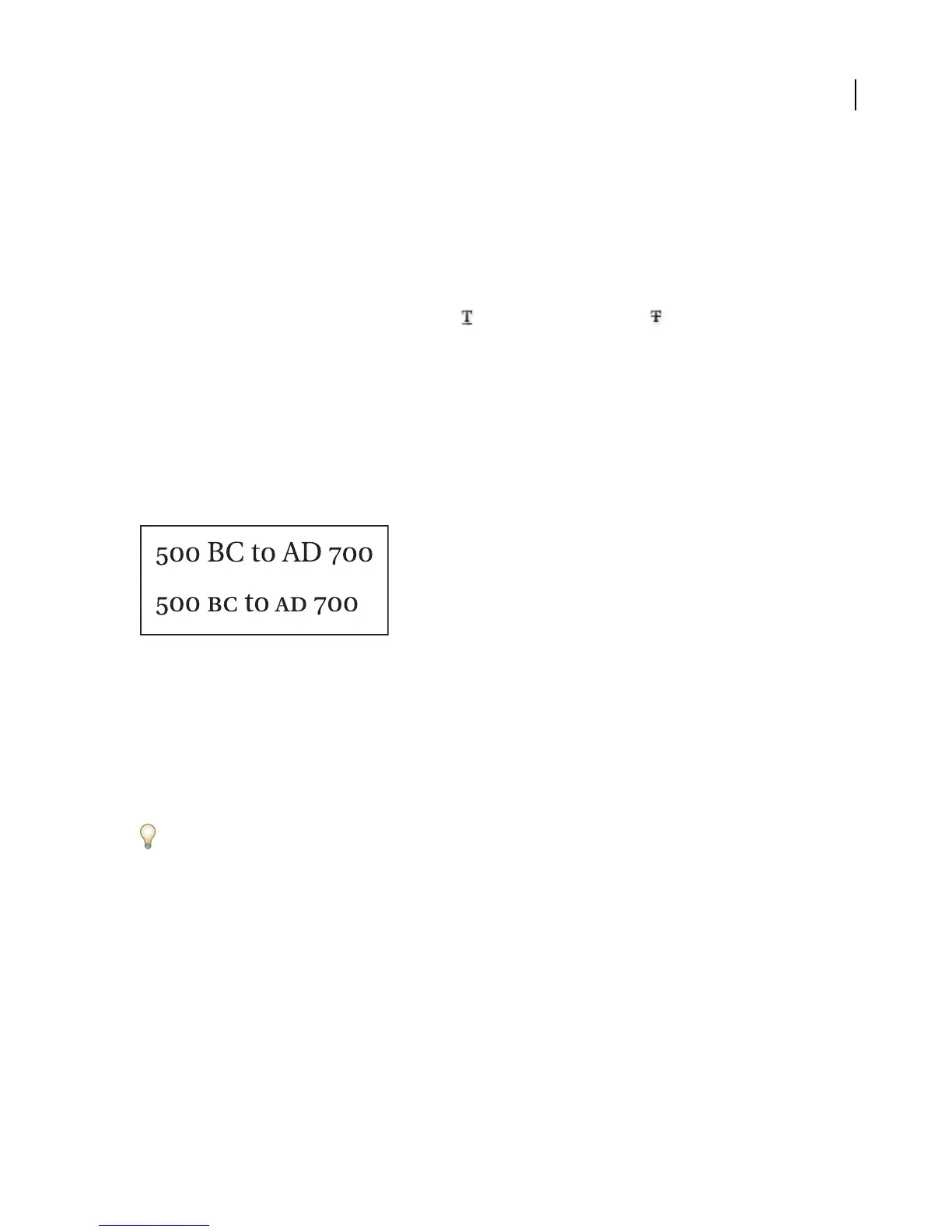
When you format text as small caps, Illustrator automatically uses the small-cap characters designed as part of the
font, if available. Otherwise, Illustrator synthesizes the small caps using scaled-down versions of the regular capital
letters.
Regular capital letters (top) compared to small-cap letters (bottom)
1 Select the characters or type objects you want to change. If you don’t select any text, the setting applies to new text
you create.
2 Choose All Caps or Small Caps from the Character palette menu.
To specify the size for synthesized small caps, choose File > Document Setup, and choose Type from the pop-up
menu at the top of the dialog box. For Small Caps, type a percentage of the original font size for text to be formatted
as small caps. (The default value is 70%.)
To change the capitalization style of text to uppercase, lowercase, title case, or sentence case, use the Type > Change
Case command.
See also
“Character palette” on page 381
“To change capitalization styles” on page 375
To create superscripts or subscripts in non-OpenType fonts
Superscript and subscript text (also called superior and inferior text) is reduced-size text that is raised or lowered in
relation to a font’s baseline.
1 Select the characters or type objects you want to change. If you don’t select any text, any new text you create will
be rendered as superscripts or subscripts.



 To Next Page