162
ADOBE ILLUSTRATOR CS2
User Guide
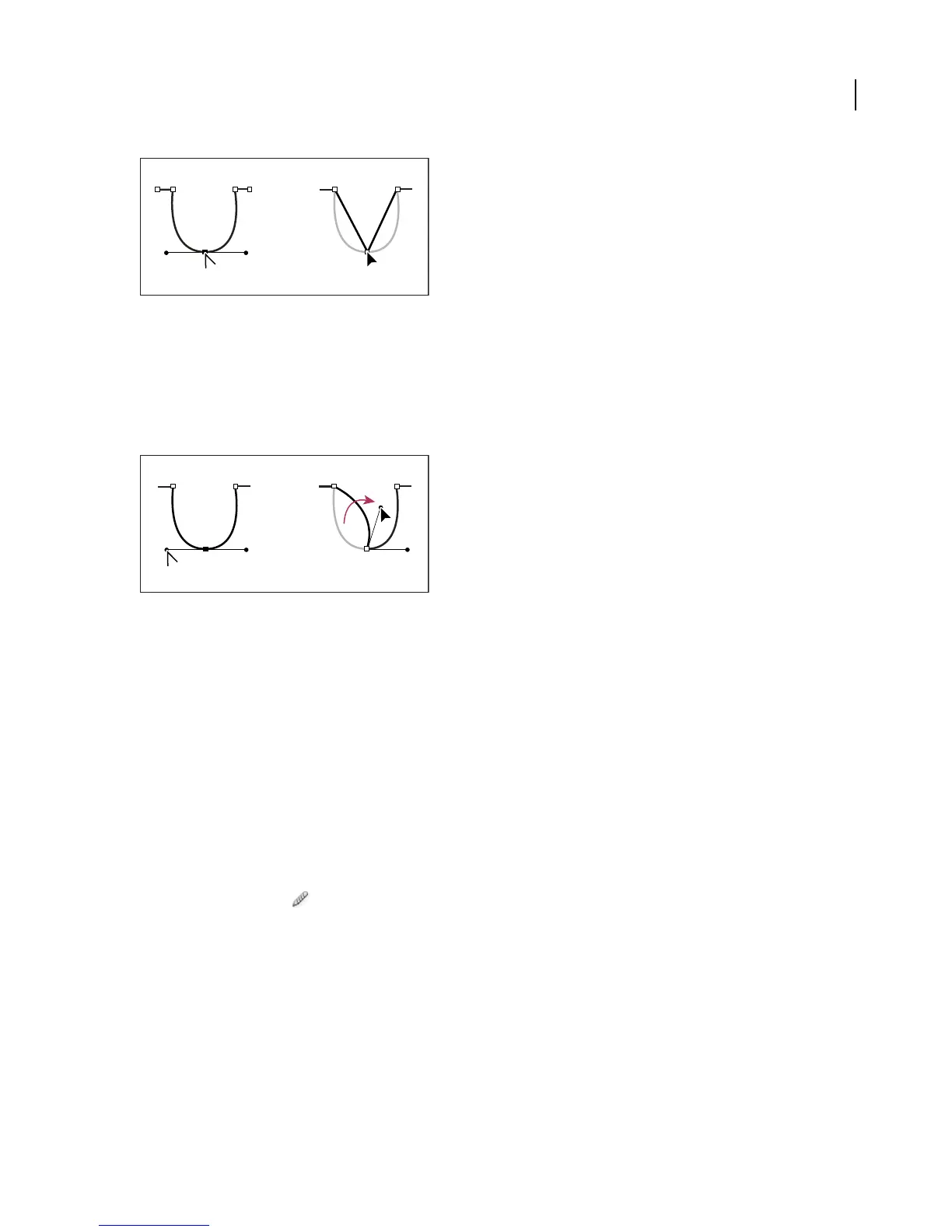
Clicking a smooth point to create a corner point
• To convert a corner point without direction lines to a corner point with independent direction lines, first drag a
direction point out of a corner point (making it a smooth point with direction lines). Release the mouse button
only (don’t release any keys you may have pressed to activate the Convert Anchor Point tool), and then drag either
direction point.
• To convert a smooth point to a corner point with independent direction lines, drag either direction point.
Converting a smooth point to a corner point
See also
“About paths” on page 144
“Drawing tool gallery” on page 145
“Direction lines and direction points” on page 157
Smoothing and simplifying paths
To smooth paths
1 Select the object.
2 Select the Smooth tool
3 Drag the tool along the length of the path segment you want to smooth out.
4 Continue smoothing until the stroke or path is the desired smoothness.
.



 To Next Page