165
ADOBE ILLUSTRATOR CS2
User Guide
If the endpoints are coincident (on top of each other), drag a marquee through or around both endpoints to select
them.
2 Choose Object > Path > Join.
3 If the endpoints are coincident, a dialog box appears to let you specify the type of join you want. Select the Corner
option (the default) or the Smooth option, and click OK.
A B
Joining endpoints
A. Selecting and joining coincident endpoints B. Selecting and joining noncoincident endpoints
See also
“To select anchor points” on page 158
Tracing artwork
About tracing artwork
There may be times when you want to base a new drawing on an existing piece of artwork. For example, you may
want to create a graphic based on a pencil sketch drawn on paper or on a raster image saved in another graphics
program. In either case, you can bring the graphic into Illustrator and trace over it.
The easiest way to trace artwork is to open or place a file into Illustrator and automatically trace the artwork with the
Live Trace command. You can control the level of detail and how the tracing is filled. When you are satisfied with
the tracing results, you can convert the tracing to vector paths or a Live Paint object. (See “To automatically trace
artwork” on page 165.)
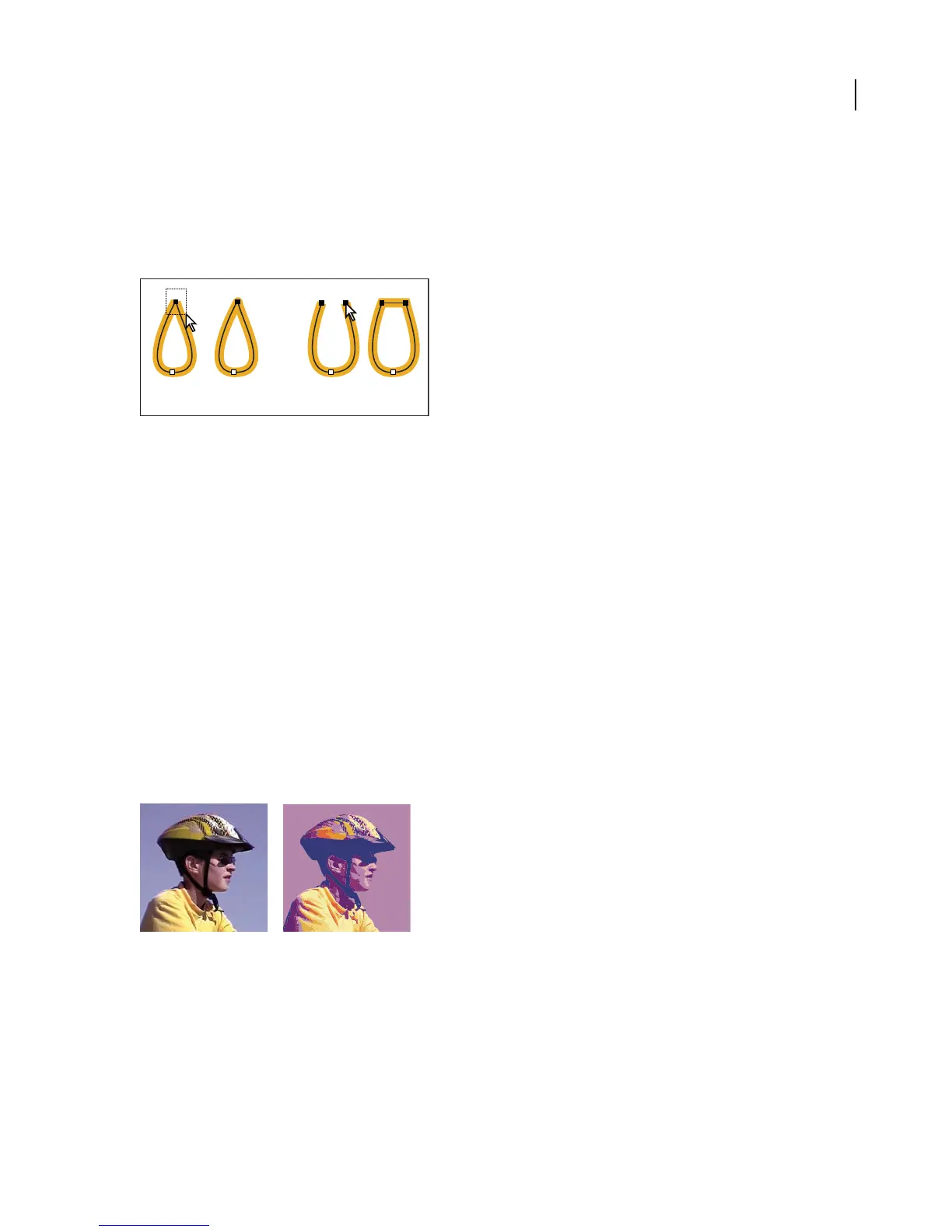
Before and after tracing a bitmap image with the Live Trace command
You can also place any EPS, PDF, or raster image file into an Illustrator file as a template layer and trace over it
manually using the Pen tool or Pencil tool. (See “About template layers” on page 169.)
To automatically trace artwork
1 Open or place a file to use as the source image for the tracing.



 To Next Page