373
ADOBE ILLUSTRATOR CS2
User Guide
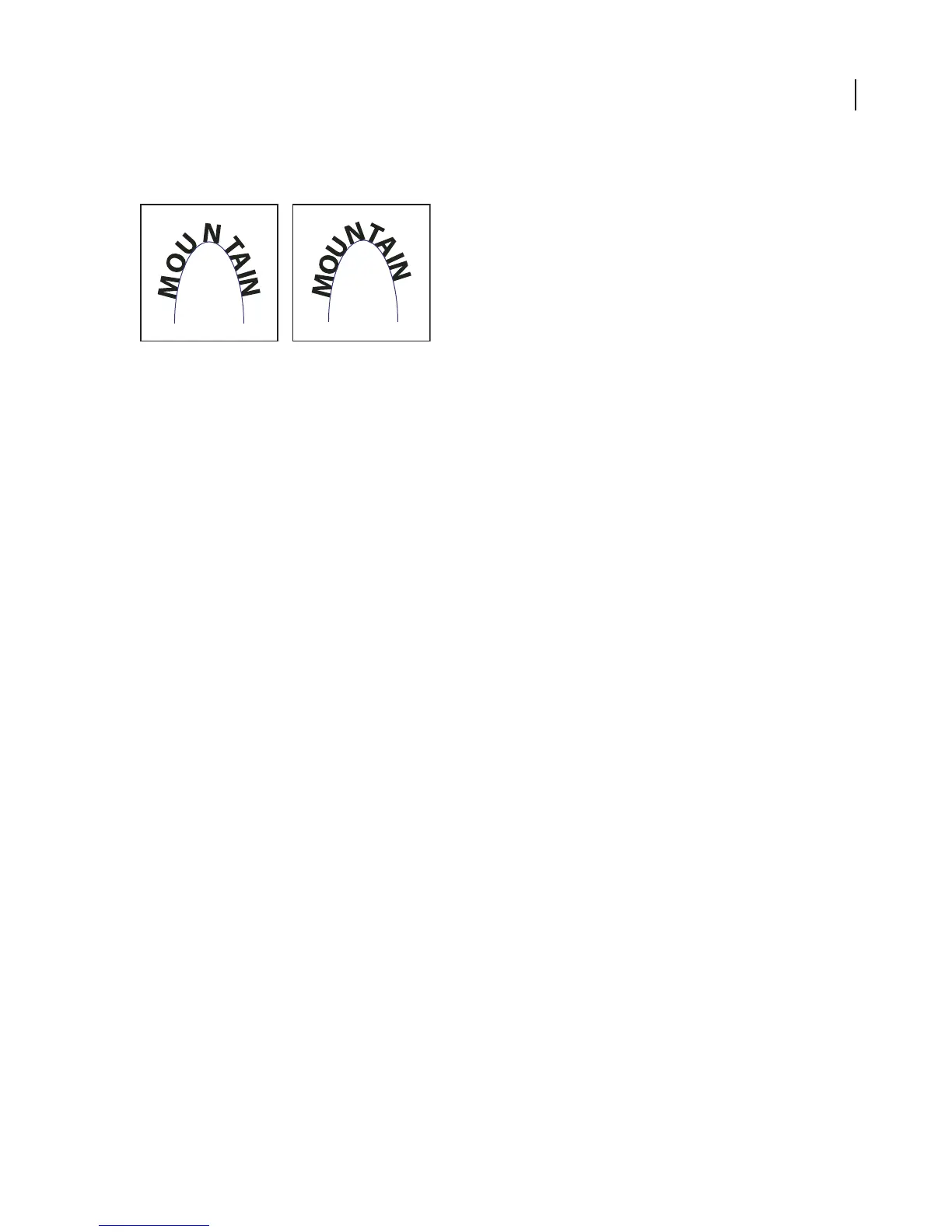
3 For Spacing, type a value in points. Higher values remove the extra space from between characters positioned on
sharp curves or angles.
Type without spacing adjustment (left) compared to type with spacing adjustment (right)
Note: The Spacing value has no effect on characters positioned on straight segments. To change spacing of characters
anywhere along the path, select them, and then apply kerning or tracking.
Editing text
To insert the cursor in text
❖ Select any type tool, and click in the text.
See also
“Keys for working with type” on page 531
To show or hide nonprinting characters
Nonprinting characters include hard returns (line breaks), soft returns (line breaks), tabs, spaces, nonbreaking
spaces, double-byte characters (including spaces), discretionary hyphens, and the end-of-text character.
To make the characters visible as you format and edit type, choose Type > Show Hidden Characters. A check mark
indicates that nonprinting characters are visible.
To specify curly or straight quotes
Typographer’s quotes,often referred to as curlyquotes, blendinwiththe curves of thefont. Typographer’squotesare
traditionally used for quotation marks and apostrophes. Straight quotes are traditionally used as abbreviations for feet
and inches.
1 Choose File > Document Setup, and choose Type from the pop-up menu at the top of the dialog box.
2 Do one of the following, and click OK:
• To use straight quotes, deselect Use Typographer’s Quotes.
• To use typographer’s quotes, select Use Typographer’s Quotes, choose the language for which you want to set
quotes, and choose options for Double Quotes and Single Quotes.
Note: You can set quote options for multiple languages. These quotes are applied to text based on the language you assign
using the Character palette or Default Language preference.



 To Next Page