395
ADOBE ILLUSTRATOR CS2
User Guide
• To rotate an entire type object (both the characters and the type bounding box), select the type object and use the
bounding box, Free Transform tool, Rotate tool, Rotate command, or Transform palette to perform the rotation.
• To rotate multiple characters in vertical Asian text, use the tate-chu-yoko option to rotate multiple characters.
See also
“Character palette” on page 381
“Tate-chu-yoko” on page 408
“Rotating objects” on page 273
Formatting paragraphs
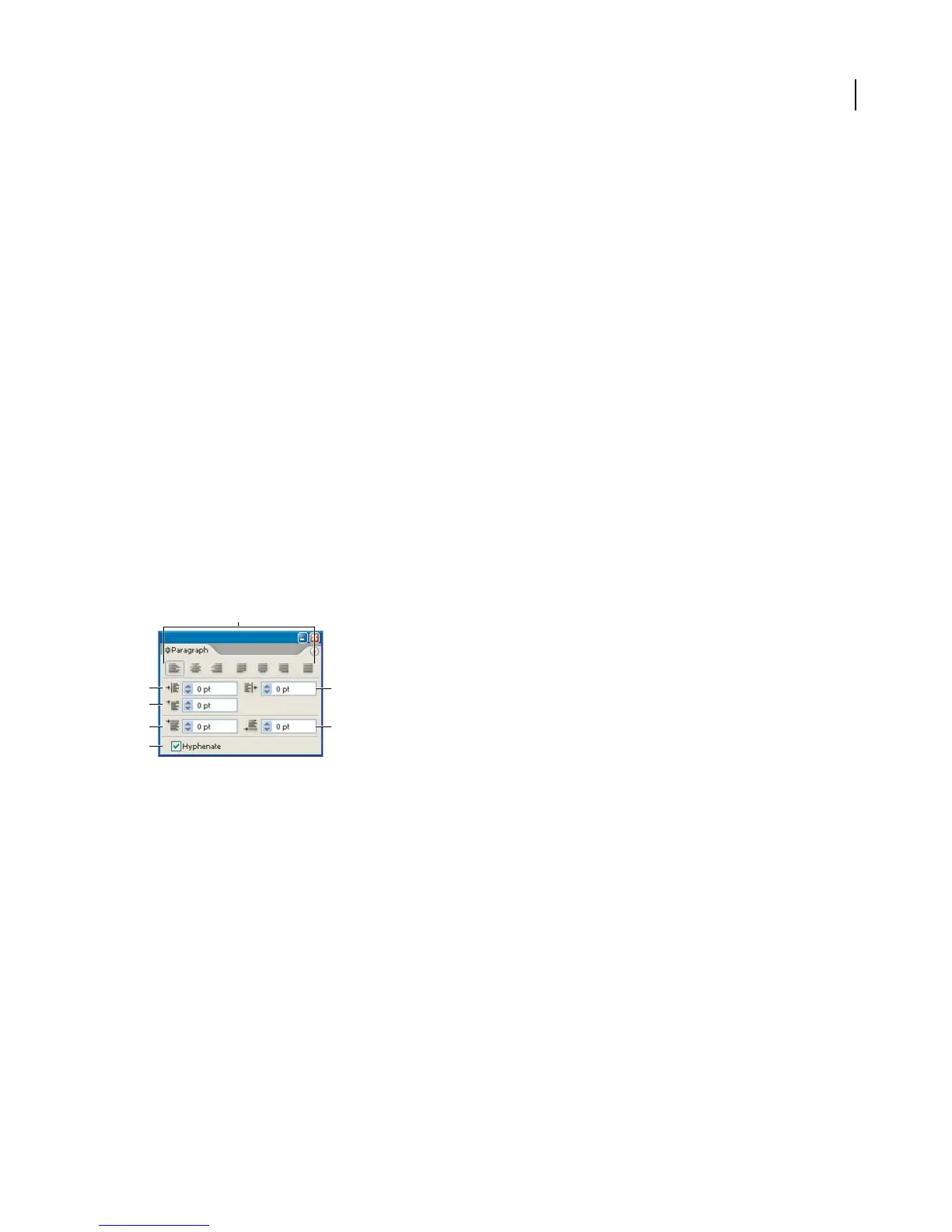
About the Paragraph palette
You use the Paragraph palette to change the formatting of columns and paragraphs. To display the palette, choose
Window > Type > Paragraph.
To set options with numeric values in the Paragraph palette, you can use the up and down arrows or edit the value
directly in the text box. When you edit a value directly, press Enter or Return to apply a value, Shift+Enter or
Shift+Return to apply a value and then highlight the value just edited, or Tab to apply a value and move to the next
text box in the palette.
A
F
B
C
E
D G
Paragraph palette
A. Alignment and Justification B. Left Indent C. FirstLineLeftIndent D. Space Before Paragraph E. Hyphenation F. Right Indent G. Space
After Paragraph
You can access additional commands and options in the Paragraph palette menu. To use this menu, click the triangle
in the upper right corner of the palette.
By default, only the most commonly-used options in the Paragraph palette are visible. To show all options, choose
Show Options from the palette menu. Alternatively, click the double triangle on the palette’s tab to cycle through the
display sizes.
See also
“To work with palettes” on page 31
“Keys for working with type” on page 531



 To Next Page