370
ADOBE ILLUSTRATOR CS2
User Guide
Important: If the layer contains multiple type objects, move any that you don’t want to wrap around the wrap object
either into another layer or above the wrap object.
3 Choose Object > Text Wrap > Make Text Wrap.
4 The Text Wrap Options dialog box appears. If you wish, set the following options. Then click OK.
Offset Specifies the amount of space between the text and the wrap object. You can enter a positive or negative value.
Invert Wrap Wraps the text around the reverse side of the object.
See also
“About the Layers palette” on page 278
“About the stacking order” on page 282
To work with wrap objects
1 Select the wrap object.
2 Do any of the following:
• To reset wrap options for an existing wrap object, choose Object > Text Wrap > Text Wrap Options.
• To unwrap text from an object, choose Object > Text Wrap > Release Text Wrap.
Type on a path
To move or flip text along a path
1 Select the type object.
A bracket appears at the beginning of the type, at the end of the path, and at the midpoint between the start and end
brackets.
2 Position the pointer over the type’s center bracket until a small icon appears next to the pointer
3 Do one of the following:
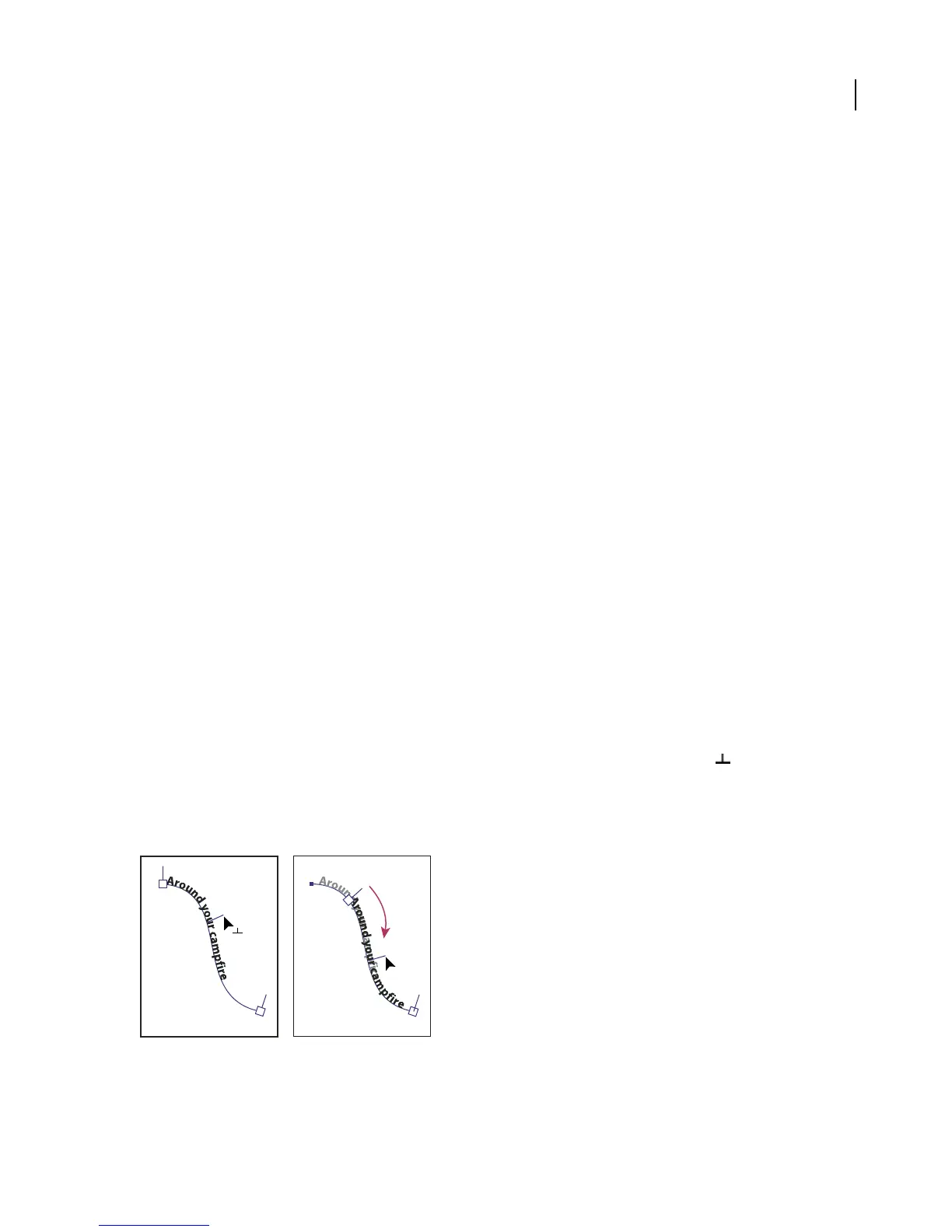
• To move text along the path, drag the center bracket along the path. Hold down Ctrl (Windows) or Command
(Mac OS) to prevent the type from flipping to the other side of the path.
.
Moving type along a path



 To Next Page