404
ADOBE ILLUSTRATOR CS2
User Guide
Character and paragraph styles
About character and paragraph styles
A character style is a collection of character-formatting attributes that you can apply to a selected range of text. A
paragraph style includes both character- and paragraph-formatting attributes, and can be applied to a selected
paragraph or range of paragraphs. Using character and paragraph styles saves time and ensures consistent
formatting.
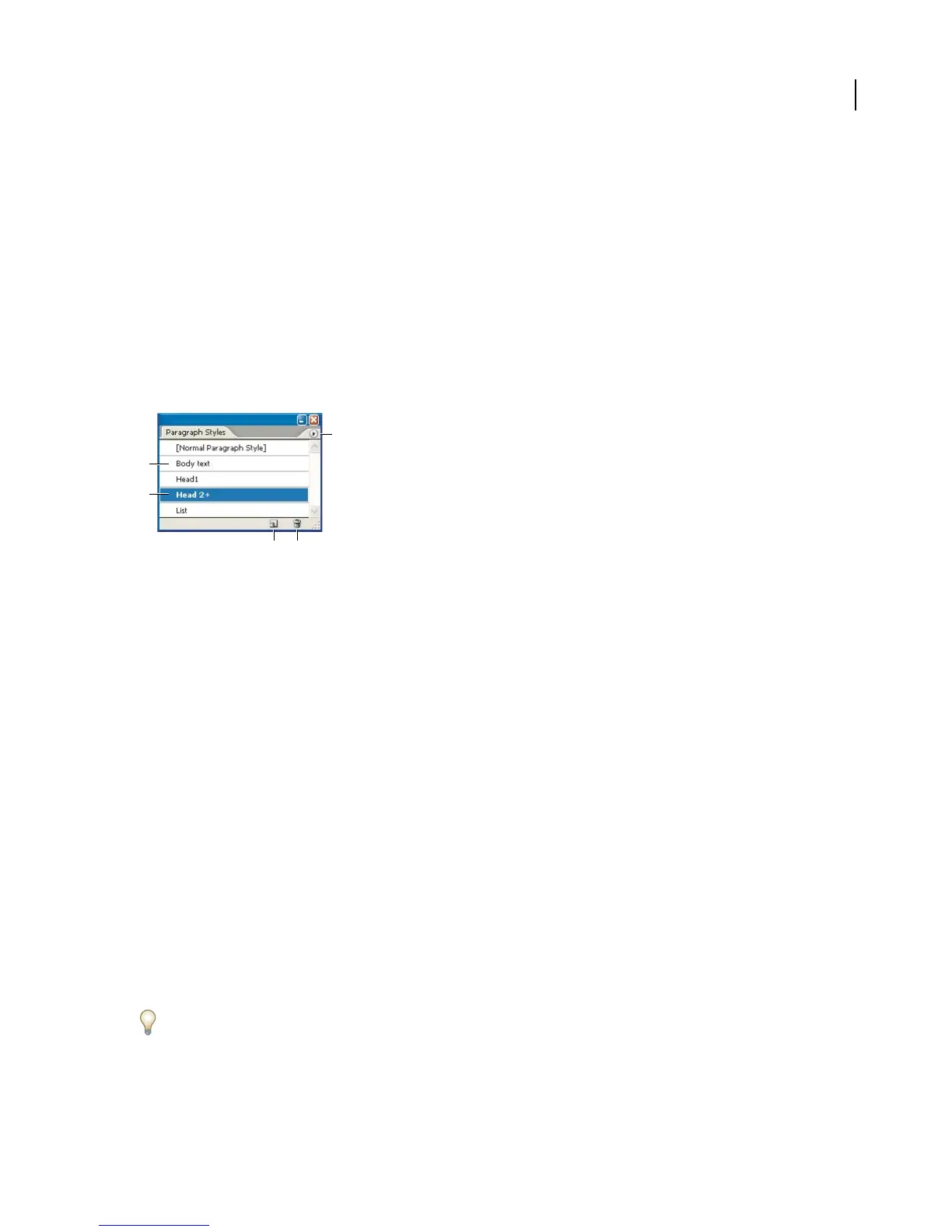
You use the Character Styles and Paragraph Styles palettes to create, apply, and manage character and paragraph
styles. To display the palettes, choose Window > Type > Character Styles or Window > Type > Paragraph Styles. To
apply a style, simply select text and click a style name in one of the palettes. If you don’t select any text, the style
applies to new text you create.
E
A
B
C D
Paragraph Styles palette
A. Style name B. Style with additional formatting (overrides) C. New Style button D. Delete icon E. Palette menu
When you select text or insert the cursor in text, the active styles are highlighted in the Character Styles and
Paragraph Styles palettes. By default, every character in a document is assigned the Normal Character Style and every
paragraph is assigned the Normal Paragraph Style. These default styles are the building blocks for all other styles you
create.
A plus sign next to a style name indicates that there are overrides to the style. An override is any formatting that
doesn’t match the attributes defined by the style. Any time you change settings in the Character and OpenType
palette, you create an override to the current character style; likewise, when you change settings in the Paragraph
palette, you create an override to the current paragraph style.
See also
“To work with palettes” on page 31
To create character or paragraph styles
1 If you want to base the new style on the formatting of existing text, select the text.
2 In the Character Styles palette or the Paragraph Styles palette, do one of the following:
• To create a new style with the default name, click the Create New Style button.
• To create a new style with a custom name, choose New Style in the palette menu. Type a name, and click OK.
To create a copy of a character or paragraph style, drag the style onto the New Style button.



 To Next Page