403
ADOBE ILLUSTRATOR CS2
User Guide
To specify characters for decimal tabs
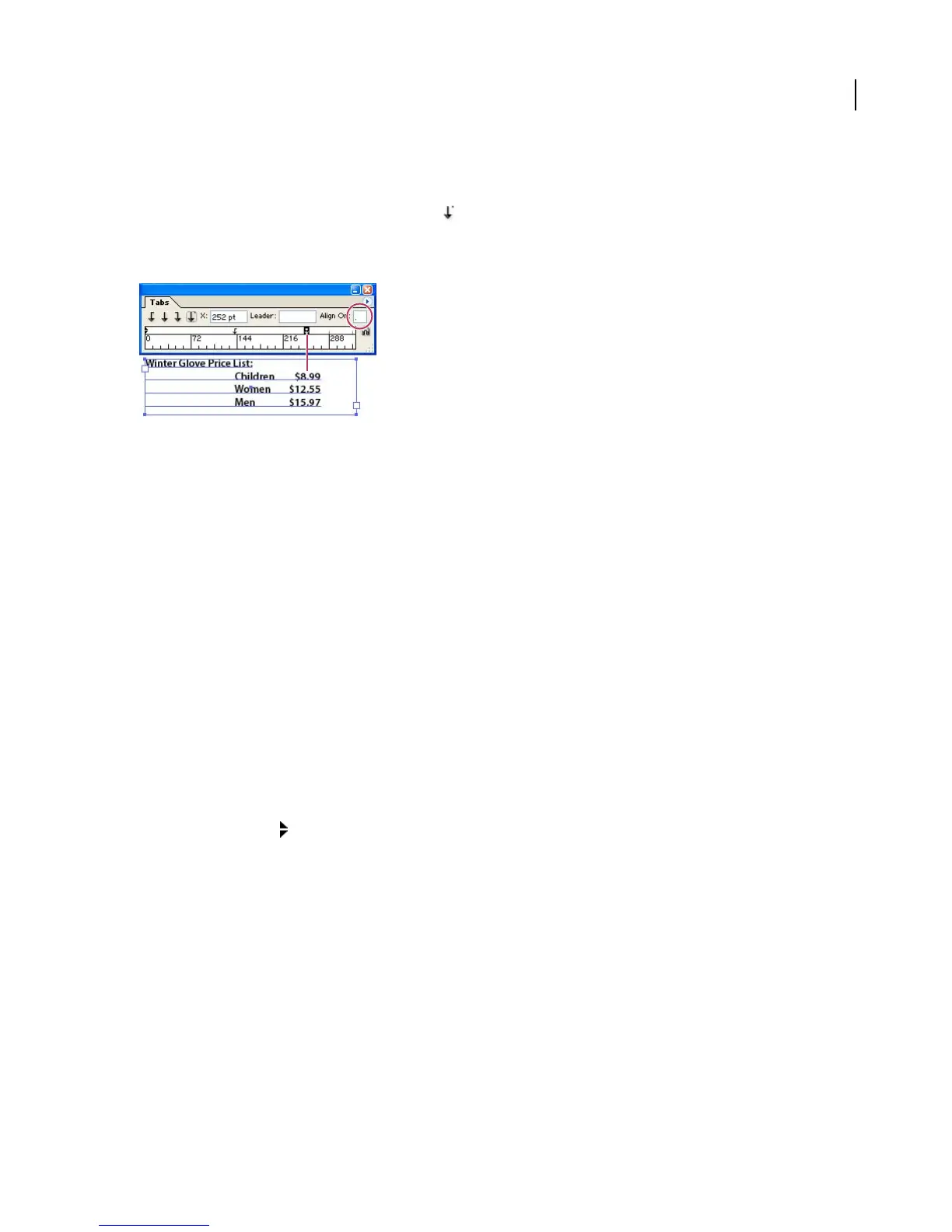
You use decimal tabs to align text with a character you specify, such as a period or a dollar sign.
1 In the Tabs palette, create or select a decimal tab on the tab ruler.
2 In the Align On box, type the character to which you want to align. You can type or paste any character. Make sure
that the paragraphs you’re aligning contain that character.
Text aligned using a decimal tab
See also
“About the Tabs palette” on page 400
To add tab leaders
A tab leader is a repeated pattern of characters, such as a series of dots or dashes, between a tab and the following text.
1 In the Tabs palette, select a tab stop on the ruler.
2 Type a pattern of as many as eight characters in the Leader box, and then press Enter or Return. Illustrator repeats
the characters you entered across the width of the tab.
3 To change the font or other formatting of the tab leader, select the tab character in the text frame, and use the
Character palette or Type menu to apply formatting.
See also
“About the Tabs palette” on page 400
To set indents
Use the indent markers in the Tabs palette to adjust the indention of a paragraph. The top marker controls the
indention of the first line of text in a paragraph; the bottom marker controls the indention for the remaining lines of
text in the paragraph.
❖ Do one of the following:
• Drag thetop marker to indent thefirst lineoftext. Drag thebottommarkertomovebothmarkers andindentthe
entire paragraph.
• Select the top marker and type a value for X to indent the first line of text. Select the bottom marker and type a
value for X to move both markers and indent the entire paragraph.
See also
“About the Tabs palette” on page 400
“To indent text” on page 397



 To Next Page