161
ADOBE ILLUSTRATOR CS2
User Guide
See also
“Drawing tool gallery” on page 145
“To select all anchor points and segments in a path” on page 159
To delete anchor points from a path
1 Select the entire path from which you want to delete anchor points.
2 Select the Pen tool or the Delete Anchor Point tool .
3 Position the pointer over an anchor point and click.
See also
“Drawing tool gallery” on page 145
“To select all anchor points and segments in a path” on page 159
To find and delete stray anchor points
Stray anchor points are individual points that are not connected to other anchor points. It is a good practice to find
and delete stray anchor points.
1 Deselect all objects.
2 Choose Select > Object > Stray Points.
3 Choose Edit > Cut or Edit > Clear commands, or press Delete or Backspace on the keyboard.
To convert between smooth points and corner points
1 Select the entire path you want to modify.
2 Select the Convert Anchor Point tool .
3 Position the Convert Anchor Point tool over the anchor point you want to convert, and do one of the following:
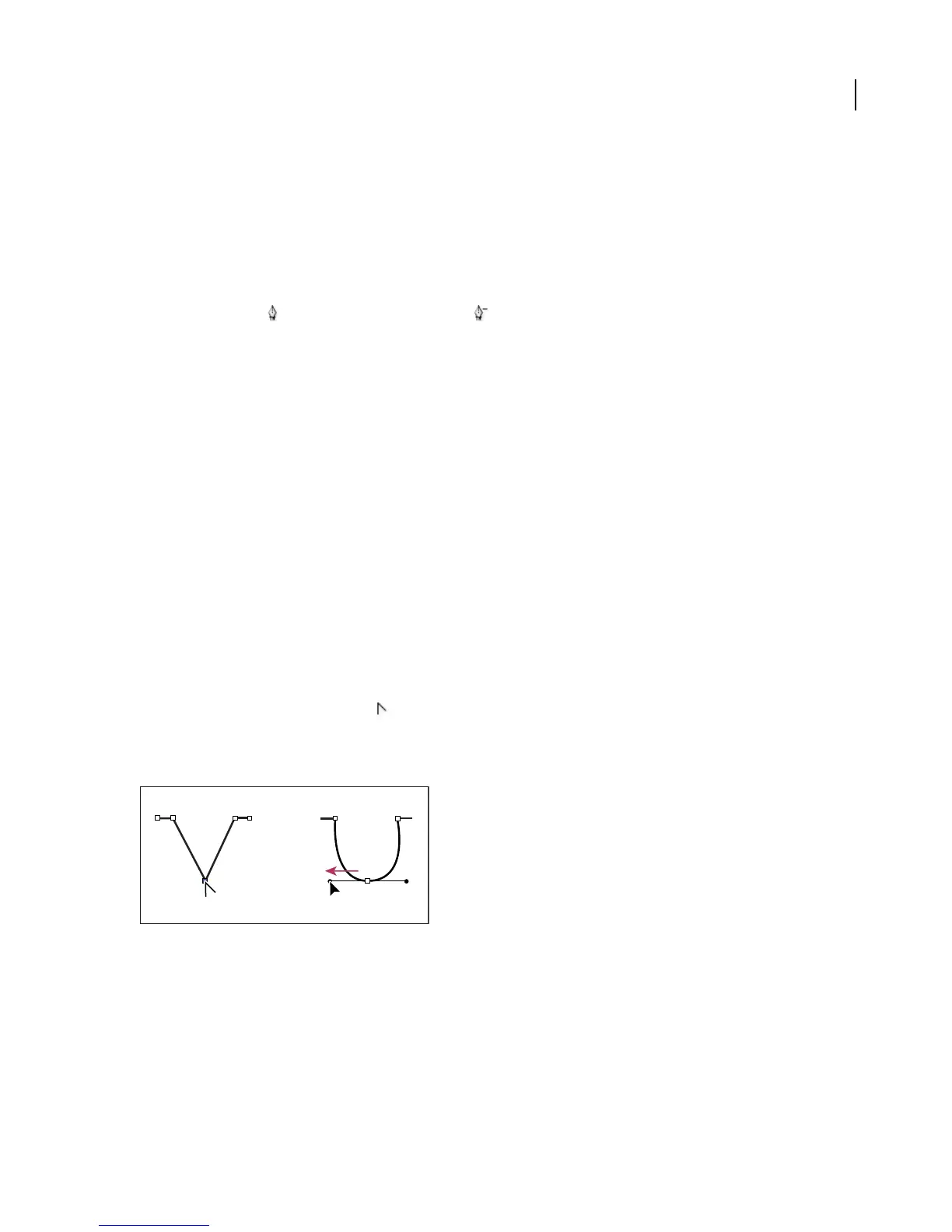
• To convert a corner point to a smooth point, drag a direction point out of the corner point.
Dragging a direction point out of a corner point to create a smooth point
• To convert a smooth point to a corner point without direction lines, click the smooth point.



 To Next Page