415
ADOBE ILLUSTRATOR CS2
User Guide
Forced To force punctuation outside the bounding box by spreading lines that end within the bounding box and
end with one of the hanging characters.
Note: The Burasagari options are not available when Kinsoku Shori is set to None.
See also
“To display Asian type options” on page 406
To specify how leading is measured in Asian type
1 Select the paragraphs you want to adjust.
2 Choose a leading option from the Paragraph palette menu.
Top-to-top Leading Measures the spacing between lines of type from the top of one line to the top of the next line.
When you use top-to-top leading, the first line of type in a paragraph is aligned flush with the top of the bounding
box.
Bottom-to-bottom Leading F or horizontal type, measures the space between lines of type from the type baseline.
When you use bottom-to-bottom leading, space appears between the first line of type and the bounding box. A check
mark indicates which option is selected.
Note: Bottom-to-bottom leading does not affect the amount of leading between lines, only how the leading is measured.
See also
“To display Asian type options” on page 406
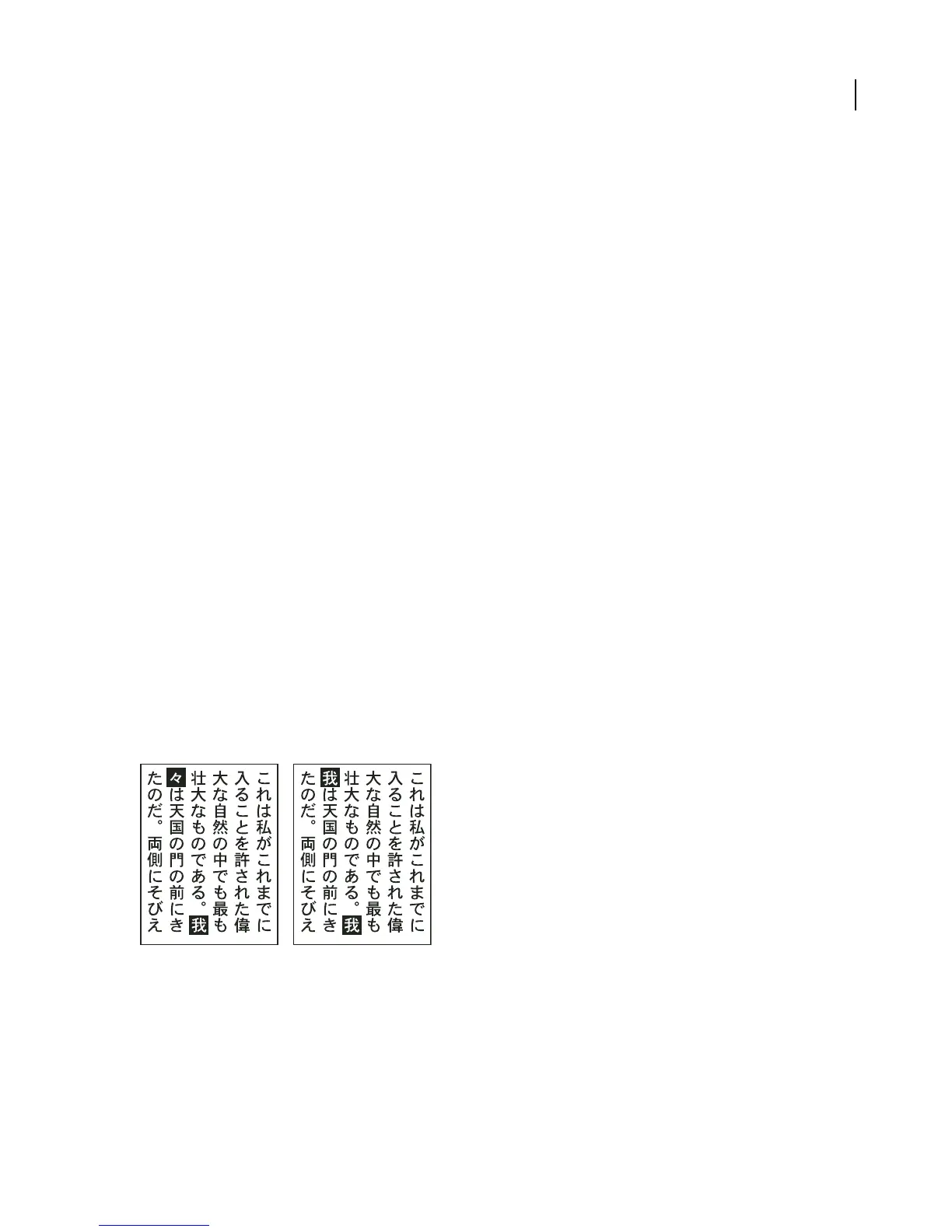
Kurikaeshi moji shori
You can control how repeated characters in Japanese text are handled using the Kurikaeshi Moji Shori option in the
Paragraph palette. By default, a repeat character mark is substituted for the second character when two identical
characters follow one after the other in a body of text. When this option is selected, both characters are displayed if
they are separated by a line break.
Text without Kurikaeshi Moji Shori option (left) compared to text with Kurikaeshi Moji Shori option (right)
To use kurikaeshi moji shori
1 Using any type tool, select a paragraph of text to which you want to apply repeated character processing. If no text
exists, the setting applies to new text typed.
2 In the Paragraph palette, select Kurikaeshi Moji Shori from the palette menu.



 To Next Page