417
ADOBE ILLUSTRATOR CS2
User Guide
A B C D E F G
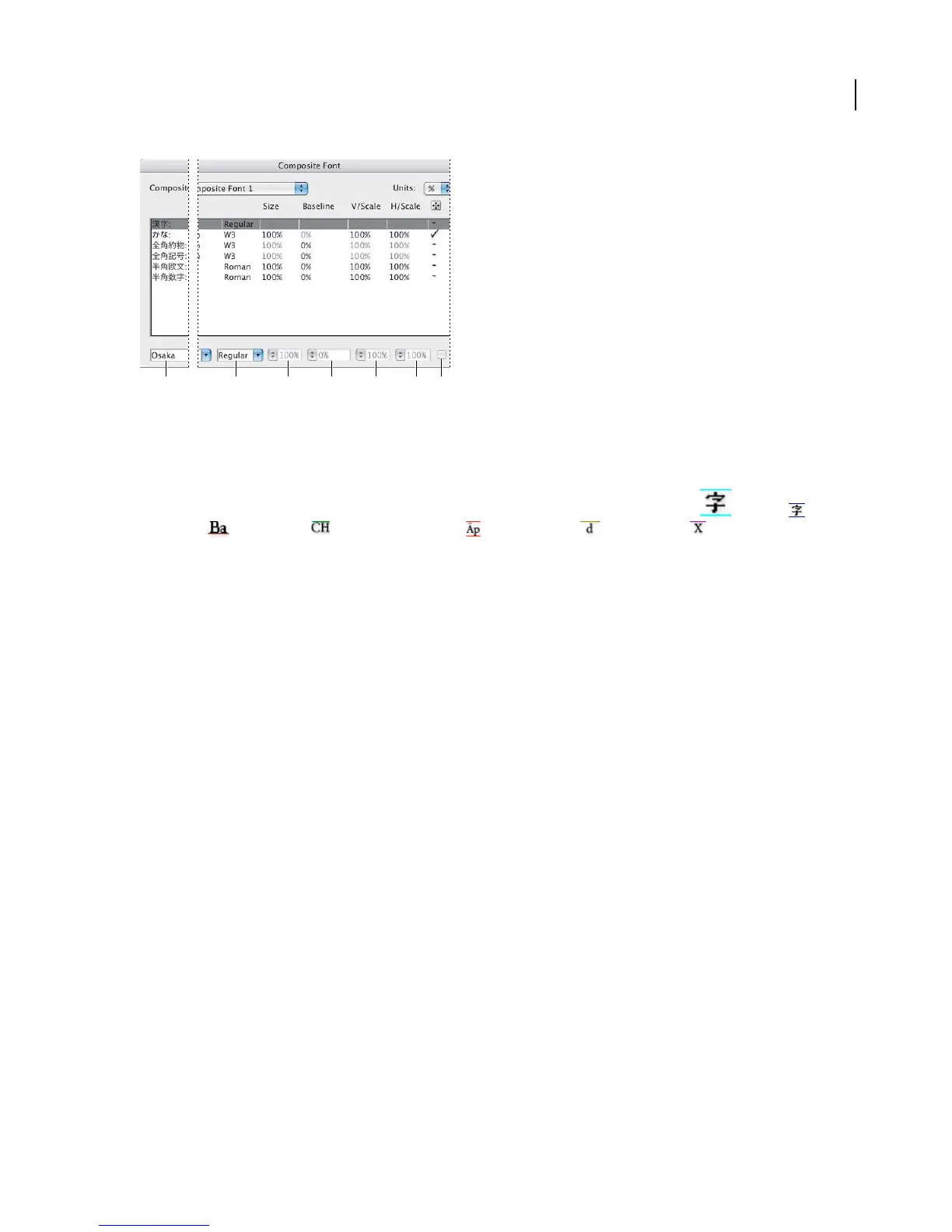
Font attributes
A. Font Family B. Font Style C. Size D. Baseline E. Vertical Scale F. Horizontal Scale G. Scale at Center
7 To view a sample of the composite font, click Show Sample.
You can change the sample in the following ways:
• Click the buttons on the right side of the sample to show or hide lines indicating the ICF Box , Embox ,
Baseline , Cap Height , Max Ascent/Descent , Max Ascender , and x-height .
• Choose a magnification level from the Zoom pop-up menu.
8 Click Save to save the settings for the composite font, and then click OK.
See also
“To display Asian type options” on page 406
Categories of characters in composite fonts
Kanji The base font of the composite font. The size and baseline for other characters are set according to the sizes
and baselines specified here.
Kana The font used for hiragana and katakana characters.
Punctuation The font used for punctuation.
Symbols The font used for symbols.
Roman The font used for half-width roman characters.
Numbers The font used for half-width numbers. This is usually a roman font.
Font attributes for composite fonts
Font Family And Style The font used for the characters.
Size The size of the characters in relation to the size of kanji characters. The size may differ for different fonts, even
when the same font size is used.
Baseline The position of the baseline in relation to the baseline for kanji characters.
Vertical And Horizontal Scale The degree to which characters are scaled. You can scale kana characters, half-width
katakana characters, Gaiji characters, half-width roman characters, and numbers.



 To Next Page