313
ADOBE ILLUSTRATOR CS2
User Guide
Blending options
You set blending options by double-clicking the Blend tool or choosing Object > Blend > Blend Options. To
change options for an existing blend, select the blended object first.
Spacing Determines how many steps are added to the blend.
• Smooth Color Lets Illustrator auto-calculate the number of steps for the blends. If objects are filled or stroked with
different colors, the steps are calculated to provide the optimum number of steps for a smooth color transition. If the
objects contain identical colors, or if they contain gradients or patterns, the number of steps is based on the longest
distance between the bounding box edges of the two objects.
• Specified Steps Controls the number of steps between the start and end of the blend.
• Specified Distance Controls the distance between the steps in the blend. The distance specified is measured from
the edge of one object to the corresponding edge on the next object (for example, from the rightmost edge of one
object to the rightmost edge of the next).
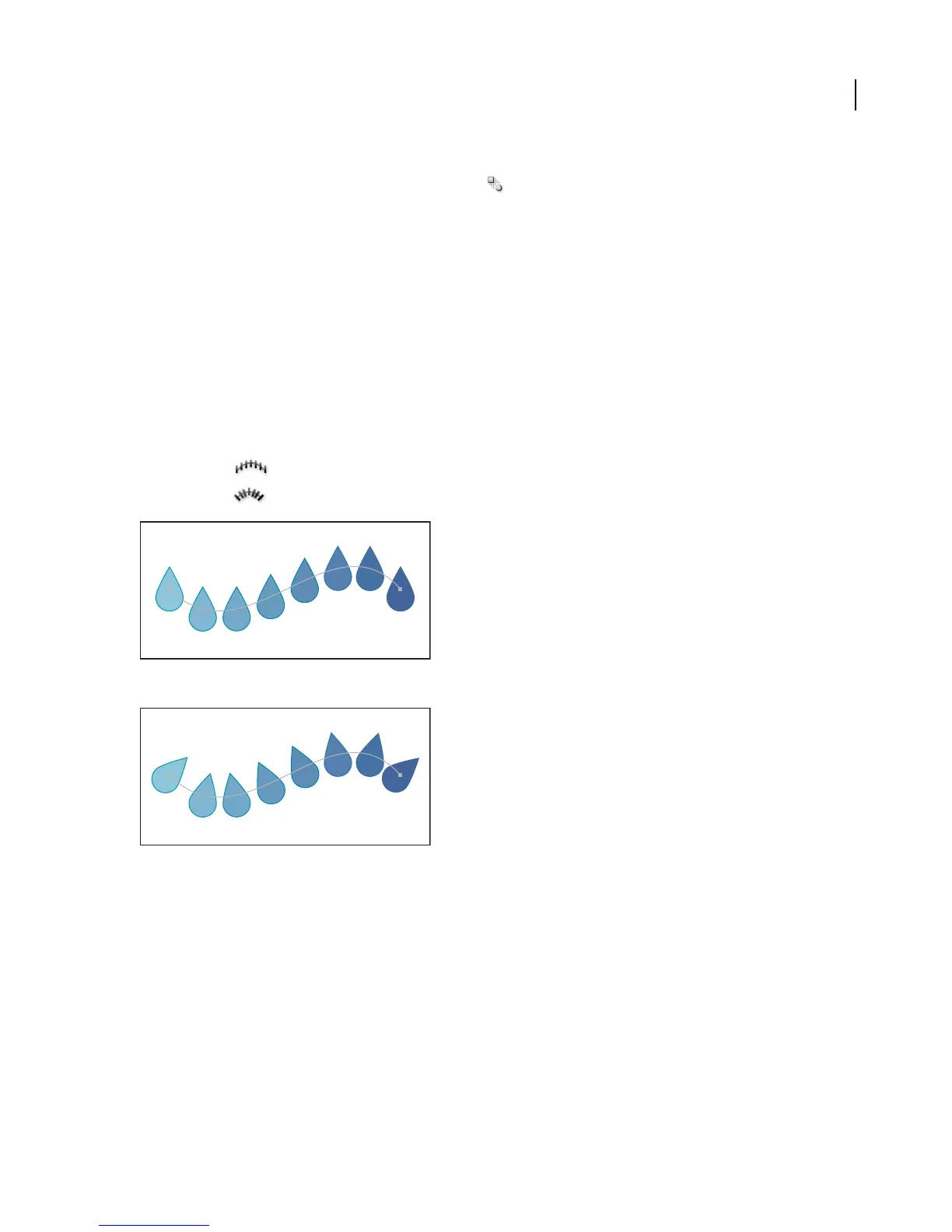
Orientation Determines the orientation of blended objects.
• Align to Page Orients the blend perpendicular to the x axis of the page.
• Align to Path Orients the blend perpendicular to the path.
Align to Page option applied to a blend
Align to Path option applied to a blend
To change the spine of a blended object
The spine is the path along which the steps in a blended object are aligned. By default, the spine forms a straight line.
• To adjust the shape of the spine, drag the anchor points and path segments on the spine with the Direct Selection
tool.
• To replace the spine with a different path, draw an object to use as the new spine. Select the spine object and the
blended object, and choose Object > Blend > Replace Spine.
• To reverse the order of a blend on its spine, select the blended object and choose Object > Blend > Reverse Spine.



 To Next Page