116
ADOBE ILLUSTRATOR CS2
User Guide
Viewing alternates in Bridge
See also
“Availability of Version Cue features” on page 81
To save an alternate
Note: You can perform this task only if you have access to the full Version Cue feature set, available in Adobe Creative
Suite or in a shared workspace. See “Availability of Version Cue features” on page 81 for more information.
If you have a file open and want to create your current work as an alternate to the previous versions, you must use
the Save As command.
1 Choose File > Save As.
2 In the Save As dialog box, select the Save As Alternate option at the bottom of the dialog box.
3 Click Save, and do one of the following:
• If you want to keep the same file name, save the alternates to a different folder.
• If you want to save the alternate in the same folder, change the file name.
The alternate is saved in the project file.
Note: If you don’t change the folder or file name, Version Cue prompts you to create a new version of the file (not an
alternate).
To view alternates from Bridge
Note: You can perform this task only if you have access to the full Version Cue feature set, available in Adobe Creative
Suite or in a shared workspace. See “Availability of Version Cue features” on page 81 for more information.
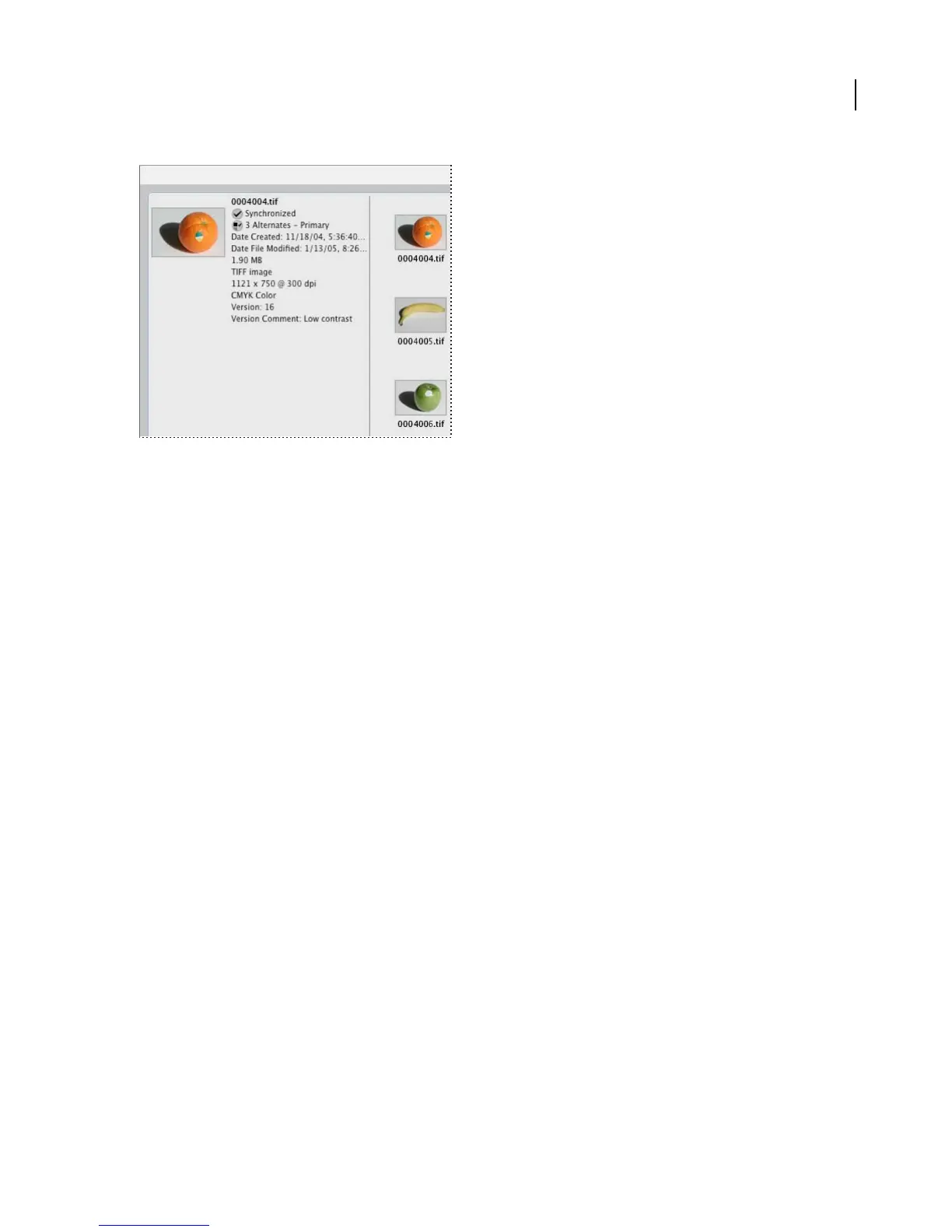
To quickly see which files have alternates, use the Versions And Alternates view in Bridge. This view includes thumb-
nails of each alternate, shows the number of alternates, and indicates which alternate is the primary alternate in the
group. From this view, you can make changes to the alternates groups.
1 Start Bridge, and then select Version Cue in the Favorites panel.
2 Click the Versions And Alternates View icon. Then click Alternates View at the top of the screen.



 To Next Page