174
ADOBE ILLUSTRATOR CS2
User Guide
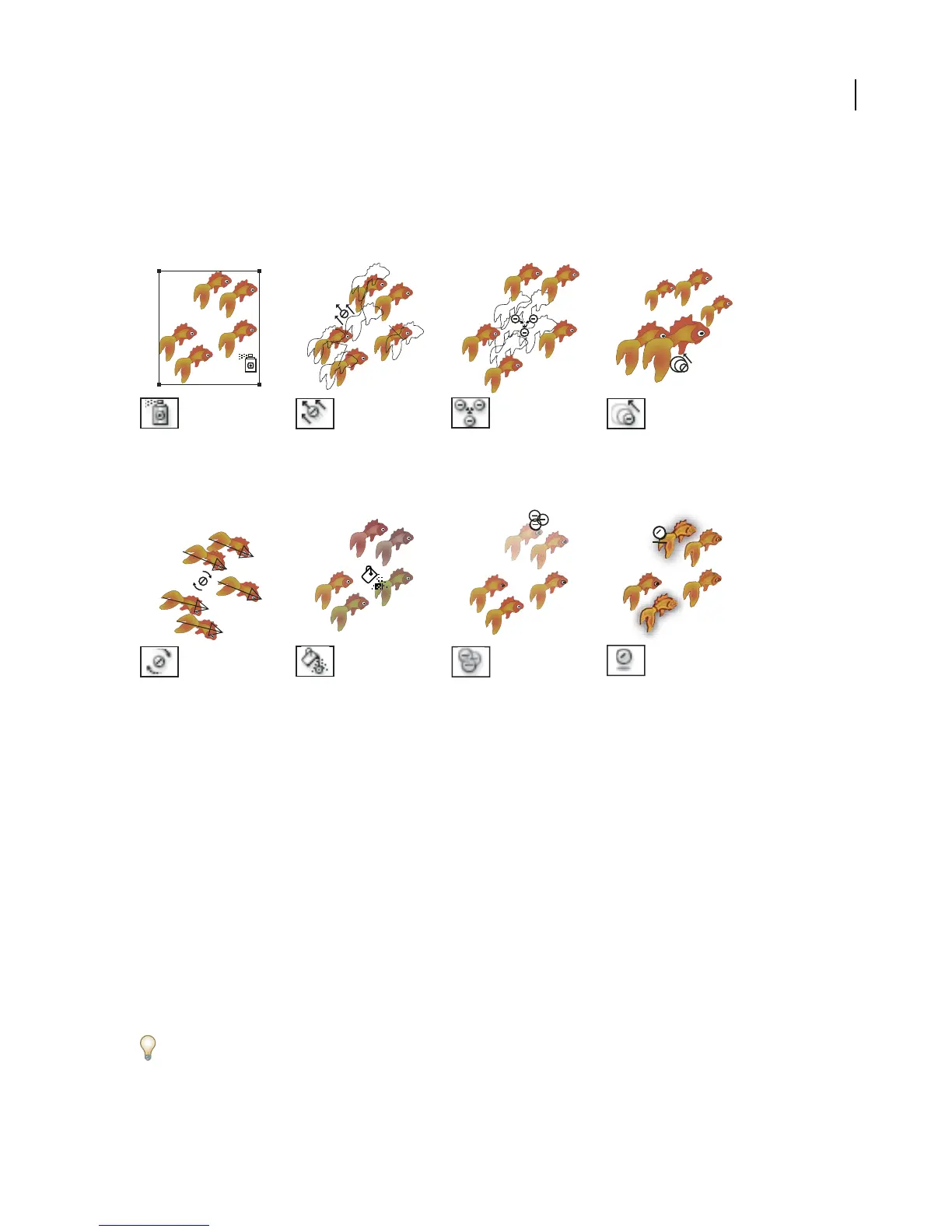
Symbolism tool gallery
The symbolism tools let you create and modify sets of symbol instances. You create a symbol set using the Symbol
Sprayer tool. You can then use the other symbolism tools to change the density, color, location, size, rotation, trans-
parency, and style of the instances in the set.
The Symbol Sprayer tool The Symbol Shifter tool The Symbol Scruncher tool The Symbol Sizer tool resizes
(Shift+S) places multiple moves symbol instances moves symbol instances symbol instances.
symbol instances as a set on closer together.
the artboard.
The Symbol Spinner tool The Symbol Stainer tool The Symbol Screener tool The Symbol Styler tool
rotates symbol instances. colorizes symbol instances. applies opacity to symbol applies the selected style to
instances. symbol instances.
See also
“About the toolbox” on page 29
To set options for the symbolism tools
1 Double-click any symbolism tool in the toolbox.
2 Set options, and click OK.
General options, such as diameter, intensity, and density, appear at the top of the dialog box. Tool-specific options
appear at the bottom of the dialog box. To switch to options for a different tool, click a tool icon in the dialog box.
General options The General options appear at the top of the Symbolism Tools Options dialog box regardless of
which symbolism tool is selected.
• Diameter Specifies the tool’s brush size.
At anytimewhile using asymbolism tool,press [todecreasethe diameter or ]toincreaseit. PressShift+[ to decrease
the intensity or Shift+] to increase it.



 To Next Page