178
ADOBE ILLUSTRATOR CS2
User Guide
• Hold down Alt (Windows) or Option (Mac OS), and click or drag where you want to decrease the symbol’s trans-
parency.
See also
“Symbolism tool gallery” on page 174
“To set options for the symbolism tools” on page 174
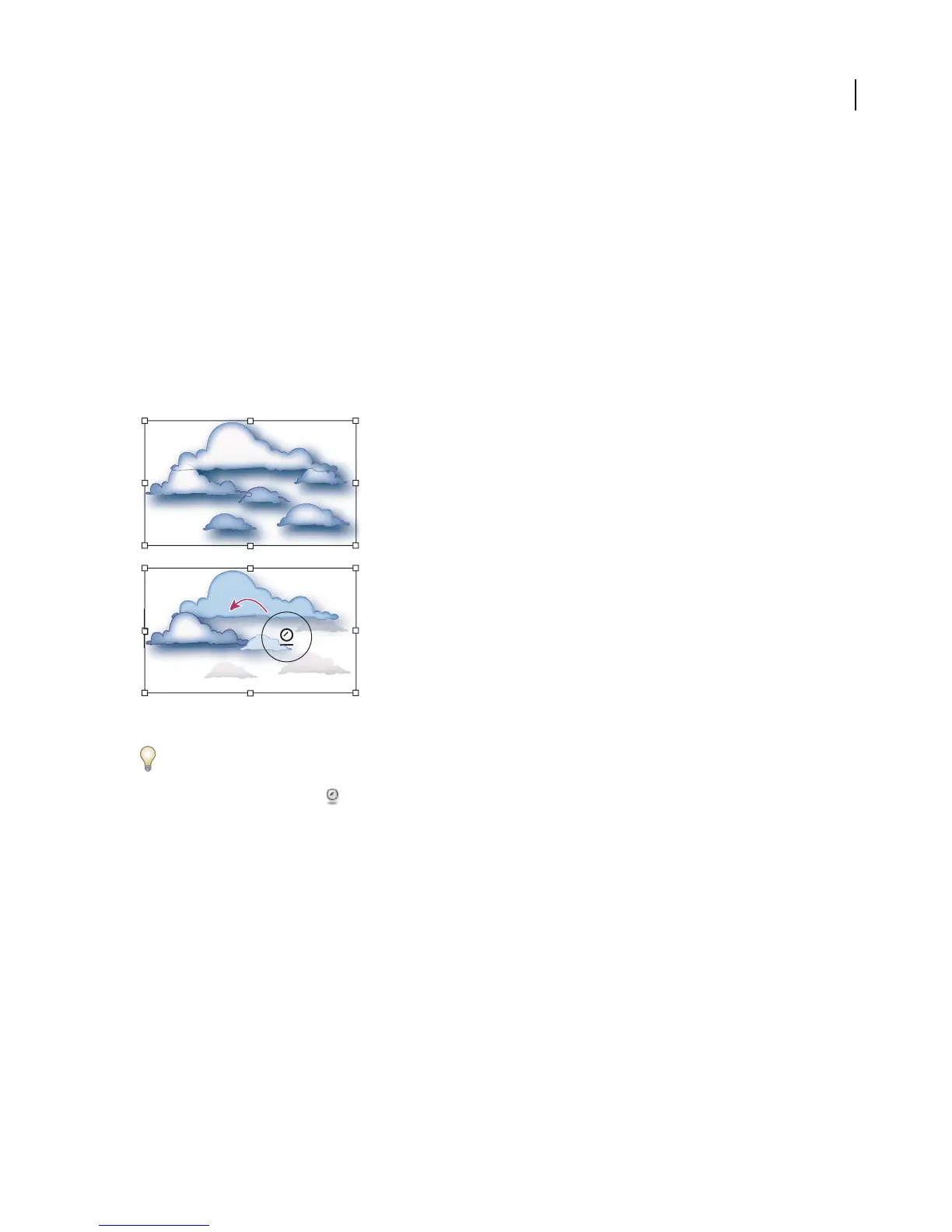
To apply a graphic style to symbol instances
The Symbol Styler tool lets you apply or remove a graphic style from a symbol instance. You can control the amount
and location of the application. For example, you can apply a style gradually so that some symbol instances display
the style at full strength and others display the style at partial strength.
Graphic style applied at full strength (top) compared to graphic style applied at varying strengths (bottom)
You can switch to the Symbol Styler tool when using any other symbolism tool by clicking a style in the Graphic Styles
palette.
1 Select the Symbol Styler tool .
2 Select a style in the Graphic Styles palette, and do one of the following:
• Click or drag where you want to apply the style to the symbol set. The amount of style applied to the symbol
instances increases, and the style gradually changes.
• Hold down Alt (Windows) or Option (Mac OS) as you click or drag to decrease the style amount and reveal more
of the original, unstyled symbol.
• Hold down Shift as you click or drag to keep the amount of style constant, while gradually changing the symbol
instance style to the selected style.
Note: It is very important to perform steps 1 and 2 in the specified order. If you select a style while a tool other than the
symbolism tool is selected, the style will apply immediately to the entire selected symbol instance set.



 To Next Page