226
ADOBE ILLUSTRATOR CS2
User Guide
Bevel Join Creates stroked lines with squared corners.
To create dotted or dashed lines
You can create a dotted or dashed line by editing an object’s stroke attributes.
1 Select the object.
2 In theStrokepalette, select Dashed Line.Ifthe Dashed Line option isn’tshowing,chooseShowOptions from the
Stroke palette menu.
3 Specify a dash sequence by entering the lengths of dashes and the gaps between them.
The numbers entered are repeated in sequence so that once you have established the pattern, you don’t need to fill
in all the text boxes.
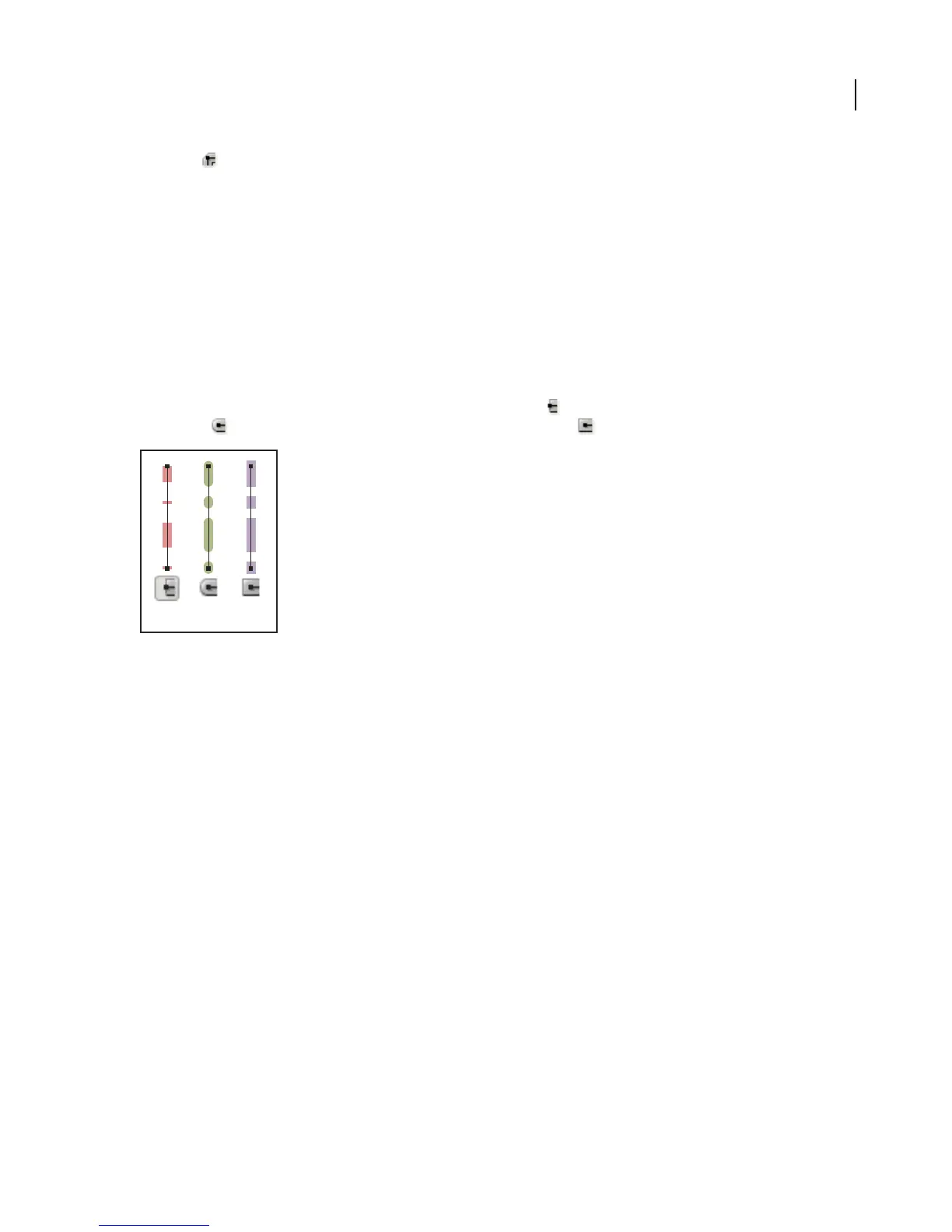
4 Select a cap option to change the ends of the dashes. The Butt Cap option creates square-ended dashes; the
Round Cap option creates rounded dashes or dots; the Projecting Cap option extends the ends of dashes.
A B C
6 pt dashed lines with dash gaps of 2, 12, 16, 12
A. Butt cap B. Round cap C. Projecting cap
See also
“About the Stroke palette” on page 223
To add arrowheads to lines
1 Select an object or group (or target a layer in the Layers palette).
2 Choose Effect > Stylize > Add Arrowheads or Filter > Stylize > Add Arrowhead.
3 Choose from various arrowhead designs for the start and end of the line by clicking the forward and back buttons
below the Start and End arrow boxes. The start and end of the line refer to the order in which the line was drawn.
4 To rescale the size of an arrowhead, enter the percentage you want in the Scale text box. This scales the arrowhead
relative to the stroke weight of the line.
5 Click OK.
If applied as a filter, the resulting arrowheads are distinct objects grouped with the line; the arrowheads can be edited
andmoved like anyother groupedobject. If appliedasaneffect, thearrowsare similartobrush strokes; that is,the
arrows change location, direction, and color along with the line, but they cannot be edited separately.



 To Next Page