230
ADOBE ILLUSTRATOR CS2
User Guide
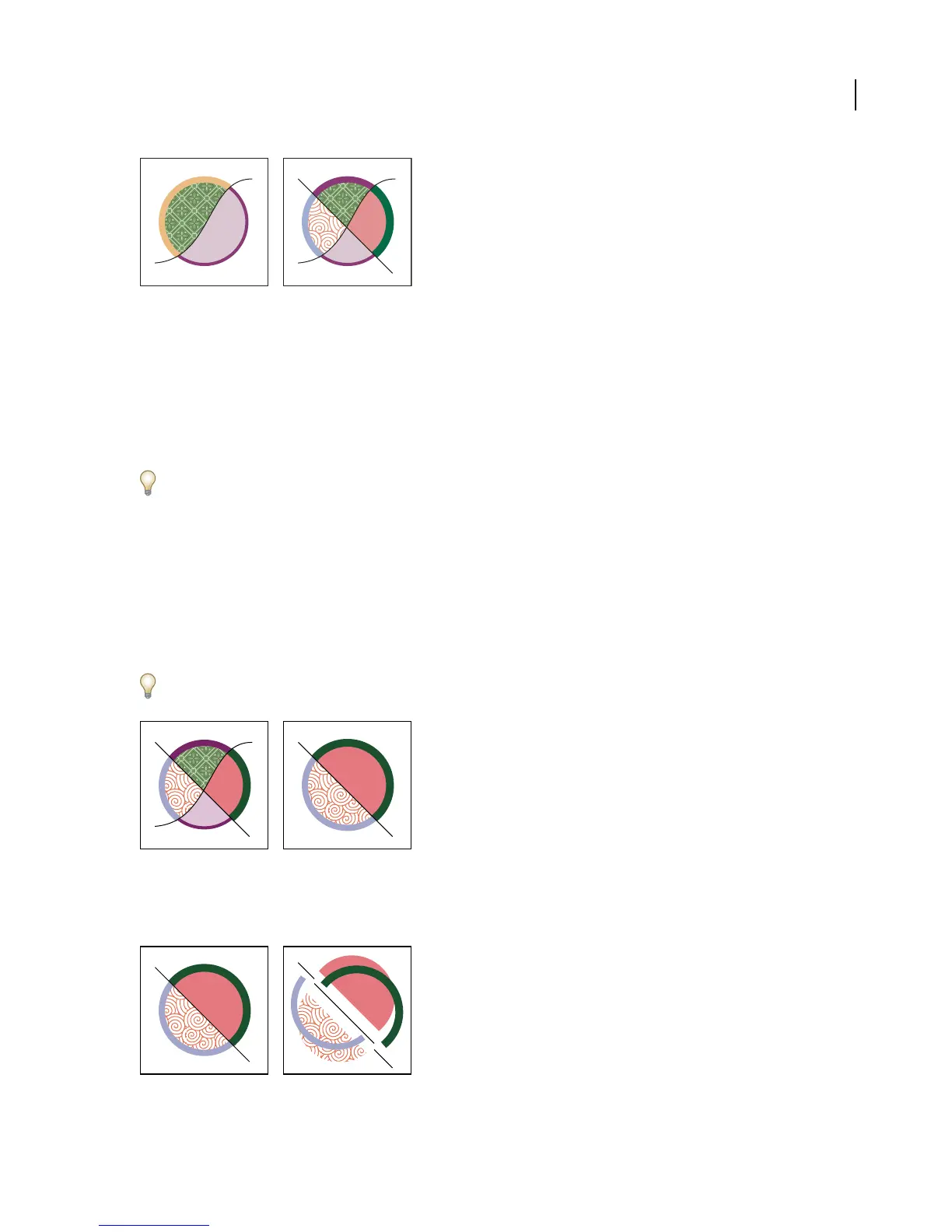
Live Paint group before (left) and after adding a new path and painting the new faces and edges created by it (right)
You can use the Live Paint Selection tool to select and then delete faces and edges. Deleting edges causes the fill to
merge across any newly expanded faces.
TheLivePaint Selectiontoolactsonthe facesand edgesofaLive Paintgroup,the Select tool acts on theentireLive
Paint group, and the Direct Select tool acts on the individual paths inside a Live Paint group. For instance, clicking
once with the Selection tool selects the entire Live Paint group, and clicking once with the Direct Selection tool or
the Group Selection tool selects individual paths that make up the Live Paint group.
You can use the different selection tools depending on what you want to select and affect in a Live Paint group. For
instance, use the Live Paint Selection tool to apply different gradients across different faces in a Live Paint group, and
use the Selection tool to apply the same gradient across the entire Live Paint group.
When you modify the paths that make up a Live Paint group, Illustrator paints the resulting faces and edges with the
fillsand strokesusedinthe group. Forexample,ifyou delete apaththatdivides acircleinhalf, thecircleisfilledwith
one of the fills previously in the circle. However, Illustrator does not know which of the two fills you want to use.
You can often help guide the results. For instance, before deleting a path that divides a circle, first move it so that the
fill youwanttokeepislargerthanthe fill youwanttoremove. Othertimes youmay have to fixthe resultswiththe
Live Paint Bucket tool.
Save the fill and stroke colors used in Live Paint groups in the Swatches palette. That way, if a change loses a color
you want to keep, you can select its swatch and use the Live Paint Bucket tool to reapply the fill or stroke.
Live Paint group before (left) and after selecting and deleting a path (right)
You can also use the Object > Live Paint > Expand command to separate Live Paint groups into their component
faces and edges.
Live Paint group before (left) and after applying the Object > Live Paint > Expand command and dragging to separate faces and edges (right)



 To Next Page