ADOBE ILLUSTRATOR CS2
236
User Guide
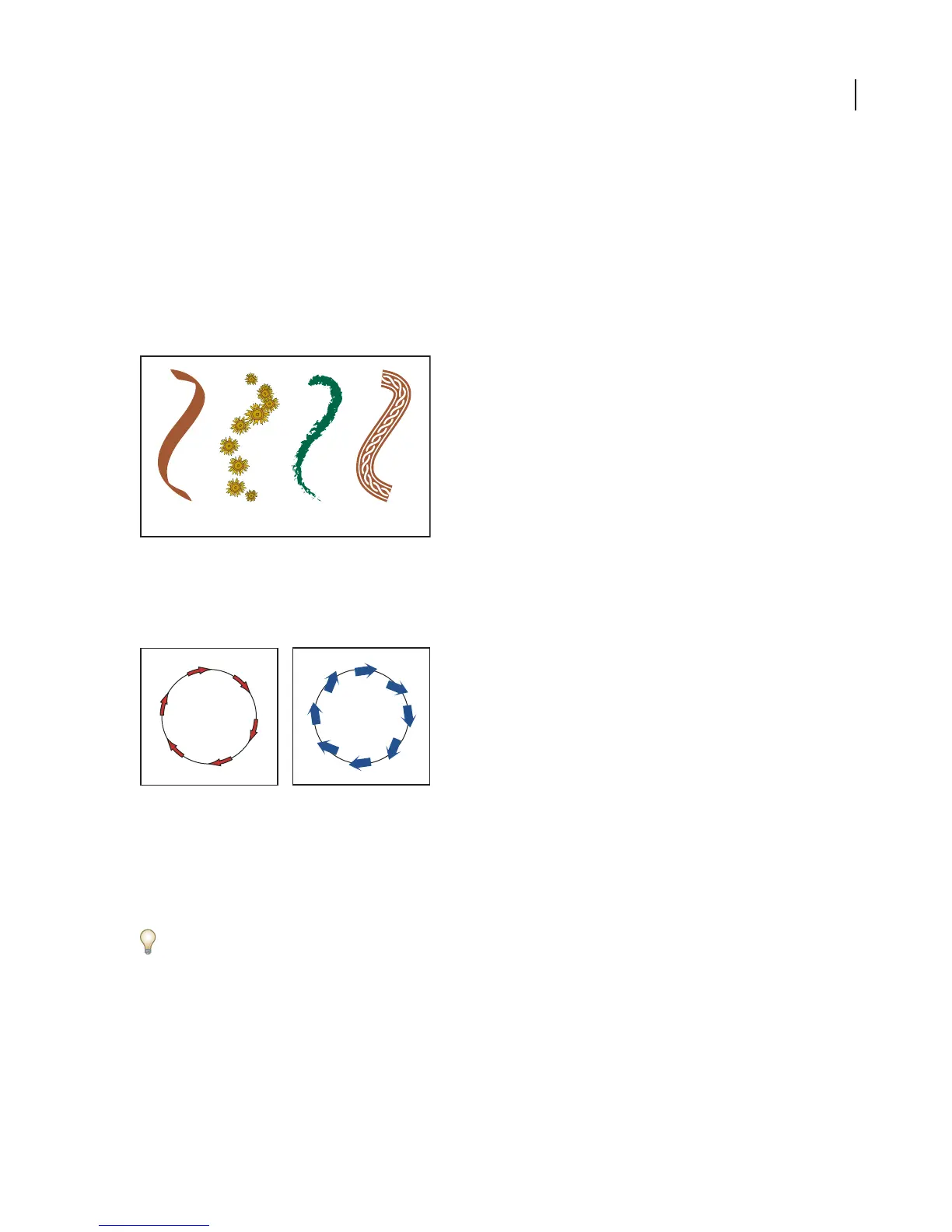
There are four types of brushes in Illustrator—calligraphic, scatter, art, and pattern. You can achieve the following
effects using these brushes:
Calligraphic brushes Create strokes that resemble those drawn with the angled point of a calligraphic pen and are
drawn along the center of the path.
Scatter brushes Disperse copies of an object (such as a ladybug or a leaf) along the path.
Art brushes Stretch a brush shape (such as Rough Charcoal) or object shape evenly along the length of the path.
Pattern brushes Paint a pattern—made of individual tiles—that repeats along the path. Pattern brushes can include
up to five tiles, for the sides, inner corner, outer corner, beginning, and end of the pattern.
ABCD
Sample brushes
A. Calligraphic brush B. Scatter brush C. Art brush D. Pattern brush
Scatter brushes and Pattern brushes can often achieve the same effect. However, one way in which they differ is that
Pattern brushes follow the path exactly, while Scatter brushes do not.
Arrows in a Pattern brush bend to follow the path (left), but arrows remain straight in a Scatter brush (right).
About brush libraries and the Brushes palette
Brush libraries are collections of preset brushes that come with Illustrator. You can open multiple brush libraries to
browse through their contents and select brushes. To display a brush library, choose Window > Brush Libraries, and
choose a library from the submenu. You can also open brush libraries using the Brushes palette menu.
To automatically open a brush library when you start Illustrator, choose Persistent from the brush library’s palette
menu.
TheBrushes palettedisplaysbrushes forthe currentfile. Whenever youselectabrushinabrushlibrary,itisautomat-
ically addedtothe Brushespalette. Brushesthatyou create andstore in theBrushes paletteare associated only with
the current file, which means that each Illustrator file can have a different set of brushes in its Brushes palette. To
display the Brushes palette, choose Window > Brushes.



 To Next Page