257
ADOBE ILLUSTRATOR CS2
User Guide
See also
“About swatches” on page 188
To create seamless, geometric patterns
1 Make sure that Smart Guides are turned on and that Snap To Point is selected in the View menu.
2 Select the geometric object. For precise positioning, position the Direct Selection tool on one of the object’s anchor
points.
3 Begin dragging the object vertically from one of its anchor points; then press Alt+Shift (Windows) or
Option+Shift (Mac OS) to copy the object and constrain its movement.
4 When the copy of the object has snapped into place, release the mouse button and then release the keys.
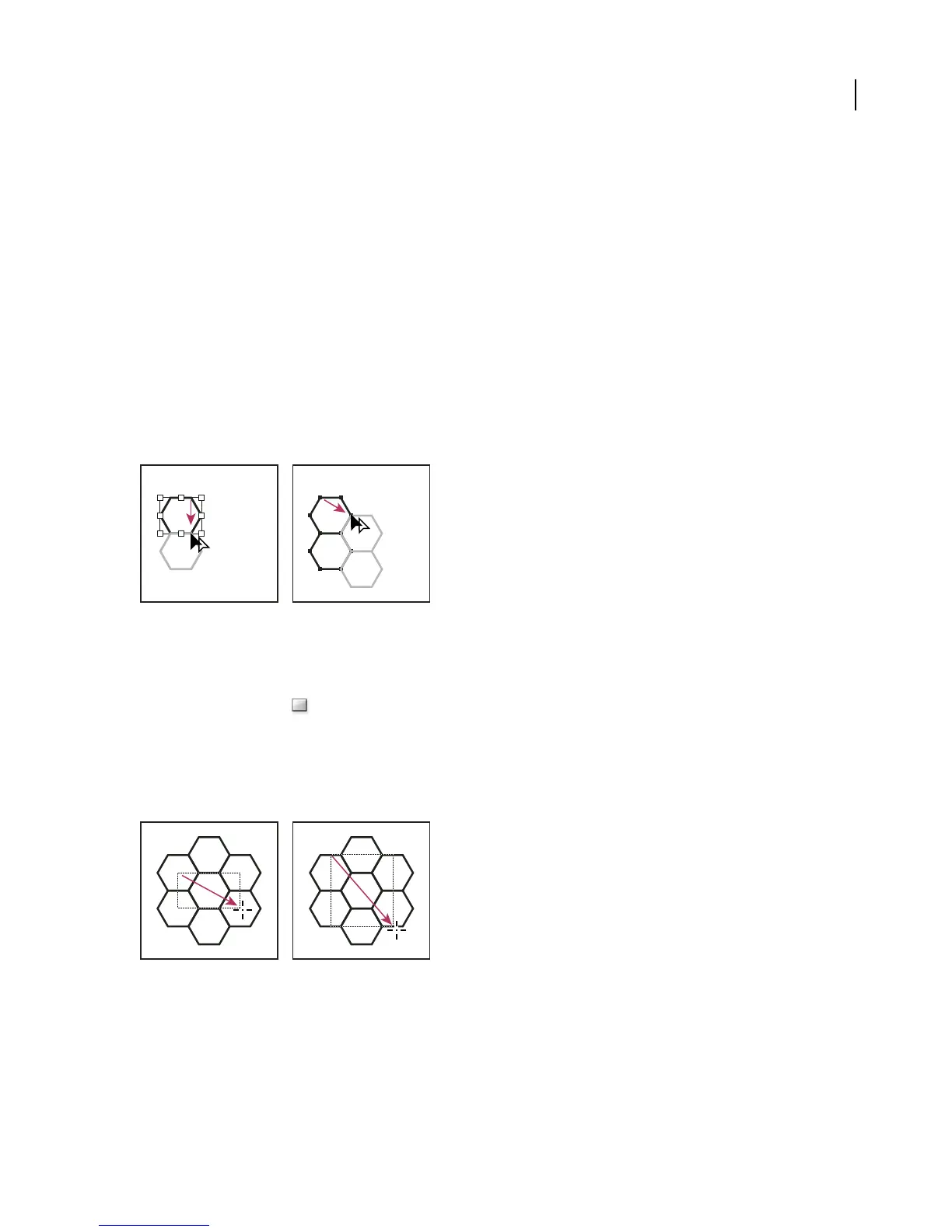
5 Using the Group Selection tool, Shift-click to select both objects, and begin dragging the objects horizontally by
one of their anchor points; then press Alt+Shift (Windows) or Option+Shift (Mac OS) to create a copy and constrain
the move.
Select both objects (left) and drag to create a copy (right).
6 When the copy of the object has snapped into place, release the mouse button, and then release the keys.
7 Repeat steps 2 through 6 until you’ve built the pattern you want.
8 Use the Rectangle tool to do one of the following:
• For a fill pattern, draw a bounding box from the center point of the upper left object to the center point of the
lower right object.
• For a brush pattern, draw a bounding box that surrounds the objects and coincides with their outer boundaries.
If the pattern is to be a corner tile, hold down Shift as you drag to constrain the bounding box to a square.
Bounding box for a fill pattern (left) compared to the bounding box for a brush pattern (right)
9 Paint the geometric objects the desired color.
10 Save the geometric objects as a pattern swatch.



 To Next Page