260
ADOBE ILLUSTRATOR CS2
User Guide
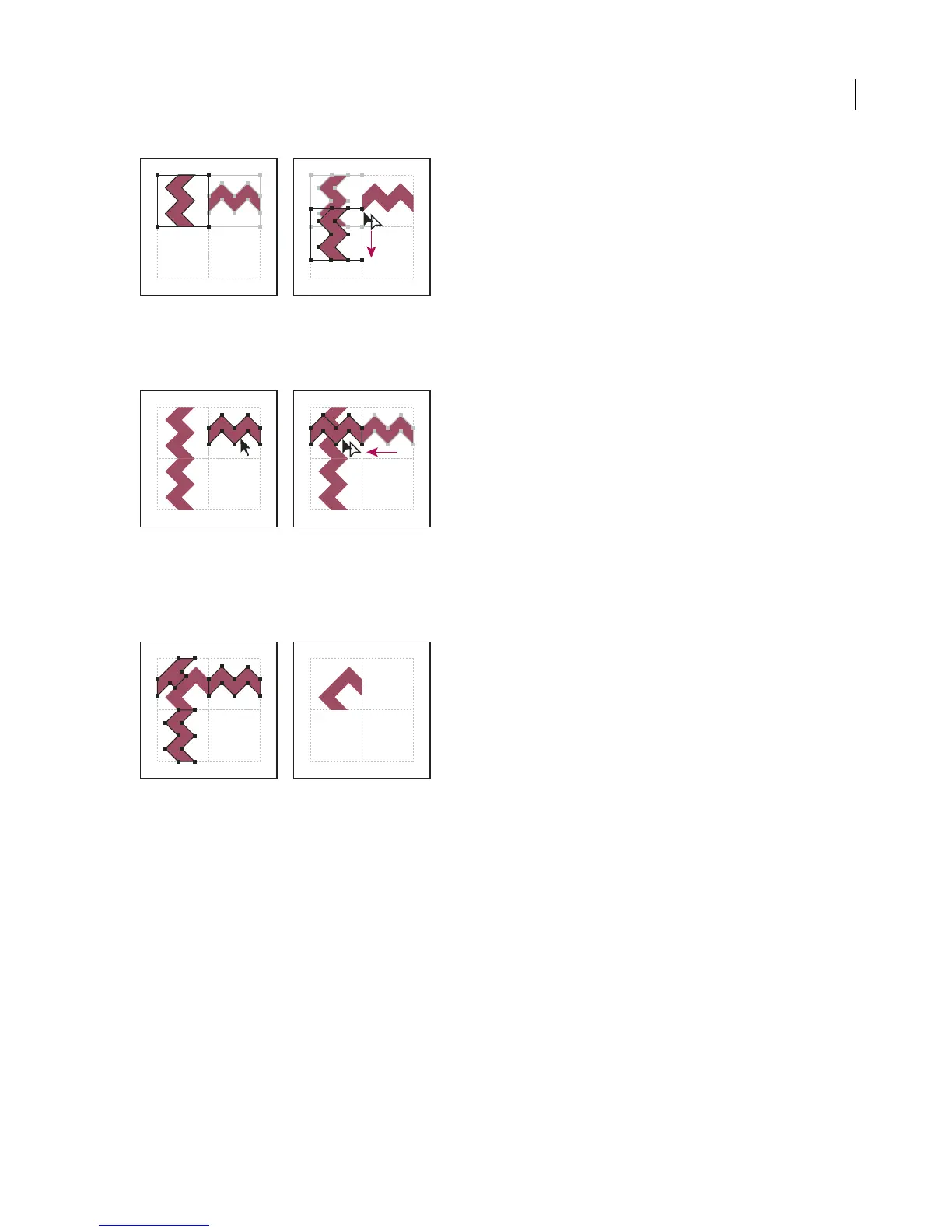
Rotate 90˚ and copy left tile (left), and then Alt-drag (Windows) or Option-drag (Mac OS) a corner tile to make a copy beneath it (right).
8 Select the artwork in the right tile. Drag it to the left, pressing Alt+Shift (Windows) or Option+Shift (Mac OS) so
that the right-tile artwork overlaps that in the corner tile.
Copy (left) and move upper right tile over corner tile (right).
9 Edit the corner tile so that its artwork lines up vertically and horizontally with the tiles next to it. Select and delete
any portions of the tile that you do not want in the corner, and edit the remaining art to create the final outer corner
tile.
Deleting unnecessary elements (left) produces a final outer corner tile (right).
10 Select all of the tile parts including the bounding box.
11 Save the new pattern as a swatch.
12 Double-click the new pattern swatch to bring up the Swatch Options dialog box, name the tile as a variation of
the original (for example, use the suffix “outer”), and click OK.
See also
“About creating brushes” on page 239
“Pattern brush options” on page 241
To modify patterns
1 Make sure that nothing is selected in your artwork.



 To Next Page