20
ADOBE ILLUSTRATOR CS2
User Guide
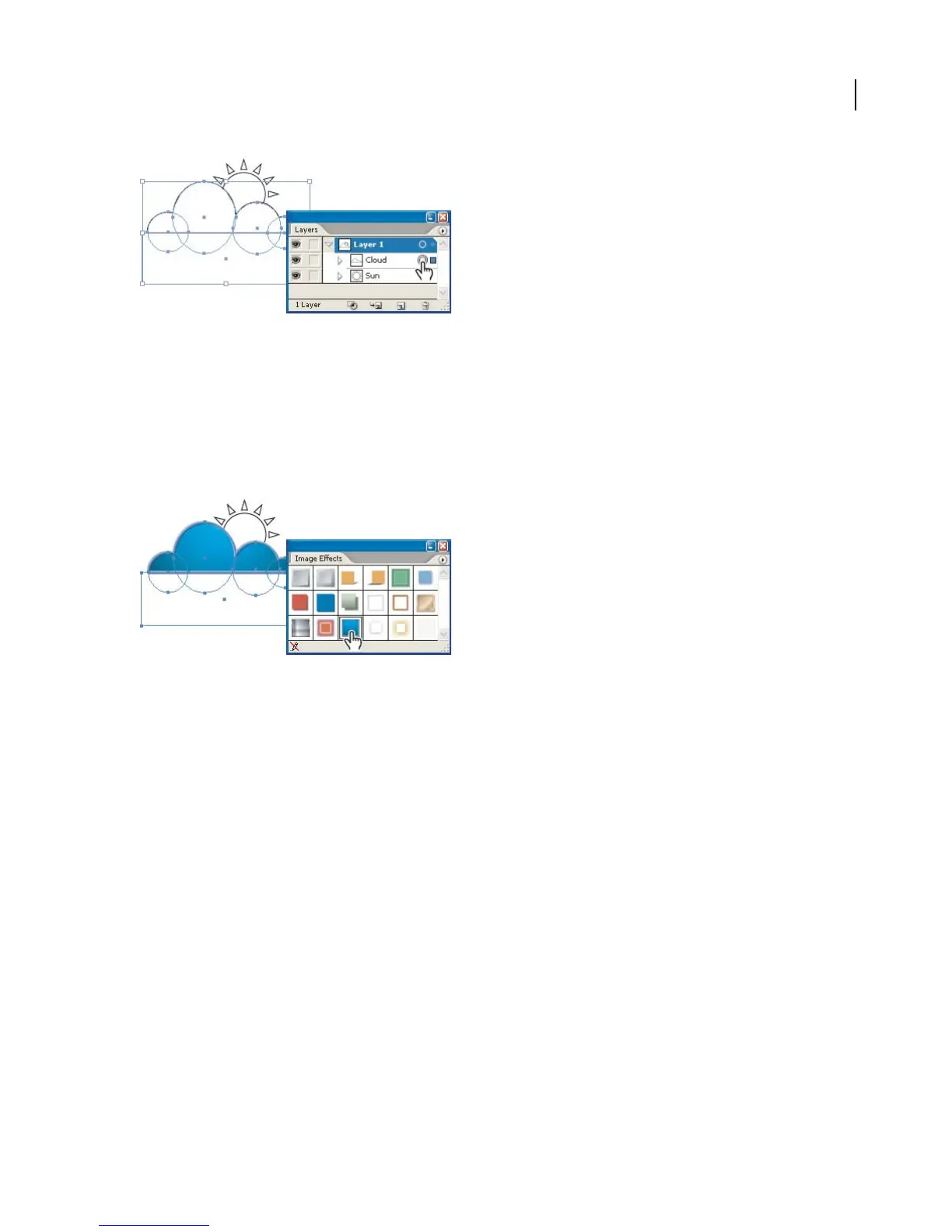
2. Apply a graphic style to the cloud.
If the Graphic Styles palette isn’t showing, choose Window > Graphic Styles. The Graphic Styles palette displays a
variety of default graphic styles; however, many additional graphic styles are available to you through graphic style
libraries. To open a graphic style library, click the triangle icon at the top right corner of the Graphic Styles palette,
and choose an option from the Open Graphic Style Library submenu.
Once you locate the graphic style you want to use, click it. We used the Raised Edges graphic style from the Image
Effects library.
3. View appearance attributes of the graphic style.
Choose Select > Deselect to deselect the clouds, and if the Appearance palette isn’t showing, choose Window >
Appearance. The Appearance palette lists appearance attributes—propertiesthataffectthe look of an object without
altering its underlying structure. These include fills, strokes, transparency settings, and effects.
In ourcase, no artworkistargeted, so thetop listingshouldread“No Selection:” followed by thenameofthe current
graphic style. The specific appearance attributes depend on the graphic style you selected in step 2. Some attributes
may have triangles to the left of them. This means that the attribute includes effects or transparency settings. You can
expand or collapse the attribute by clicking the triangle. (See “Using the Appearance palette” on page 419.)



 To Next Page