263
ADOBE ILLUSTRATOR CS2
User Guide
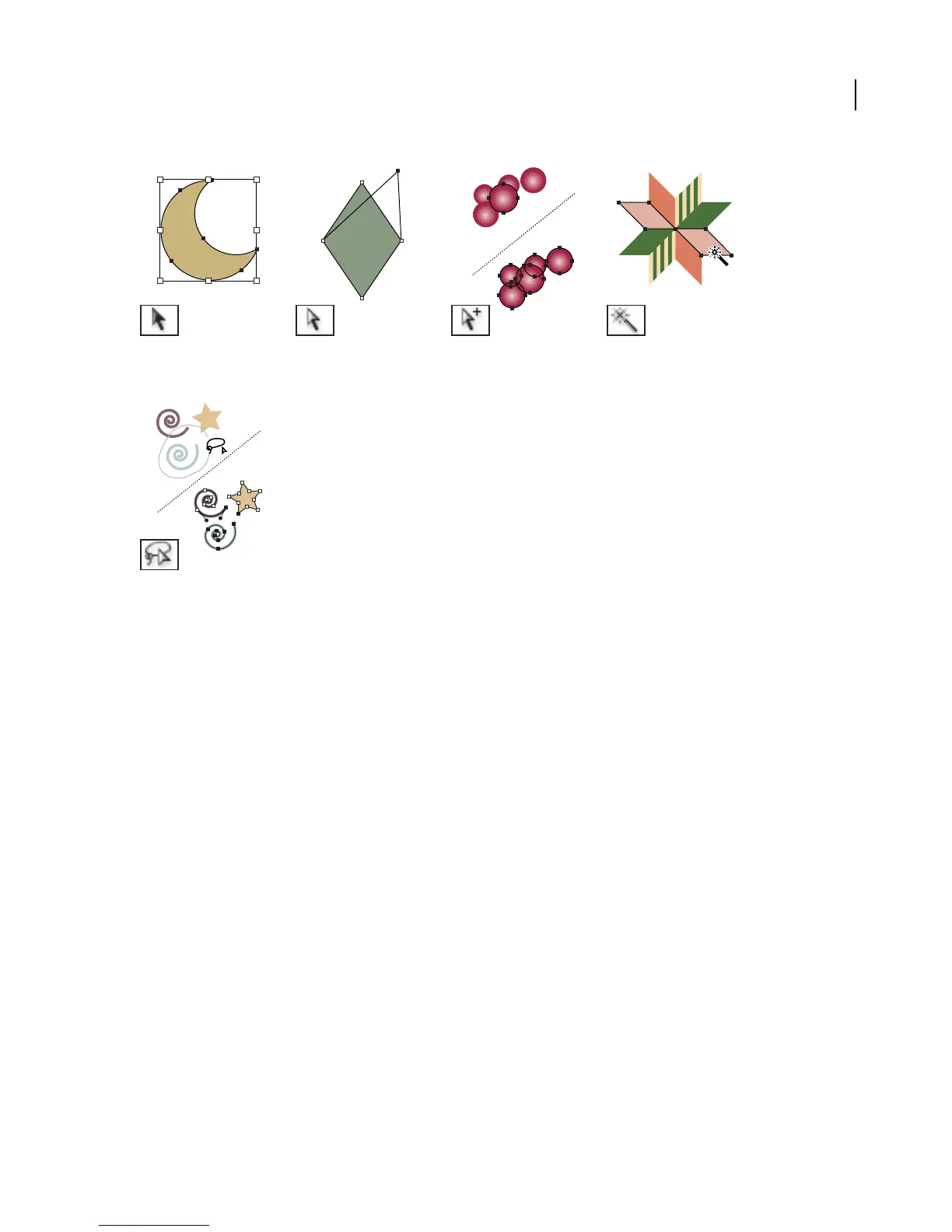
The Selection tool (V) selects
entire objects.
The Direct Selection tool (A) The Group Selection tool The Magic Wand tool (Y)
selects points or path selects objects and groups selects objects with similar
segments within objects. within groups. attributes.
The Lasso tool (Q) selects
points or path segments
within objects.
See also
“About the toolbox” on page 29
“Keys for selecting” on page 528
To select objects using the Layers palette
1 In the Layers palette, locate the object you want to select. You may have to click a toggle arrow to expand a layer
or group, or scroll up or down in the palette to locate the object.
2 Do any of the following:
• To select individual objects, click in the object’s selection column (between the target button and the scroll bar).
Shift-click to add or to remove objects from the selection.
• To select all artwork in a layer or group, click in the layer’s or group’s selection column.
• To select all artwork in a layer based on the currently selected artwork, choose Select > Object > All On Same
Layers.
Selection color boxes appear next to each selected item in the palette.
See also
“About the Layers palette” on page 278



 To Next Page