266
ADOBE ILLUSTRATOR CS2
User Guide
• Click to select an object within the selected group.
• Draw to add an object to the selected group.
4 Double-click outside the group to deselect the group.
See also
“To group or ungroup objects” on page 284
To select a single object within a group
1 Do one of the following:
• Select the Group Selection tool , and click the object.
• Select the Lasso tool , and drag around or across the object’s path.
• Select the Direct Selection tool , and click within the object, or drag a marquee around part or all of the object’s
path.
2 To add or remove an object or group to the selection (with any selection tool), hold down Shift and select the
object to add or remove.
See also
“To group or ungroup objects” on page 284
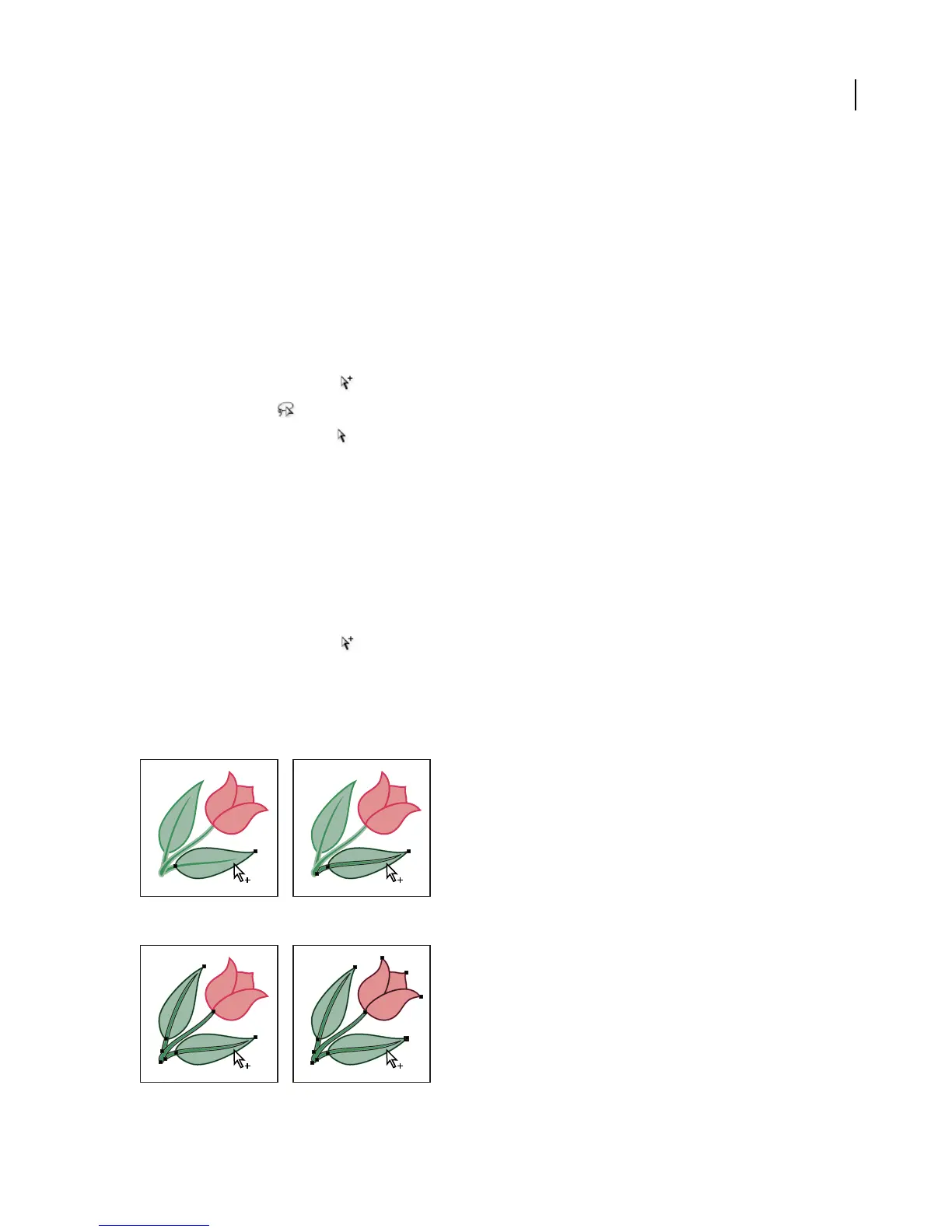
To select objects and groups with the Group Selection tool
1 Select the Group Selection tool , and click an object that’s within the group you want to select. The object is
selected.
2 To select the object’s parent group, click the same object again.
3 Click the same object again to select additional groups that are grouped with the selected group until you have
selected everything you want to include in your selection.
The first click with the Group Selection tool selects an object in a group (left); the second click selects the object’s group (right).
The third click adds the next group to the selection (left); the fourth click adds the third group (right).



 To Next Page