270
ADOBE ILLUSTRATOR CS2
User Guide
Yo u c a n u s e snapping to help you position objects as you move them. For example, you can snap the pointer to guides
and anchor points and snap object boundaries to gridlines. You can also use the Align palette to position objects in
relation to each other.
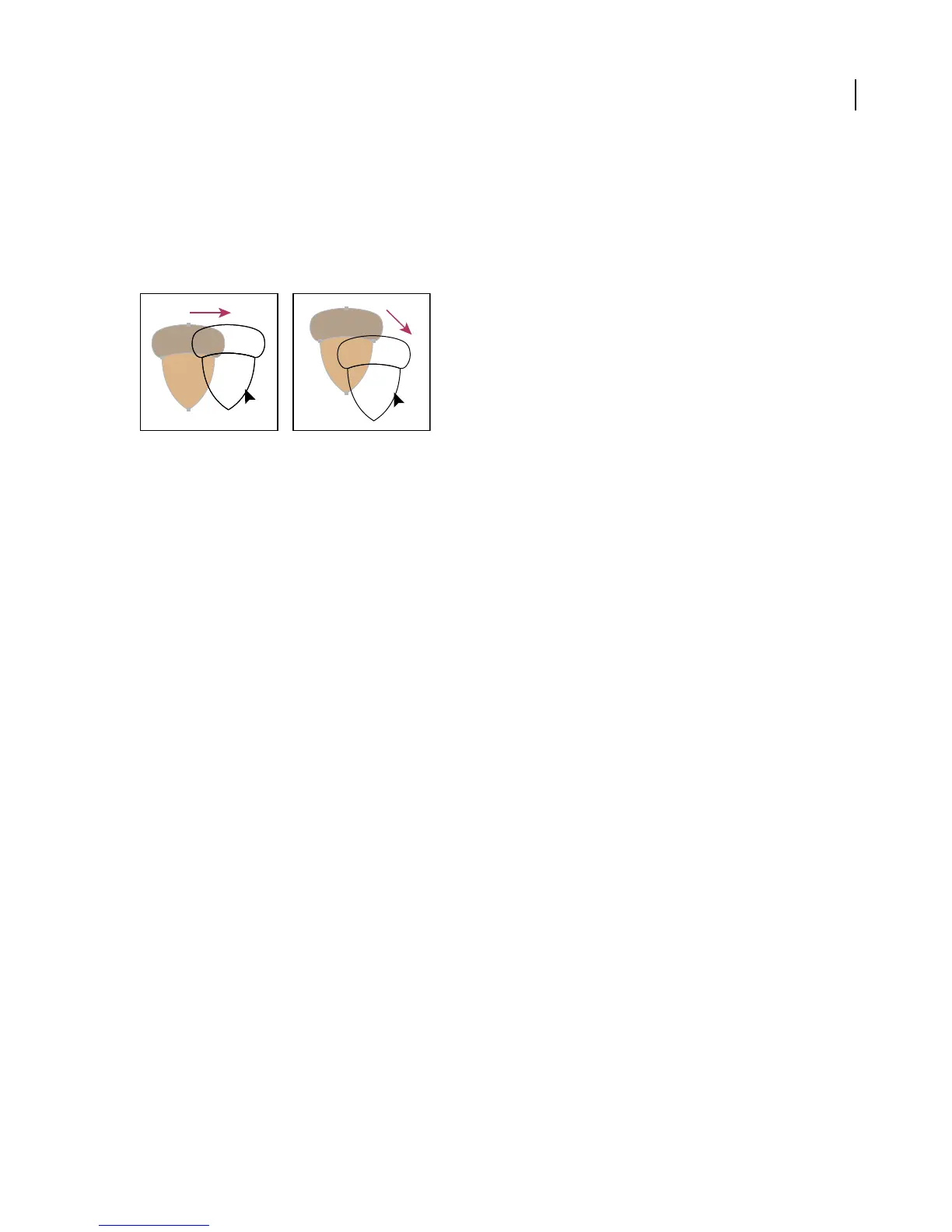
You can then use the Shift key to constrain the movement of one or more objects so that they move in a precise
horizontal, vertical, or diagonal direction relative to the current orientation of the x and y axes. You can also use the
Shift key to rotate objects in multiples of 45˚.
Hold down Shift while dragging or drawing to limit movement to the nearest 45˚ angle.
See also
“About the Align palette” on page 272
“To work with the grid” on page 42
To move or duplicate objects by pasting
1 Select one or more objects.
2 Choose Edit > Cut to move the selection or Edit > Copy to duplicate the selection.
3 To paste an object into another file, open the file.
4 Choose one of the following commands:
Edit > Paste To paste the object into the center of the active window.
Edit > Paste In Front To paste the object directly in front of the selected object.
Edit > Paste In Back To paste the object directly in back of the selected object.
See also
“About the Clipboard” on page 286
“About the stacking order” on page 282
“About pasting objects between layers” on page 283
“To duplicate objects by dragging” on page 285
To move an object by dragging
1 Select one or more objects.
2 Drag the object to a new location.
If a selected object is filled, you can drag from anywhere on the object. If a selected object is unfilled, if you are
viewing artwork as outlines, or if the Object Selection By Path Only preference is selected, you must drag from the
object’s path.



 To Next Page