ADOBE ILLUSTRATOR CS2
291
User Guide
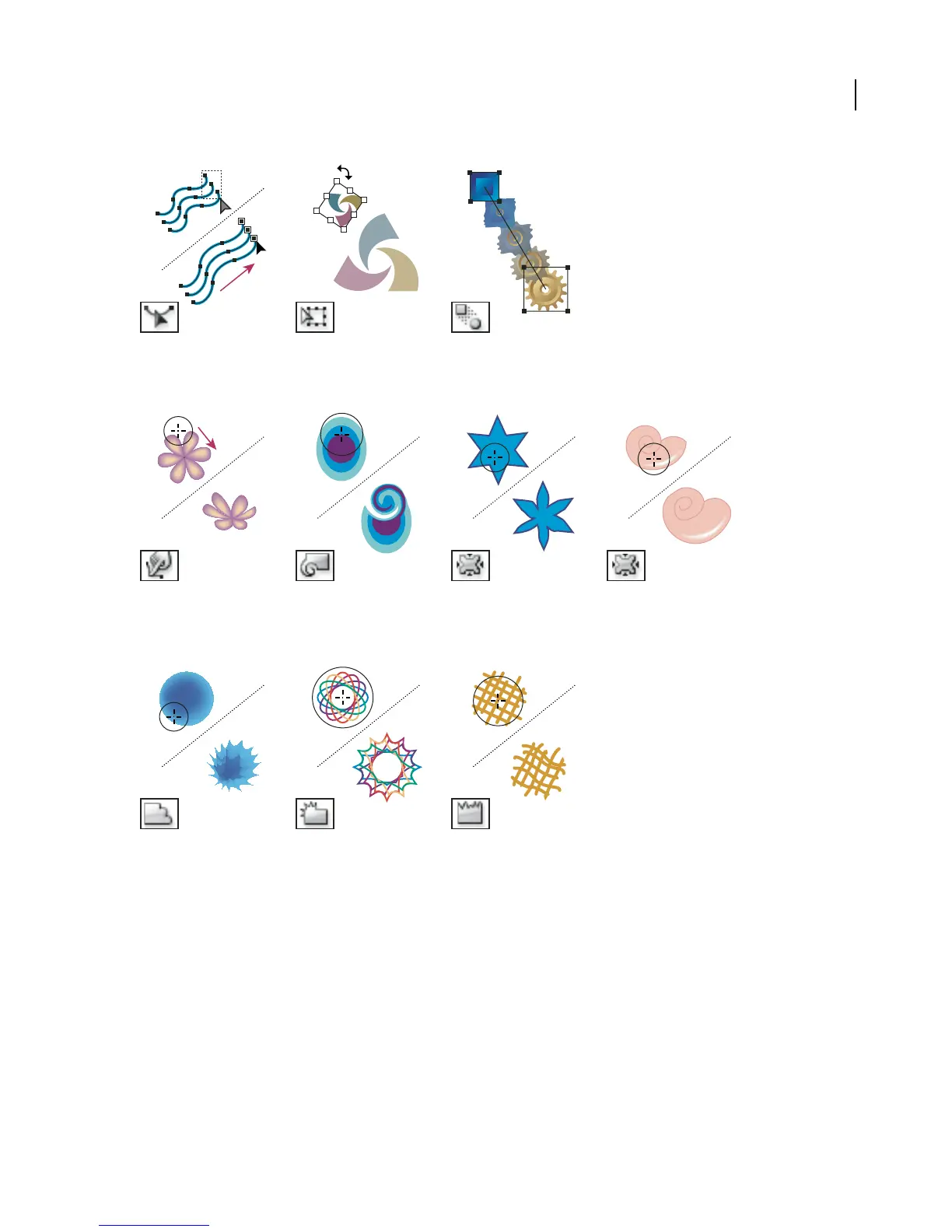
The Reshape tool adjusts The Free Transform tool (E) The Blend tool (W) creates a
selected anchor points while scales, rotates, or skews a series of objects blended
keeping the overall detail of selection. between the color and shape
the path intact. of multiple objects.
The Warp tool (Shift+R) The Twirl tool creates The Pucker tool deflates an The Bloat tool inflates an
molds objects with the swirling distortions within an object by moving control object by moving control
movement of the cursor (like object. points towards the cursor. points away from the cursor.
molding clay, for example).
The Scallop tool adds The Crystallize tool adds The Wrinkle tool adds
random curved details to the random spiked details to the wrinkle-like details to the
outline of an object. outline of an object. outline of an object.
See also
“About the toolbox” on page 29
About the Transform palette
The Transform palette displays information about the location, size, and orientation of one or more selected objects.
By typing new values, you can modify the selected objects or their pattern fills, or both. You can also change the
transformation reference point and lock the object’s proportions. To display the palette, choose Window >
Transform.



 To Next Page