303
ADOBE ILLUSTRATOR CS2
User Guide
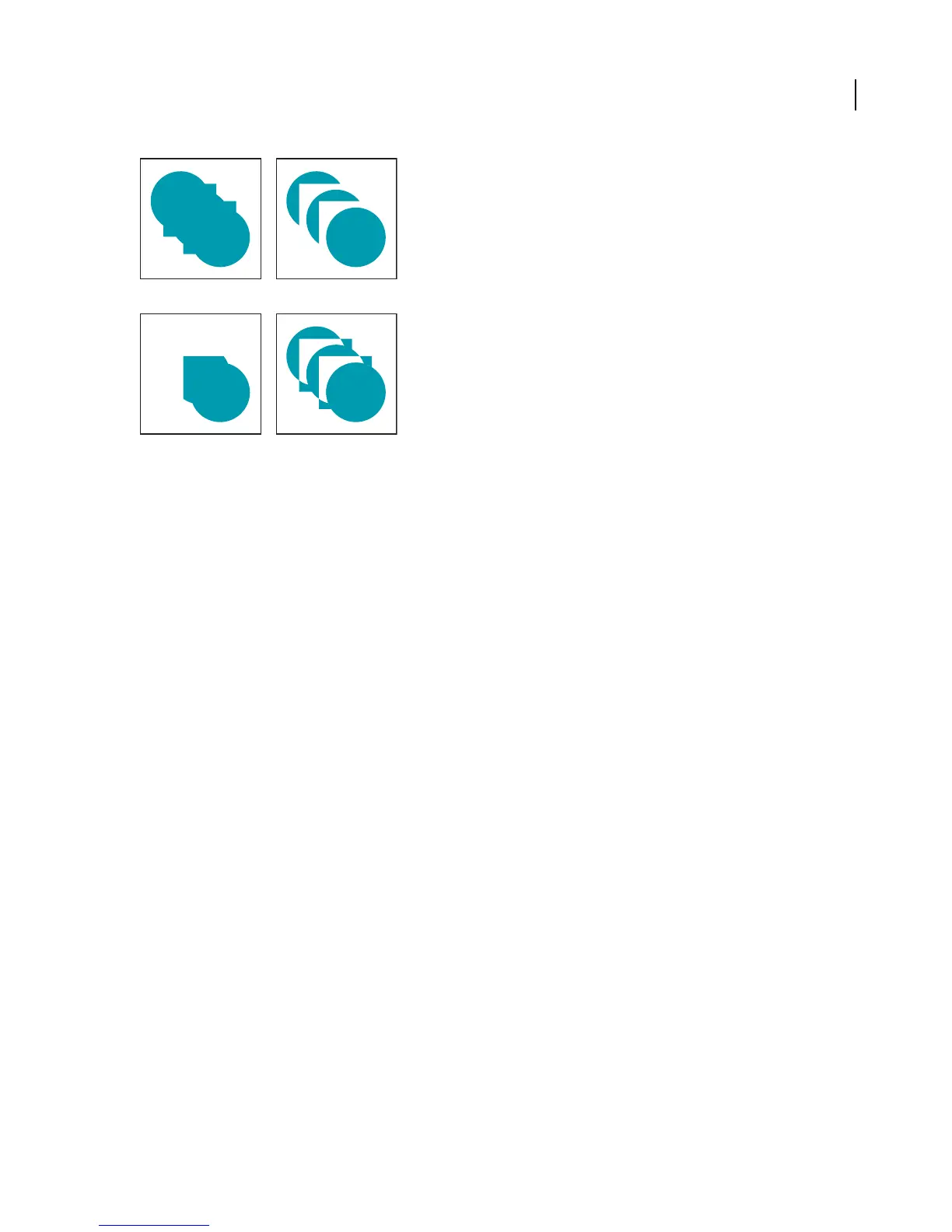
A B
C D
Shape modes
A. AllcomponentsinAddmode B. Subtract mode applied to squares C. Intersectmodeappliedtosquares D. Excludemodeappliedtosquares
The bottom row of buttons in the palette, called pathfinder effects, let you create final shape combinations on the
first click. (See “Pathfinder effects” on page 304.)
To modify a compound shape
1 Use the Direct Selection tool or Layers palette to select an individual component of the compound shape.
2 Look for the highlighted Shape Mode button in the Pathfinder palette to identify which mode is currently applied
to a selected component.
Note: If you’ve selected two or more components that use different modes, question marks appear on the Shape Mode
buttons.
3 In the Pathfinder palette, click a different Shape Mode button.
See also
“About the Pathfinder palette” on page 302
To release and expand a compound shape
Releasing a compound shape separates it back into separate objects. Expanding a compound shape maintains the
shape of the compound object, but you can no longer select the individual components.
1 Select the compound shape using the Selection tool or Layers palette.
2 Do one of the following:
• Click Expand in the Pathfinder palette.
• Choose Expand Compound Shape from the Pathfinder palette menu.
The compound shape is converted to a <Path> or <Compound Path> item in the Layers palette, depending on the
shape mode it used.
• Choose Release Compound Shape from the Pathfinder palette menu.



 To Next Page