ADOBE ILLUSTRATOR CS2
322
User Guide
AB
CD
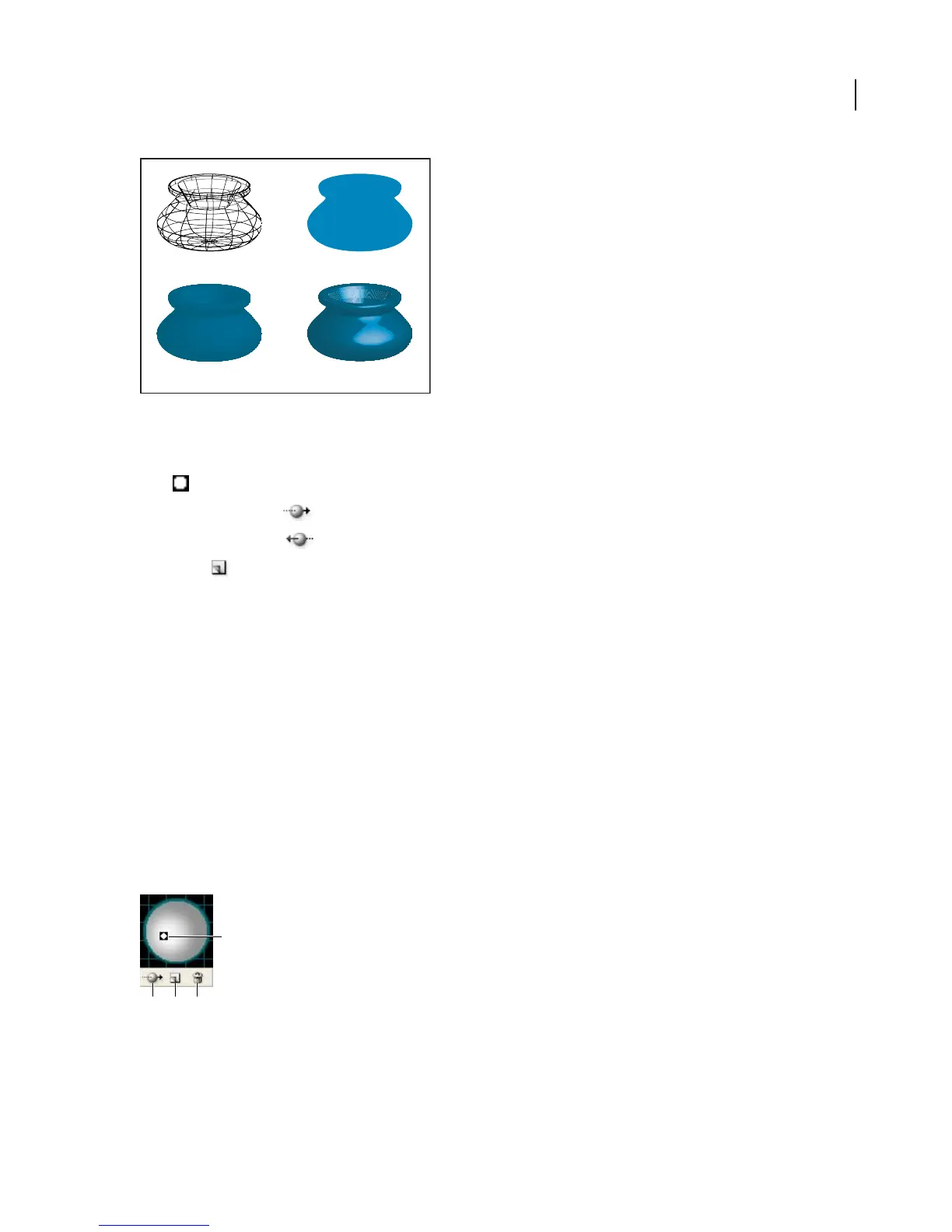
Examples of different surface shading choices
A. Wireframe B. No shading C. Diffuse shading D. Plastic shading
Lighting options
Light Defines where the light is. Drag the light to where you want it on the sphere.
Move Light Back button Moves the selected light behind the object.
Move Light Front button Moves the selected light in front of the object.
New button Adds a light. By default, new lights appear in the front center of the sphere.
Delete Light button Deletes the selected light.
Note: By default, 3D Effects assigns one light to an object. You can add and delete lights, but the object must always have
at least one light.
Light Intensity Changes the selected light’s intensity between between 0% and 100%.
Shading Color Controls the object’s shading color, depending on the command you choose:
• None Adds no color to the shading.
• Custom Lets you choose a custom color. If you choose this option, click the Shade Color box to select a color in
the Color Picker. Spot colors are changed to process colors.
• Black Overprint Avoids process colors if you’re using a spot color workflow. The object is shaded by overprinting
shades of black on top of the object’s fill color. To view the shading, choose View > Overprint Preview.
• Preserve Spot Color Letsyoupreservespotcolorsintheobject.Spotcolorscan’tbepreservedifyouchoseCustom
for the Shading Color option.
A
B C D
Lighting Sphere
A. Selected light in front B. Move selected light to back or front button C. New light button D. Delete light button



 To Next Page